


Acrobat’s Adobe PDF Printer Replaced in Snow Leopard


You’ve purchased a copy of the new Mac OS X version, Snow Leopard (10.6), and installed it on your computer. But the Adobe PDF Printer installed by Acrobat Pro isn’t working. For example, an early poster in the Adobe Acrobat Mac forum reported:
Attempting to print to PDF via Adobe PDF 9.0 printer/driver causes the printer/driver to fire up and the progress windows indicates that distiller launches, but after that, the prompt for where to save the PDF to never appears and the file in the print queue disappears.
What you need to know is that in Snow Leopard, the Acrobat team replaced the functionality of the Adobe PDF printer with an Automator function in the Print dialog called Save as Adobe PDF. It appears in the PDF menu at the bottom of the Print dialog.
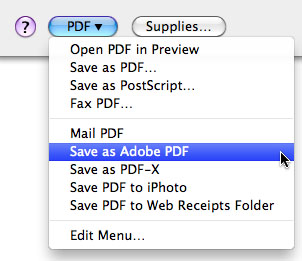
Choosing this option opens a dialog where you can select an Adobe PDF setting and choose to launch Acrobat or another PDF reader. (When you used the Adobe PDF Printer, you needed to discover that you had to choose “PDF Options” from the unlabelled popup menu in the dialog to make these choices. Alternatively, you had to choose the PDF setting in Distiller ahead of time. Now the options are much more obvious.)

After making your choice, you’ll be prompted for a name for your PDF file and a location to save the file.
Why the change? An Adobe TechNote provides a brief explanation: “Mac OS X Snow Leopard (v10.6)’s enhanced security features prevent Adobe’s PDF Printer from functioning as it did in previous versions.” Leonard Rosenthol, Adobe’s PDF guru, provides additional details:
In a nutshell, Snow Leopard no longer supports the necessary OS features we need to install a Distiller-based printer. It’s just as well, as that print path (of PDF->PS->PDF) is REALLY SLOW and full of a HUGE number of bugs for many years now that we couldn’t fix due to how the Apple printing system works. With Snow Leopard, you now have a new PDF Workflow entry (the things in the PDF menu in the print dialog) called ‘Adobe PDF’ which will convert the Apple-based PDF into an Adobe-based PDF using your supplied/chosen Job Options. It does so via native PDF transcoding — no Postscript here!! So we still provide a method for creation of Adobe-quality PDFs, but it’s FASTER and MORE reliable!
A few more issues you should know about:
- For this new feature to work, you must upgrade to Acrobat 9.1.3, the current version (or at least Acrobat 9.1). Acrobat 9.0 and earlier didn’t have this new capability.
- If you upgrade from Leopard (Mac OS X 10.5) to Snow Leopard (10.6), the Adobe PDF Printer installed by Acrobat 9 Pro is not removed. You’ll need to remove it yourself. To do so, choose Apple > System Preferences > Print & Fax. Select the printer “Adobe PDF 9.0” and click the minus (-) sign.
- If you install Acrobat 9 Pro new in Snow Leopard, and immediately upgrade to the current version (9.1.3), the Adobe PDF 9.0 print is not installed.
- Inevitably, since this is a new feature (and I suspect not very well tested), there are glitches. On one of my computers where I installed Snow Leopard, the feature worked a couple of days ago. Today, it’s failing in the PDF creation process with a crash. There are other reports of this in a thread on the Adobe Acrobat Mac forum. (If I get information on workarounds to solve these crashes, I’ll post it here.)
- If your printer requests that you use the largely outmoded workflow of creating PDF using Distiller, you’ll have to use the old method. First create a PostScript file, and then process it through Distiller to create the PDF file.
 |
This is the kind of articles that should be printed on the box of CS4 or on the DVD or as a splashcreen message… Why users have to wonder where it is, why it does not work, why it is not simple, why… ;-)
It crashes everytime after I’m prompted to give a name to the PDF.
I entirely agree, Branislav, that the Adobe product teams need to provide better information about what will and will not work when a new OS version is released. There seems to be no overall mandate that this be done.
What we get is pablum from the Adobe Marketing department: “Working closely with Apple, Adobe has tested and determined that our Adobe Creative Suite 4 products and components are compatible with Mac OS X Snow Leopard.” Some product managers, notably John Nack, in the Photoshop team posts additional information on their blogs, but most of the teams provide little information at all.
I knew about this situation ahead of time, but was warned not to post it until Snow Leopard release because Adobe was under NDA with Apple about the release. But there was no information provided by the Acrobat team when Snow Leopard was released that would reach a general audience. I only knew of the TechNote because a person, apparently an Acrobat engineer or QA person, posted about it on the Acrobat Mac user forum.
I’ve had a running battle with the Acrobat team for years about how they denigrate the Mac platform in favor of Windows, and this is a perfect example!
Steve,
From the tech note: ‘Users of non-Adobe Postscript-based publishing applications should be aware that due to this change, they can no longer print directly to Adobe PDFs and instead need to use another method for PDF creation.’
I take it from this and your description above that this change in OS X 10.6 does not affect Export to PDF from ID and other app’s in CS4. Correct?
LTM
LTM – that is correct.
Direct export from Adobe applications OR any other application is NOT impacted by the removal of the Adobe PDF printer. Since that is the method that we have been telling our customers to use for years now, and since the Mac OS already has native PDF generation – this switch away from the PDF printer shouldn’t be a shock and should have no impact on most users.
As Steve points out, we could not talk about this change until Apple released us from our NDA concerning Snow Leopard. As soon as they did, we provided the guidance in a FAQ and via two TechNotes.
I will also point out that instead of making you wait for an update the fixes the problem – we shipped the fix MONTHS before SL was complete so that users would not have to wait. (though perhaps something changed in the final version of SL which is where the crashes are coming from). You can never win the software vs. OS compatibility war :(.
Leonard Rosenthol
PDF Standards Architect
Adobe Systems
> Direct export from Adobe applications
> OR any other application is NOT
> impacted by the removal of the
> Adobe PDF printer.
TWO QUESTIONS !!!!!!!!!!!!!!!!!!!!!
Does that mean that in fact Adobe’s Automator script does not rely on Adobe’s PDF Library but on Apple’s one !!!???
Does that mean that it is not possible anymore to create a PDF with built-in trapping features from an InDesign document !!!???
The more we pay for updates, the more features are removed : InDesign contact sheet from Bridge CS4, AdobePDF printer in Snow Leopard, the Photoshop features (placed in fact on the Content CD,…)
What we do is let Apple do the original creation of the PDF using their Quartz technology and then we “transcode” their PDF into one of “Adobe quality” based on your job options settings. So while it starts out as Apple, it ends up as Adobe (using our PDFLibrary, etc.)
I don’t know how you are doing trapping today with InDesign – so I can’t comment on what would have changed. Assuming you use the Adobe recommend method of direct export from InDesign to PDF – then nothing has changed.
The choice to remove the PDF Printer was due to the enhanced security features of Snow Leopard – we had no choice – Apple made it impossible(!!) for us to deliver that printer. However, in the long run, it’s a GOOD THING – since the new PDF Workflow item is MUCH faster and generates BETTER PDFs.
Leonard
The world upside down ;-)
Leonard,
Are you following this thread in Adobe’s forums? https://forums.adobe.com/thread/483911?tstart=0
I started the thread and there’s at least 2 or 3 of us not having any luck with Acrobat 9.1.3’s new “Save as PDF” feature/workflow.
Leonard, thanks for contributing to the discussion! Keep it coming!
Leonard wrote :
“I don?t know how you are doing trapping today with InDesign – so I can?t comment on what would have changed. Assuming you use the Adobe recommend method of direct export from InDesign to PDF – then nothing has changed.”
Very simple ;-)
– In InDesign’s Print dialog box, select the AdobePDF printer.
– In the Output pane of the Print dialog box
– Color > In-Rip Separations
– Trapping > InDesign built-in
– in the lower part of the Print dialog box, click on the Printer button
– in the new dialog box > Instead of Layout et Pages fo to PDF Options : choose PDF/X-1a:2001
– OK, give a name to the PDF and Save
– back in ID’s Print dialog box and click Print
– the AdobePDF printer pops up and creates the PDF
– Open the PDF in Acrobat and Overprint Preview : the PDF with built-in trapping is created.
Leonard,
Can you educate me on why a PDF with settings “X” exported out of Indesign is a much larger file than the same file saved to postscript and distilled using settings “X”? I would much prefer the direct export route, but file size is often an issue.
I have noticed that the “Save as Adobe PDF” option in the PDF menu under the Print Menu does not work for Adobe PDF forms. When attempting to print a PDF form, the message received directs the user to “Save” using the File Menu. This method simply creates a copy of the form (albeit with the information that may have been inserted in fillable fields).
However, there is often a need to convert a ‘live’ form (one that is fillable) into a fixed PDF document (i.e., without fillable fields). This used to be possible using the print to PDF option which created a nice clean flat PDF file. On the other hand, using the File Menu and “Save” or “Save as…” do not create a flat PDF. the alternative, Apple’s native PDF creation facility (with their Quartz technology) does not seem to handle Adobe Acrobat forms very well (e.g., fields often loose information and embedded calculations are not performed).
The inability to print to PDF from a form using Adobe Acrobat and create a flat PDF file is a significant problem for us…it means that we have to find a PC and print to PDF using Adobe Acrobat installed on PC. So, what is the point of purchasing and using Adobe Acrobat on our Mac’s? Surely, there is a better way (maybe in the works?).
Wow wow wow, wait a minute…
Does that mean that the PDFMaker icons can’t be created by Acrobat when Microsoft Office 2008 is installed ?
Does that mean that creating accessible PDFs from a Microsoft Office is not possible anymore because there is no more PDFMaker script ?
And what about TOCs ?
And what about Hyperlinks, Destinations,… ?
Please don’t tell me that all this is stripped away from the Mac platform ?
Mike,
What you’ve been doing with Adobe PDF printer is called “refrying” the PDF. Essentially, you’ve been creating PostScript and then using Distiller (which is what the Adobe PDF printer used in the background) to make a new “flat” PDF.
You can still do that, but you’ll have to use a different method: You CANNOT use the Save as Adobe PDF function within Acrobat. Instead, choose File > Export > PostScript in Acrobat. Then process the PostScript file through Acrobat Distiller. You’ll get exactly the same result.
Branislav,
>Does that mean that creating accessible PDFs from a Microsoft Office is not possible anymore because there is no more PDFMaker script ?
Nothing has changed in terms of the capabilities of exporting PDF from Word on the Mac.
Word on the Mac has NEVER had those capabilities because Microsoft has crippled Word on the Mac. It doesn’t give Adobe the hooks to create a PDFMaker like in Windows. (I would maintain that, if they were motivated?which they’re not?the Acrobat team could find a way to do it, but that’s another old story.)
Dave,
I’d suggest you take that discussion to the Adobe Acrobat Mac forum. It’s a very complex issue getting the smallest file size. There are so many settings either way which affect it.
What should I do about Acrobat 8 and Snow Leopard?
After upgrading to Snow Leopard, I got the PDF printer error and cancelled at that time as I did not know what this meant. I followed Adobe’s instruction per article https://kb2.adobe.com/cps/509/cpsid_50981.html to “Remove the Adobe PDF Printer driver from the System Preferences (although my Acrobat is v8 not v9) and then tried to use the PDF print however, “Print as Adobe PDF” does NOT appear as it should. Even after Restarting, which I thought might be needed to take effect.
Did I remove the Adobe PDF printer when I should not have?
( I can export from InDesign CS3 to PDF and it appears OK).
I’m confused. Should I return the Acrobat 8 printer driver to the system (are other things going to break without it) — and I checked the Trash and the Acrobat V8 Printer Driver is not even there, so where did it go? (and I didn’t empty the trash…) oh no, as a graphic designer I need PDF capability…oy!
Help — suggestions please?????
Donna,
First, the change from the Adobe PDF printer to the Save as Adobe PDF function should have no effect at all on using File > Export > Adobe PDF from InDesign CS3 (or CS4). That’s the recommended way of creating PDF from InDesign (and there are similar methods for Illustrator and Photoshop).
The Save as Adobe PDF function can only be used by Acrobat 9.1 and higher so it can’t be used in Acrobat 8 Professional. And you might as well leave the Adobe PDF printer uninstalled because it will NOT work in Snow Leopard.
So when would you need the (now defunct) Adobe PDF printer? If you’re making a quick PDF from Word or from a browser like Safari, just use the Save as PDF choice under the PDF menu in the Print dialog. This uses the Apple PDF mechanism and it works fine!
If your printer wanted you to create a PDF using Distiller (old technology but some printers still like it), you could export a PostScript file from InDesign and process it through Distiller to create a PDF file.
So you’re really not missing anything.
How is one suppost to redistill a pdf file using this new system? In the past, I have printed a pdf from Adobe Acrobat Pro through the Adobe PDF printer in order to consolidate redundant embedded font subsets. In many cases, this results in a much smaller output pdf that is printable on a postscript printer with a limited (default) amount of memory. My tests so far show that there is no way to obtain this result with the new system; outputting postscript from Adobe Acrobat and then redistilling does not consolidate the embedded fonts.
Warren,
I have talked to Leonard Rosenthol and Dov Isaacs, Adobe’s experts on PDF and PostScript. They have said that all the Adobe PDF Printer did was to capture the PostScript generated by the application and pass it to Distiller. So I can’t explain why outputting PostScript from Acrobat and then redistilling would do anything different than it ever has.
Sorry, but the Adobe PDF Printer isn’t coming back. If you want to keep a computer forever in Mac OS X 10.5, you can continue to use it.
Steve: I’ve noticed that it is not possible to use the “Save as Adobe PDF” workflow within Acrobat itself from the File/Print… menuchoice; printing to make pdfs is permitted only in other apps. (Well, the workflow keeps crashing when I try to print to it from the other apps, but from within Acrobat Pro itself, a message box comes up to say that it isn’t permitted to print a pdf that you are reading to make another pdf.) This means that the “redistilling” code has been disabled; one had to print to the Adobe PDF printer or make postscript (and then use Distiller on the postscript) from Acrobat Pro.
Sure, I will retain a disk image of 10.58 so that I can redistill when necessary, but it is kind of disappointing that capability that is still possible within Windows is going to be lost from the Macintosh side. (Don’t get me started about FrameMaker.)
Question — I already had Acrobat Pro 9.1.3 installed and did a recent upgrade to 10.6, but I’m not seeing a “Save as Adobe PDF” option.
If I launch Acrobat Pro 9.1.3 and do a “repair installation” — it doesn’t do it there, either.
How do I get this Automator option installed?
Thanks!
– Steve
Steve,
That should be the way to do it. Have you removed Adobe PDF 9 printer. You might try that first, then use the Repair Installation.
Good luck.
Whoops — the repair *did* work. Sorry about that….
except when I actually try to use it, I get a crash:
Process: Save as Adobe PDF [3778]
Path: /Library/PDF Services/Save as Adobe PDF.app/Contents/MacOS/Save as Adobe PDF
Identifier: com.apple.automator.SaveasAdobePDF
Version: 1.0 (160)
Build Info: Automator-1600000~1
Code Type: X86 (Native)
Parent Process: launchd [193]
PlugIn Path: /Applications/Adobe Acrobat 9 Pro/Acrobat Distiller.app/Contents/Frameworks/AdobeACE.framework/Versions/A/AdobeACE
PlugIn Identifier: AdobeACE
PlugIn Version: ??? (???)
(etc…)
I’ve been trying to figure out the work around for a while now and don’t seem to be getting much of anywhere. I’m fine with changing my process, but everything that I’m trying doesn’t give me the results I need. My old process was file>print, set up the file, go to printer and choose pdf options>press quality, name the file and location, then print and then print on the original menu. That would kick out my file perfectly.
I keep trying to use the export and Adobe PDF Presets. I export it. It kicks out a PDF like it should. Only any effect that I put on it in InDesign is removed, which kills any design that I made… Any help on that? I’ve tried all the things suggested from Adobe, in this blog, and every other blog I could find. Help?
I do have another “problem”, however, it’s somehow related to the changes mentioned here.
Not only is the Adobe PDF printer not working anymore, the Adobe PDF 9 PPD has been removed! In InDesign, I used to print to a Postscript file using this very PPD. No PPD, no PostScript file. So I copied the PPD back from a 10.5 machine. So far, so good. I can write a PostScript file via the Print dialogue in InDesign and put it manually in Distiller 9. But alas, Distiller is super slow in 10.6! A 82MB PS-file took 94 seconds to proceed, while the same file with the same settings on a machine running 10.5.8 only took 7 seconds! There’s a thread in Adobe forums mentioning this problem.
To be clear: I used to select “PostScript file” as a printer in the print dialogue and “Adobe PDF 9.0” as PPD to save my InDesign doc as a PostScript file. This file I put manually into Distiller. Why so complicated? I turned out that this way seems to create PDFs that are usually a little bit smaller in size and are less error prone in several print shops (they might have older RIPs that don’t like PDFs exported directly from InDesign). Problem is, that the distiller got extremely slow with 10.6 for no apparent reason.
Second, the workflow described here (“Save As Adobe PDF”) does not work with InDesign, does it? Which printer should I select in InDesign’s print dialogue? When I select “Save As Adobe PDF” in the system’s print dialogue, nothing happens. For me, “Save As PDF” only works in applications, that use the system’s print dialogue (e.g. Pages, Preview etc.).
Oh, this requires V9 (and I have Acrobat 8 Pro), I see now.
I’ve never had to manually distill anything and guess I hope not to if it’s an older technology.
I just package my InDesign files and send the whole package folder along with a quality PDF.
Thank-you so much, Steve.
Great having you guys and gals so up to date on all things InDesign plus all the tips – keep up the great work!
How does one get the new pdf print functionality after doing a standard update install of 10.6 from 10.5?
I had both Acrobat Pro 9.1.3 and Reader 9.1.3 already installed. After reading the above discussion, I deleted the pdf printer, and also deleted the Reader, then re-installed the Reader (9.1, 9.1.1, 9.1.2, 9.1.3 –no combo updaters! :( ).
I did not uninstall Acrobat Pro since that is a site license and I don’t have the install CD at home.
Having done all that, there is still no sign of the new “Automator function in the Print dialog called Save as Adobe PDF.”
One problem with this (and the reason I had to downgrade back to Leopard last week)
I had to do “print booklet” in InDesign to get printer spreads for a 24 page booklet we were doing.
Unfortunatly theres no “export” setting for this you have to print booklet – thus selecting the adobe PDF printer was perfect for this.
Now ive found this and upgraded back to Snow Leopard I have to use my “Epson” driver as the printer but go into it and select “save as Adobe PDF”
This works, except by using my Epson printer drive I cant create custom paper sizes which i need to do, and I can accurately apply crop marks etc…
I need the adobe PDF driver back to set paper sizes etc properly this way, but now I can’t get Adobe to install the printer driver/plugin..
Bah . Adobe Fail!
@Daniel:
I don’t have SL installed yet, so I can’t try this myself, but why can’t you create a new printer (doesn’t matter which one — as long as it’s postscript) and assign the Adobe PDF printer driver to the printer. Then you can select it in the print window and create the PDF using the “new way”.
Does SL remove the Adobe printer driver altogether?
If that’s the case (bad!) then you really can use any printer driver out there which supports the page sizes you need…
As far as I can tell the Adobe PDF PPD is removed altogether. But you can get it back from a backup or a machine still running 10.5.x. The PPD is located in “Library > Printers > PPDs > Contents > Resources > en.lproj” (true for german system, might be slightly different with other languages). Copy it back to “Library > Printers > PPDs > Contents > Resources”. Don’t use the subdirectory “en.lproj”, because it seems like from there it is removed again every time Acrobat/Distiller is launched.
Still, this “new way” doesn’t seem to work with InDesign, no matter what. Selecting “Save As Adobe PDF” just doesn’t do anything here :/ (It works in other apps, though).
@Harbs – yes it removes it all together :-(
Save as adobe PDF worked for me on print spreads, but as i said i couldn’t change the paper size to a custom size for my booklet (which is A5, but A5 spreads with bleed, colour bars, and crop marks – thus a very custom size)
Also the quality of the text was dire, lots of jaggies, very strange – print using the distiller produced a perfect result so its a odd change at the minute…
In 90% of situations export to PDF will work anyway, I cant see why anyone would want to do save to PDF except in my position where you want InDesign to do impositions for you…
Hi there,
As some have mentioned, removing Adobe PDF represents a problem in booklet printing to PDF.
When I used to print a booklet from InDesign to PDF I would select Adobe PDF printer, select the paper size (Defined by driver) and all would be fine. Or alternatively PostScript printer and Adobe PDF PPD.
Now, as Adobe PDF printer is no longer listed as an option (and can’t be added as a printer in General Settings/Print&Fax section) I’m forced to use PostScript printer.
Preview looks ok (two A5 pages, one next to another, making it a landscape A4), but when I check the summary, and check the Setup section, it says Paper Size: A4, Page Orientation: Portrait. Which is wrong. It should be A4 (or Defined by driver) and Landscape orientation.
When I try to edit PostScript Print settings, everything is greyed out, nothing can be edited/changed.
When I distill a .ps file I then get A4 portrait pages with A4 landscape (2x A5 portrait) artwork on them – part of artwork cut off and empty space on top.
My question therefore is, how do I edit the PostScript setting when printing a booklet? And how to get a proper PDF?
I hope this makes sense.
Thanks.
Howdy. I had CS4 Master Collection with Leopard. Everything worked fine. But when I upgraded a week ago Friday, I have had problems with Acrobat as noted in other threads.
I also have problems with InDesign and Illustrator. When I try to select File > Print. I get the spinning ball, and I have to force quit the applications. I had removed the Adobe PDF Printer as instructed prior to doing anything else.
So, now what might be causing the problems with no ability to print? I’m at a loss.
wow it took me 3 different google searches to find this — thats a shame – i like the ease of printing to pdf printer.. i find the drop down menu an extra step (and i print probably 50 websites a day w/ this)… shame.. i will miss it
thanks so much for letting us know what happened (too bad adobe couldn’t mention it eh?)
thanks
ciara
Resolved my issue. Apparently I had to reload my printer drivers (even though it was to be automatic, it wasn’t).
At least I can use the programs.
Matz,
I’m having exactly the same issue as you…the only thing I’ve figured out is to change the driver to one that supports whatever paper size/layout I need, export as an EPS, then run it through distiller.
That should be a totally unnecessary step considering Adobe themselves call running things through Distiller an antiquated way of doing things. They don’t seem to leave us any other choice…
Hope it gets resolved soon, I use the Print Booklet feature multiple times a week, and this would add an extra 2 or 3 hours of non-productive time to my year. (Kind of makes you more irritated when you think of it in terms that big, doesn’t it?) :-)
who do they think they are at apple and adobe?
i´m downgrading to leopard again, anyway i couldn’t see the big progress in 10.6., and finder seems to be really slow/delayed in snow leopard. as many said before, 64bit is hardly to notice.
no way to keep up my old distiller based workflow, export out of indesign is really uncomfortable, same is “save as adobe-pdf” feature. by the way this feature is hard to reach when you’re trying to print with indesign.
i truly wish someone had warned me about this issue. and don´t tell me they didn’t know at adobe and apple.
“no incompatibilities expected!”
* rofl *
maybe i’m ready to upgrade with release of 10.7 or cs5, if they manage to provide a pdf-workflow, that makes sense to me.
i at least am not willing to work with this shit and betatesting for them!
Those of us who knew this were coming were constrained because Adobe was under NDA about the details of Snow Leopard.
If you have “classic” (meaning “old”) workflows, your best bet is sticking with older versions of the OS. Just realize that it’ll get harder and harder to maintain them as things move forward.
i like it if things move forward, otherwise i wouldn’t have updated.
but what adobe offers with it´s “save as adobe pdf” feature is no option, if you have to generate about 50 pdfs a day, each with different settings in size and crop.
as already mentioned you can hardly access this feature if you work with indesign.
i hope they find out something new, that offers the choice of individual settings for each new pdf that has to be written, accessible within one or two mouseclicks out of indesigns printmenu, as it has been in Leopard.
till then i´m back on 10.5.
For those upset at the inability to “Print to PDF” from within Acrobat itself, try using the “Save As…” feature.
The second option in the pull-down menu is for an Optimized file, and selecting it gives you access to the “Settings” button where you can specify and save setting similar to Distiller. Not quite as convenient as using Distiller’s own settings files, but I find it useful, especially for trimming those enormous PDFs that CS3 applications create.
I’m having a real issue with this in my workplace. I work at a printing establishment and rely heavily on the ability to create saddle stitch PDFs. I need the ability to specify crops and bleeds as well as specify an output document size. All of this has been taken away with this new update. If I’m doing something incorrectly to make this happen, could someone please enlighten me because if I can’t quickly paginate a PDF using InDesign’s “Print Booklet” feature, specify a job option and choose my output PDF size then how is this a step forward? And why is the “Save as Adobe PDF” menu so buried? And why does the print diolog box still seem to be wanting information from a PPD. None of this is intuitive and further more, nothing I try works or gives me the results I used to get. I really hope this gets taken care of because I know thousands of pre-press departments are being affected by this.
This is a major Pain in the A>>. I work in a virtual office and share a pretty high volume of PDF documents as software requirements, diagrams, etc. I almost never print to actual paper, the PDF driver was my default printer. I would hit Cmd-P, Return, print a file name, Return and presto a PDF. Now I have to mouse around and find the “save to PDF” option from some ridiculous nearly hidden list of options in a drop down button. There’s no keystroke or shortcut that I can find that allows me to do this w/out mousing around.
Sounds like Apple and Adobe ran out of time and the usability got left on the cutting room floor.
BTW, I’m on Acrobat 8 still, so I don’t even have the option to “Print to Adobe PDF” – AND if I print to landscape mode, the view isn’t rotated, the document is “sitting on its side” in portrait — very frustrating…
Hi all,
Apple loses his mind, or something, but removing the ability of making postscript from indesign with PDF9 ppd is just ridiculous.
Anyway, for you, download the right PPD here
https://a.imagehost.org/download/0880/en_lproj
f**k adobe and apple for this, osx was such a great OS, and every version brings it more down, very very very sad :(
Thanks a lot Thomas!!!!!
That tweak works great for me. Again, i can now publish High Res pdf using InDesign for printing .ps file and distiller to make pdf (the best way for me). I feel free again!!!!!
So… I might be a little slow but how do you use the PPD… I want it to work. I’m just not knowing what to do with it.
Where I’m really missing it is on the Windows side — I’m running XP in VMWare Fusion and I used to print to Adobe PDF from there…
@JulCy: So you are using Distiller on 10.6.x? And Distiller (8.x or 9.x) runs fine? On my MacBook Pro it runs terribly slow for no apparent reason (by slow I mean about 10 times slower than before). I still don’t have a clue if this is just an odd side-effect on my very machine caused by anything other than Acrobat an 10.6 and if so, what might be the cause.
It’d be helpful if users report on Distiller performance on 10.6(.1) when dragging a .ps-file manually on it. Thanks!
@ DrWatson
Distiller runs a bit slower on my mac pro (8core early 2008) but not 10 times slower…
Joe L. and Daniel Sheppard, my problem is the same as yours. It’s been two weeks since you posted here, have you discovered a solution?
I’ve been looking for a solution since 9:AM (it’s now Midnight). I also spent an hour-half on the phone with Adobe inDesign support (no help at all). This thread seems to be at least the right group of people.
I’m running SL with Adobe 9.1.3; CS3 and CS4
Most of my inDesign needs are printing booklets (like Joe L. and Daniel Sheppard, above). I am now completely unable to do this. Most of the information in this afore mentioned article (https://kb2.adobe.com/cps/509/cpsid_50981.html) works for every application… all but inDesign. Most notably, when I select File > Print booklet… the dialogue box comes up but the “PDF” button is missing in the lower left corner and I am unable to designate paper size.
I am able to print PostScript, with spreads distributed in booklet form, but the pages are showing as individual (9 x 12) facing pages, not one big (12 x 18) page that I need. So, if I distill the doc, I end up with 16 individual pdf pages instead of 8 large spreads.
I’m hoping someone in this thread can give me the answer, solution, trick, that persuades me to not have to revert to OSX.
gwadmin,
You can kind of get around this by installing a PS printer on Windows, and then converting the saved PS file to PDF using Distiller or Preview. Yes, it is a hassle, but it’s better than nothing.
I think I can help with the print booklet issues.
I too upgraded to Snow Leopard & have just wasted hours trying to impose a 24 page booklet – A3 saddle stitched to A4.
The process I have used follows…
InDesign CS4 – file>print booklet
select .ps & check preview is ok (if not fix in printer settings) click PRINT & you’ll get the save as box.
When it is done go into distiller, using press settings *make sure the paper size is right* in ‘settings’ The default page size is at the bottom of the General tab. Save this as what ever you want & run your .ps file though.
Worked for me – I know an extra step but at least I have met my deadline (just) & I have the correct settings for future use.
I hope this helps someone!
Now that the InDesign print dialogue box has no reference to creating pdfs I made a press quality file of a print ad using the Export Adobe pdf option. It seems to have the same default options for a press quality file as the Distiller had. The only problem that came up is that the size of the pdf file is now 5 times larger the than the the same ad produced before upgrading to 10.6.
It really bothers me that needs of people who make a living using this software have been overlooked. Adobe Creative Suite is expensive and this is how they treat us.
I just cant resize my pdf I would like to print. Although I did like https://kb2.adobe.com/cps/509/cpsid_50981.html suggested, I don’t have any “PDF” menu in my print-box. Whats the point of replacing working patterns with inefficient and complicated methods? And how can I produce PDFs from InDesign from now on?
Thats devinitvely not a business-friendly solution !
After upgrading to Snow Leopard, I can no longer creat “booklets” from InDesign files. I was advised to first export to Postcript and then Distiller (with Press quality settings) , but I invariably get an A4 default final size format. In other words, my document is a small 3″ x 3″ manual, but I get a lot of white all around… How should I proceed to maintain the original size?
I finally got to make it, thanks to Jinny Coyle’s post. I did not realize earlier that one has to MANUALLY define the spread size, INCLUDING bleed. Makes no sense that one has to go to such length to create a booklet pdf. I hope there will be further clarifications regarding the booklet issue.
I cannot believe how difficult this has now become, I have set up a hot folder, ( regression). But still I cannot get my paper size customised correctly anymore. all my presets are stuffed up and The PPd That goes through outr A4 laser printer actually prints a page instead of saving as an adobe PDF. FIX THIS NOW, all we need is the PPD, honestly, this is really counter-productive.
Thomas, a few post upper, gave us a link where we can dowload the PPD. It works for me… Should work for you.
https://a.imagehost.org/download/0880/en_lproj
I have created a virtual Printer that prints to my distiller, I struggled to find the PPD for distiller 9. any suggestions?
i have just post the link in my previous message.
Thomas, thank you for posting the PPD. Just what I needed.
For those interested, I made a tabloid-size chart comparing PDF-creation features across Adobe InDesign CS4 Print to PostScript, InDesign CS4 Export to PDF, and Distiller CS4. It shows where you can (or can’t) find the same settings between the dialogs of the different methods.
You can find it here:
https://www.mediafire.com/file/crerznmiigm/PDF%20Workflow.pdf
Here is a low-res preview:
https://skitch.com/sodiumpowered/nneqk/picture-1
Well this would have to be the worst set of upgrades I have seen, ever. I am still repairing various things after having installed SL.
I have used PDF since the early days so going back to the “old” method is not such a big deal and is possibly an approach for others.
Before starting, use Distiller to create a pair of watched folders in, for example, Documents. This will create two folders, “in” and “out”. Postscript files get saved in the “in” folder and distiller puts the completed outputs into the “out” folder.
In Distiller select the output quality required.
In SL create a printer instance that uses the Adobe PDF 9 PPD.
In inDesign, print to postscript by selecting save as postscript in the print dialog, with the print choices you desire. Save the resulting ps file in the new “in” folder.
When Distiller sees the completed ps file it will distill it.
Oh and, contrary to the Adobe staffers’ protestations, Apple has taken steps to make their product more secure. It is Adobe who are insisting on using old technological approaches and it is little wonder their Adobe PDF still works on MS Windows. What Adobe needs to do is get with it and change their process to one that is more secure, after all if printer manufacturers can do why then can’t they?
Alan L @9:52 pm, This is exactly what I had done as well and thanks to Thomas and Juicy’s link, I use the Adobe 9 PPD and all is working well. I have not heard any protestations from my printers and media houses, so Hot (watched) folders it is. Although I have to remember to open Distiller and minimise it.
If Adobe was trying to be so security compliant, why does the PPD still work?! Just goes to show that its a poor excuse on their part.
@ jimmy Coyle
Thank you for your suggestion, using distiller and manualy setting the page size to make a good booklet pdf.
Just one problem: the imposed pages don’t appear on the center of the page but on the left and bottom of the page.
This is not what I want bevause I want to print on both sides of the page. In the ‘print booklet-menu I can’t choose to set to center of page because this is greyed out.
Does anyone know how to sidestep this?
Help! I have InDesign CS (NOT CS2,3, or 4) and have been happily printing PDF’s using the Export command. Post-Snow Leopard, though, everything’s a mess. It works sometimes… but usually not. The above advice seems only to apply to newer software than I have – I don’t even get the “PDF” menu in the Print dialogue box that my other apps have.
I only have Acrobat 6, not 9, but since I don’t directly use it for exporting PDF’s, doing it directly from InDesign, I’m not sure how that’s relevant? Do I need to upgrade it too for some reason?
I do my invoicing via PDF’s from InDesign, so it’s pretty urgent that I sort this out.
Thanks!
adam
Oh, and also, Acrobat 6 gives me an error message when trying to print a PDF using an exported .ps file from InDesign:
“Acrobat could not open ‘filename.eps’ because it is either not a supported file type or because the file has been corrupted (for example, it was sent as an email attachment and wasn’t correctly decoded). To create an Adobe PDF document, go to the source application. Then print the document to Adobe PDF.”
What am I doing wrong? It seems like all avenues to PDF from InDesign are blocked.
adam
Well, perhaps (and luckily for me) I spoke a bit too soon. It must have been just the one file that was giving me grief – for subsequent attempts on other files, exporting to PDF seems to work now, albeit sometimes with (sometimes) a bit more of a delay before the process commences.
Sorry about the previous panic!
But a few problems just cant be solved: Neither can I print pages above A3, nor can I print single pages from a document – I just brought PDFClerk Pro – pitifully my Acrobat sums up to 690? (660? for my Accrobat + 30 for PDFClerk) …
For what it’s worth, I’ve been having similar issues to the problems described in this thread (OSX 10.6.1, Acrobat 9.2.0, save as Adobe PDF routine crashes). I discovered that it DOES run without crashing, and makes the pdf, if I choose “Desktop” as the destination directory, whereas iIt crashes when I choose a different directory. I am perplexed by this, and I have no idea if it contributes to to a solution to this really annoying problem (really convenient feature in an upgrade, removing the ability to save pdf’s using Adobe PDF Settings).
I’ve also found that Acrobat 9.2.0 appears to have trouble opening pdf’s created using Apple’s direct Save as PDF routine, so going that route (save as PDF, apply settings with Acrobat) doesn’t work either.
I?ve heard there are some wildlife groups trying to get Apple to do more stuff with the actual S.L.?s lol. I don?t know- people are saying it?s good PR for Apple- they should jump on that.
The “Save As Adobe PDF” Automator action works in other apps (e.g. Safari, Mail, etc.), but when used from InDesign (File > Print > Printer… > PDF > Save As Adobe PDF) it fails every time!
Thank you for this very helpful explanation. I agree, the new way of handling the PDF printing needs to be more widely publicized. Instead of trouble-shooting to “fix” something, we need information to understand the new method.
Pete: When using InDesign, use File > ADOBE PDF Presets > then choose your preset setting of choice. You will be given the chance to name your document, then the PDF options window will pop up so you can change settings. Alternatively, use the File > Export function and select the file type “Adobe PDF” to “print” to a PDF. After naming the document (and locating where to save it), you will get the Adobe PDF settings window.
I hope that helps.
I prefer the old “print” feature because, among other things, it would let me “fix” upside down PDF files.
I know I can rotate a file within Adobe so it’s right side up, but even if you do that and save it, when you re-open it, it’s upside down again. I want to be able to send it to people right side up.
Any ideas?
DOH! Problem solved. It turns out HOW you rotate the pages determines whether the rotation stays put.
If you use the button on the tool bar, it won’t stay rotated. If instead you hit “Document” on the menu at the top, then “Rotate Pages,” the rotation can be saved.
That’s a nuance I’d rather not have to learn.
: )
@Walter
Yes, the one on the toolbar is Rotate VIEW, whereas the one on the Document menu is Rotate PAGES. The former only changes your view during the current session; the latter alters the document permanently.
Thank you so much for this post – I’ve been searching for the answer to the print to pdf option after upgrading my mac to snow leopard. It’s been driving me crazy! tytyty
There wouldn’t be a problem if we could still create an imposed booklet as another ID file. Why was feature ditched in CS4?
Jinny Coyle, you are a lifesaver!
Creating a PostScript file and running it through Distiller is about the most ludicrous way to produce a booklet from InDesign, but it worked!!
Thank you thank you thank you!
And to Apple and Adobe: Thanks for nothing!
Mmm… there’s something missing here.
Supposedly the ‘old’ method was doing PDF(1)->PS->PDF(2) ; PDF(1) being OSX’s own, and PDF(2) being Adobe’s.
I still use AppleWorks; my Word Processing doc has a couple of pasted PDF graphics, one being my logo and the other my signature.
In Tiger: if I use Apple’s “Save to PDF” it comes out as almost 1Mb and with the graphics turned into bitmaps, horrible. But if I use instead Adobe’s printer, it comes out as 70Kb and with nice vector graphics.
In Leopard: same except for the fact that I have to do a “first use” of the AdobePDF printer in any other application, otherwise AppleWorks won’t recognize the margins and will output a blank page.
In Snow Leopard: the only way to get vector graphics is to print to “Save as Postscript” and then go to distiller.
Stats (Snow Leopard):
via Apple’s Save As PDF: 954kb and bitmap
via Save As Adobe PDF: 82kb and bitmap
via PDFShrink: 901kb and bitmap
via Save As Postscript: 1.5Mb
same Postscript to Distiller: 61kb and vector
SO…. it seems to me AppleWorks embeds some vector postscript code or something like that in the original PDF, that makes it huge. PDFShrink for some reason can’t make it smaller. But “Save as Adobe PDF” indeed results in a reasonable size, so I bet it’s discarding that extra info. However, in doing so, it’s taking the lower quality representation (bitmap) instead of the higher quality one (vector – and smaller too).
Something in the old PDF->PS->PDF workflow resulted in better quality than your new PDF->PDF transcoding workflow…
And I wonder how will the iWork apps (Pages, Keynote, etc) behave at this… because Pages for example, also used to create gigantic PDF files (on direct export) compared to PS->Distiller or AdobePDF printer.
Once again, apple and adobe acomplished to leave us all searching for answers on PDF Print, so useful for all of us pre-press professionals…
I havent tested it yet, but I will…
Here’s a solution from codepoetry guys…
https://www.codepoetry.net/projects/cups-pdf-for-mosx
Hope it’s useful
cheers
iMike
Mmm… more results.
Same AppleWorks file, converted to iWork’s “Pages” app:
– Pages’ “export to PDF” = 475k
– print, “Save as PDF” = 475k
– print, “Save As Adobe PDF” = 78k
– print, “Save As Postscript” = 422k ps file
– distill that ps file = 33k
so again, we have the very best result from printing to postscript and then distilling.
and yes, I checked, in that ‘smallest’ file, all fonts are embedded subsets.
So, with a modern Apple application such as Pages, depending on the method we get PDFs from 33k to 475k that look exactly the same (and contain no bitmaps).
And if we stay in the older AppleWorks, we get PDFs from 61k to 954k, with only the smallest (distilled) being vector, and all the others ugly bitmaps.
Could someone make a “printer” that will output to postscript, distill, and delete the ps file? that’s what would be needed…. it still produces files half the size of Adobe’s brand new “PDF Transcoding” – probably slower but size is more important for business docs that’ll be emailed…
“Could someone make a ?printer? that will output to postscript, distill, and delete the ps file? that?s what would be needed?. it still produces files half the size of Adobe?s brand new ?PDF Transcoding?”
That printer existed in Leopard, and it’s called PDF Printer. No longer exists in Snow Leopard, unfortunatly.
You just had to hit PRINT, select PDF Printer and than save as pdf. On the pdf options/Adobe PDF Settings you have to had Smallest File Size, and Voilá. A PS file was created and sent to Distiller that would convert to tiny pdf.
I know cause I’m a pre press professional that uses PDF to send pages to CTP (computer to plate) printers. Instead of selecting Smallest File Size, just used PDFx1-a. I was able to make A4 PDF’s 300dpi with bitmaps 1mb big. Thats WAS great. Good old times. Now the same pdf is 6mb big. Goodbye ftp upload :(
Hope QUARK make a new QUARK CUPS Extension to correct this problem created by apple and adobe.
My organization cannot afford Acrobat Pro 9 so I’m still on Pro 8. InDesign CS3 and Snow Leopard on an Intel Mac. When I export a CS3 file to PDF that was on a light blue background, it comes out purple or dark red! Any ideas?
@Ruth, what export settings are you using? Are you seeing this on screen or in print? Do you see the same problem if you enable overprint preview in InDesign?
Hello all.
My ?saves? seem to be working fine, but I can?t get past the PDF issues I?m having. Every time I try to create a PDF form the new PDF menu in the Print window, a crash occurs. I can?t even Export a PDF in InDesign CS4 without the app crashing. I have updated Acrobat Pro to 9.2, removed the Adobe PDF Printer, etc. and still crash. Anyone have any ideas? I am lost without being to create PDF files!
@Chris: That sounds terrible! It sounds to me like some preferences have gone bad. Have you tried rebuilding the preferences? Is it just InDesign, or other apps, too?
Hi Dave.
Any app seems to crash when trying to create a PDF. I work in InDesign a lot and am upset to see my trusty Eport option fail. I was considering trashing preferences next, or is there another way to “rebuild” them? I’ll give it a try tonight and let you know how it goes. Thanks for the quick response.
Dave,
Thanks again for the reply. I rebuilt preferences and so far everything is working. Sure beats starting from scratch?
HELP!
I cannot tell you the level of frustration I have experienced with the switch to Snow Leopard and its fallout in my work flow.
All I want to do TODAY is to take a two-color inDesign CS4 (on the Mac) file — a 24-page booklet — and create a one-color .pdf file for my commercial printer to use in printing this job.
In the past, printing to Acrobat .pdf file converted the color to greyscale (when selected from the inDesign print dialog box), giving me a one-color job.
Any ideas on how to do this? It costs me extra each month to have my commercial printer run this through their software and convert all color to b&w.
Thanks!
Hi there!
Nice to see such great collaborative effort.
Hope that Adobe and Apple can get these issues resolved in a user friendly fashion ASAP.
My situation is unusual, though. I’m using InDesign (now CS4) to produce film for making photopolymer plates for letterpress. So, all my art is spot colors, and I don’t want any process plates emitted. Prior to this 10.6 disaster, I would export a PDF, open in Acrobat 8, Print to Adobe PDF, and in the Advanced dialog, turn off all but the spot colors. This would produce a very nice PDF, one separation per page (with reg marks, etc), which I then send to my service bureau to print as a simple B&W PDF.
The service bureau is a local printer who still has an imagesetter. However they are not technically expert, and have complained about unseparated PDFs “We would have to do it manually” (Ahem)
I’ve attempted to follow some of the advice here, and produce a .PS file from Acrobat 9, but when run through the Distiller, I get the following:
Start Time: Sunday, 27 December 2009 at 2:50 PM
Source: /scratch/exquisiteletterpress.com/Jobs/20091203 Semiotx Cards/SemiotxCards2009.ps
Destination: /scratch/exquisiteletterpress.com/Jobs/20091203 Semiotx Cards/SemiotxCards2009.pdf
Adobe PDF Settings: /Library/Application Support/Adobe/Adobe PDF/Settings/Press Quality.joboptions
%%[ Error: undefined; OffendingCommand: Adobe_AGM_OnHost_Seps ]%%
%%[ Flushing: rest of job (to end-of-file) will be ignored ]%%
%%[ Warning: PostScript error. No PDF file produced. ] %%
Distill Time: 8 seconds (00:00:08)
**** End of Job ****
And that’s the end of it.
Google shows no useful results for “Adobe_AGM_OnHost_Seps”
I’ve also tried setting “In-RIP Separations” but that brought the same grief.
Greetings to Anne Marie from way back ;-)
Would very much appreciate any further hints or possible work-arounds.
This is severely impacting my business at the moment!
Cheers!
Peter Fraterdeus
slowprint.com
OK, well, shortly after posting this note here, I found the following:
Adobe InDesign CS4 * Print or save separation…
https://bit.ly/7q7ugW
Which works very nicely…
Whew.
Thanks!
PF
slowprint.com
ideaswords.com
Peter! The type designer? Studio in Evanston?
I have Snow Leopard and Acrobat 9.0 and whenever I attempt to print a PDF adobe crashes. Is there some software I can use to fix this?
Hi, Anne Marie!!
Yes, although I’m in Galena now for 12 years.
(Still plenty of time in Evanston, though!)
Back to the letterpress, & a little type design when time allows ;-)
Peter
slowprint.com
alphabets.com
ideaswords.com
There is a solution I found for creating booklets even for those of us still using CS3 through a “plugin” called “Create Booklet”. I had used this before, but then did not need to when Adobe had the print booklet option. Then, with Snow Leopard, I went back to see if this was still around. In fact, it has been updated for Snow Leopard. You can find it at:
https://web.mac.com/vogelbusch/Site/Programs/Einträge/2009/7/22_Create_Booklet_1.1_support_Snow_Leopard.html
Not only is the Adobe PDF printer not working anymore, the Adobe PDF 9 PPD has been removed!
I just want it back so I can write a PostScript file because I prefer to make a PDF in this way!!!!!!!
I wrote a little piece of software that allows the PDF printer from version 7 (which I own) and 8 (reportedly) to run. Nobody’s tried version 9, but there is no reason it shouldn’t work (if you get your PPD file back, that is).
I wrote this for myself, but am willing to share. The installation is a bit rough, but if you’re not scared of running a shell script, it should work just fine.
Let me know what you find, https://www.busysignal.net/pdfagent.html
Incidentally, if anyone wants to host the project, please let me know.
I hope this is useful, it certainly was an interesting little software project.
Robert
Hi guys
I (or rather: my Mac users – I am running Acrobat on Windows myself) am also experiencing problems.
I have installed a fresh & clean 10.6 system, upgraded that to 10.6.2, then installed CS4 from the two DVDs (I won’t start a rant about the totally crap deployment tools for CS4).
Now there is a shiny “Adobe PDF 9.0” printer – which does not work and should be deleted. Done.
Thing is, from the Print menu, the PDF button display the pulldown menu, only there is no “Save as Adobe PDF” option :(
Any idea how to get that menu option.
Right now I have removed the stuff that did not work, and the stuff that should work is not there….
I don’t find this method faster, or more efficient.
I was able to make very small files (800K) from my Quark files (20 MB) before I upgraded to Snow Leopard and now the smallest I can get my InDesign files down to is about 2 MBs which is not enough for my purposes.
Can anyone help me figure out how to crunch these files down more? I have about 3 font families I’ve embedded, each with the typical faces: normal, bold, italic, bold italic.
Reduce File Size and PDF Optimizer have already been used on these files…are there any other settings or plugins or other options besides totally deleting the photos out of the document that would make them smaller?
Hi Robert
I’m very glad to see, that someone is trying to fix this unbelieveable Adobe vs. Snowleopard situation.
Unfortunately your solution didn’t work. I’m using 10.6.2 and Acrobat 9.
I copied the ADPDF9.PPD back to the suggested location. After the first try, I copied pdf900 and PDFAgent manually to the described locations and let the script run a second time. But still no success. Below you can find what I got in terminal running your script. I hope this helps in finding a solution.
Last login: Fri Feb 19 08:13:48 on ttys000
/Users/zisch/Downloads/10-02-17/pdfagent-0/INSTALL.sh ; exit;
Bottlerocket:~ zisch$ /Users/zisch/Downloads/10-02-17/pdfagent-0/INSTALL.sh ; exit;
Please enter your Acrobat version (7, 8, or 9):
9
Locating the original pdf900 backend in /Applications. Please stand by…
Found the backend at /Applications/AddOns/Grafik/Adobe Acrobat 9 Pro/Acrobat Distiller.app/Contents/MacOS/SelfHealFiles/AdobePDFPrinter/pdf900
Installing new backend as /usr/libexec/cups/backend/pdf900
Backing up original file to /usr/libexec/cups/backend/pdf900.old
Password:
install: backend: No such file or directory
Copying PDFAgent to /Library/Application Support/PDFAgent
install: PDFAgent: No such file or directory
Creating /Library/LaunchAgents/net.busysignal.PDFAgent.plist
sed: net.busysignal.PDFAgentN.plist: No such file or directory
Starting PDFAgent
launchctl: no plist was returned for: /Library/LaunchAgents/net.busysignal.PDFAgent.plist
launchctl: no plist was returned for: /Library/LaunchAgents/net.busysignal.PDFAgent.plist
nothing found to load
If the PDF printer is missing from your printer list, you need to create it.
First, you need to locate the file ADPDF9.PPD. This may either be in a backup or on your original Acrobat CD.
Second, you need to copy this file to /Library/Printers/PPDs/Contents/Resources using the command:
sudo cp ADPDF9.PPD /Library/Printers/PPDs/Contents/Resources
Third, you need to recreate the printer queue using:
sudo /usr/sbin/lpadmin -p “AdobePDF9” -v “pdf900://distiller/” -P “/Library/Printers/PPDs/Contents/Resources/ADPDF9.PPD” -E -D “Adobe PDF 9.0”
logout
[Prozess beendet]
Joachim,
thanks for your bug report. Sorry for your trouble, it looks like the installer I cobbled together is to blame for this. I’ve improved it, you can now run the INSTALL.command using a Finder double-click and it will actually find its files.
I haven’t had any feedback regarding Acrobat 9 or non-US installations, but I think it should work since the whole thing is really quite primitive.
Regards,
Robert
Thought I’d share the solution to my missing “Save as Adobe PDF” menu option.
I installed from DVD media, and those contain Acrobat 9.0.0. As soon as it is installed, Acrobat phones home to find out there is an update to 9.3.1 and goes downloading and installing – which is good in itself, because now you have at least a non-vulnerable version (well, ehm, not YET known to be vulnerable).
I installed 9.0.0, then manually downloaded the update to 9.1.0 and ran it. This added the much wanted “Save as Adobe PDF” menu item. From there on Acrobat will update itself to 9.3.1 again, but the option stays there.
Bottom line: the options ONLY seems to get installed when updating from 9.0.0 to 9.1.0.
Directly updating to latest/greatest will NOT work.
Pretty counter intuitive, but at least I know what to do now….
It’s nice in a bad way to find people who are having the same aggro as me. Only I am using Illustrator CS4, OX 10.6.2 and I can’t save anything! I just switched back to Mac because I thought the CS4 issue was a PC failing. Ha! i can’t even save my work. I need to edit files to the customer’s approval, then send them a pdf but I can’t even save the file with the changes OR create a pdf. i’ve been no kidding, trying to solve this for about 35 hours so far this week. And haven’t been able to turn out one piece of finished work! It crashes. I’ve contacted Apple and Adobe and looked at every forum under the sun. I really, really hope to find an answer, since I passed the old PC down.
I don’t even know what a ppd is, much less where to put it, but I downloaded what was linked… I’ll try anything at this point, short of human sacrifice.
OK – based on the advice here, I saved an Illustrator file as an eps file. YAY! didn’t crash! Then I opened Distiller, selected pdf/x-1a-2001 and after a good amount of time, received this message:
Acrobat Distiller 9.3.0
Started: Thursday, February 25, 2010 at 10:25 PM
Adobe PostScript software version: 3018.101
CID support library initialization completed.
Error in /Library/Application Support/Adobe/Adobe PDF/Settings/PDFX4 2008.joboptions:
/CheckCompliance out of range
Distilling: Madness R3.eps
Start Time: Thursday, February 25, 2010 at 10:30 PM
Source: /Users/christyphelps/Documents/Tay/Flyers/Basketball/March Madness R3.eps
Destination: /Users/christyphelps/Documents/March Madness R3.pdf
Adobe PDF Settings: /Library/Application Support/Adobe/Adobe PDF/Settings/PDFX1a 2001(2).joboptions
PDF/X Compliance Report
1. PDF Compatibility
[Violation] The PDF Compatibility Acrobat 6.0 (PDF 1.5) is not permitted for PDF/X compliant PDF files.
2. Summary
Warnings: The total found in this document was 0.
Violations: The total found in this document was 1.
This document does not pass PDF/X-1a:2001 compliance checks.
%%[ Warning: Did not pass PDF/X compliance tests. No PDF file produced. ] %%
Distill Time: 584 seconds (00:09:44)
**** End of Job ****
Help?
The pdf printer is no longer available and I am running a virtual windows machine on my MAC. The virtual machine doesn’t have the Mac OS ‘create pdf’ option when you print – and the pdf printer that i thought I would be able to use is not there. Any suggestions?
I tried the “Save as Acrobat PDF” route. After a couple of dialogue windows were answered, an error message appeared and the Acrobat PDF file was not printed. At the moment I cannot print Acrobat 9 pdf files by any route. I have to print PDF by Preview, then open Acrobat Pro 9 to reduce file size, etc.
Any suggestions, please?
I found a pretty easy solution for printing booklets, although it requires getting a PlugIn for InDesign. It’s called InPlate and you can find it at http://www.croptima.com
It works if you can export a PDF file – maybe the problems with that have been resolved – it’s several months after most of these comments. So, I exported a PDF file, then opened it using the Croptima InPlate PDF Placer (Croptima InPlate shows up as a menu option). It opens as an INDD file which it can then imposition. That file in turn needs to be exported as a PDF.
If you try to imposition the original document it will work unless you need pages numbers to stay put.
The PDF looks bad when you open it in InDesign, but the final PDF output looks fine.
What a relief to find something that actually works! BTW, this was all done for a B&W document, but I imagine it will work for color docs as well. Good luck.
My printer requires I go through PS files before making a PDF. Well, even in InDesign, I cannot access the Adobe PDF printer because it has complete disappeared.
I have three print books to format, which I can do, but if I can’t get “print” them to the specs of the printer, I’m screwed.
What do I do now?
Marci
Okay. After my computer guru husband read this, we were able to reinstall the printer driver.
Thank you and I apologize for the desperate post. I’m on a tight deadline, and not being able to print to PS to my printer’s specifications freaked me out.
Hi all.
This is how I adjusted to this awfull thing Apple did with removing PDF printing.
I do NOT trust SAVE AS (in Illustrator), nor EXPORT (in InDesign). The PDF files created that way are larger then the ones done trough distiller (while using same distiller options), and there are some issues with fonts. I do not have time to double check created PDFs. I have to trust the worflow.
Thats why I:
? added virtual printer
? use virtual printer in aplications to print .ps file into a folder IN
? folder IN is watched folder used by ACROBAT DISTILLER (in wich I had set the distill options)
? after distiller processes .ps file PDF is then created in OUT folder
? I added folder action for that folder to automaticaly move all content to the desktop.
That way I acutally have the same thing, since I automated part of the process.
Hope this helps
T
If you don’t have Acrobat as a printer then how can you set page sizes that your other printers cannot handle.
Adobe pdf does not appear in my workflow list but pdf-x seems to be the same.
Some times it crashes a lot.
Where are the options to set various parameters in the pdf file or are these set in the distiller prefs. If so how can I then access distiller profiles.
Use Adobe PostScript printer as printer and Adobe PDF 9.0 for .ppd file (https://hotfile.com/dl/39866455/c68e5b4/ADPDF9.PPD.html).
Thats the way you “unlock” options in printer dialog.
T
I’m on Snow Leopard, using InDesign CS3 and trying to print to a Xerox but InDesign keeps hanging up before I can get to the print dialogue box. Any ideas?
Hi,
Can some one let me know about Indesign to PDF conversion via PDF x 1,2,3 printing also which Adobe version is compatable with CS3
Regards,
Muhammad
I am in the same boat as those above writing about printing booklets to a PDF. Since Adobe removed the ability to save a file into a booklet in CS3 (you can only print it) then printing to a PDF was the workaround. Now the workaround doesn’t work in Snow Leopard because Adobe’s Save as PDF workflow doesn’t work in it’s own programs. I am testing CS5/Snow Leopard out at home, we are at CS3/Leopard at work. I will not be suggesting the upgrade, we do too many books to justify the loss in feature.
Bless your heart Jinny Coyle.
I was going crazy trying to print a darn booklet. Choosing PostScript under Printer in Print Settings worked beautifully. My then Distilled PDF was imposed and printed correctly.
I sure wish Apple and Adobe would quit worrying about who did what to whom first. How embarrassing.
It’s all very well saying “create a postscript file” and then run through distiller, but when you can’t print to postscript any more then Indesign will only “export” eps files of your document but all as separate pages!!!!! Useless!! Then you have to gather them all up into one document. The advantage of printing to postscript to create your ps file is that you had a lot more control over the end result and the ps file could be a multi page document
I’ve run into the same problem with CS5 under Snow Leopard. With CS4 under SNL, I could replace the ADPDF9.PPD, but under CS5, even when I replace the ADPDF9.PPD it doesn’t get recognized. If I choose the generic postscript printer option, it doesn’t recognize custom page sizes like the ADPDF9.PPD did. Instead, it cuts of my document.
My workflow absolutely requires postscript files to be distilled since I produce alot of newspaper ads for papers with 20yr old RIPS (seriously).
Does anyone have a solution that allows CS5 under SNL to write a proper postscript file????
Anyone else notice the connection that SNL is also an acronym for a popular comedy show?
by the way, I’m currently in the process of taking my machine back to Leopard and reinstalling CS4 and CS5.
Any solid solutions beside reverting the system back from snow leopard to leopard and reinstalling CS4 entirely?
I have the 2010 macbook pro, with snow leopard. I almost went insane with this absurd problem, when i needed to print a booklet. I was using the cs5, and tried every manner to do it, but run in the same problems, no pdf, postscript with limited page size, and so on.
I had to install the cs4, and then download the adobe pdf printer driver, then print a postscript file using it, and finally converting pscript to pdf using the image viewer on mac.
What a waste of time. This is what happens when a company doesnt have any competitor, they do this huge bloopers, and we dont have any other way to do the stuff we need. I should never rely on only one software…
anyway, really really thanks everyone here, you guys were so helpful, and i menaged to print the portifólio on time.
greetings from brazil,
fulvio
correction *managed
(a edit post tool would be useful for this great site)
Short description to the workaround Solutions
—————————————————–
1) Usual workaround for printing with Distiller under SL and InDesign CS4:
Copy the PPD called “ADPDF9.PPD” (download-link here in this topic) to Library/Printers/PPDs /Contents/Resources/en.lproj
Works for CS4. Problem: Does NOT work for CS5.
2) Workaround for InDesign CS5:
– Go to Applications/Adobe Indesign CS5/Presets
– Create a folder called “PPDs” (attention: foldername is case-sensitive!)
– Copy the PPD called “ADPDF9.PPD” (download-link here in this topic) into this folder.
– PostScript Printer will be useable within InDesign CS5
Hope that helped and clears up all questions so far.
Cheers, hi2hello
hi2hello said:
Workaround for InDesign CS5:
– Go to Applications/Adobe Indesign CS5/Presets
– Create a folder called ?PPDs? (attention: foldername is case-sensitive!)
– Copy the PPD called ?ADPDF9.PPD? (download-link here in this topic) into this folder.
– PostScript Printer will be useable within InDesign CS5
WORKS PERFECT
Thanks so much for this workaround
Ok… I can appreciate the fact that Apple changed the way the print drivers work, but the current option doesn’t appear to have anywhere near the functionality of the old method.
There are a couple print shops my company works with that require us to create color separations for them simply because they have old equipment and they physically can’t do it from a composite pdf. No problem with the old method: Print to PDF, choose separations under the output options, and its good to go.
Now, I did read most of these replies, and it seems like the consensus is to print to a postscript file and make a PDF with Distiller. Sounds good, but the problem is the drop-down menu to choose color output is grayed out! I physically cannot choose Separations with any method.
Anyone have a suggestion?
This is a resume of my problems and a workaround to create a PDF with Illustrator CS5, Acrobat 9 and Distiller in Snow Leopard.
Problems I found:
1. In Snow Leopard, Acrobat will not install the PDF Printer due to incompatibilities .
2. The Acrobat PPD will not also be available from the print dialog in Illustrator.Without this PPD you can not set a custom paper size freely.
3. The new option that Adobe provides in the printer dialog: Save as Adobe PDF seems to be incompatible with Illustrator. I get this message The Save as PDF options in the Priner Dialog are not supported.
Solution:
1. Get the Acrobat 9 PPD file wich is inside the Adobe Acrobat Pro app (show package contents) > contents > MacOS > SelfHealFiles > AdobePDFPrinter > PPDS > Contents > Resources > en.lproj > ADPDF9.PPD
Or alternatively you can also use this PPD file from Adobe.
2. In the Print dialog of Illustrator choose:
– Printer: Adobe Postscript File
– PPD: Other (Acrobat Distiller) ..and browse to the PPD file.
Now you can choose any paper size and save a .ps file that you can later open in Distiller to create the PDF.
Hope this helps,
gelo
Just registered here and wow, this site has so much to offer.
________
https://windowserrorcodes.net
Hey guys,
There is a workaround and I just did it for the third client this week a few moments ago.
Too busy to write it all down now, but email if you want to know and I’ll let you know.
And distilling is SO NOT ANTIQUATED. I cant’ believe he wrote that. It’s still the only way to be sure a PDF comes out perfect for print purposes every time.
Oh, what a tangled web….
Hope it helps.
Kevivn
Kevin, I need your help please! I work in my company’s IT department and we have many users in our Creative Design Department that have been upgraded on iMac machines from Mac OS 10.5 to 10.6. They are using Adobe CS4 Design Premium and have ran into the same issue that everyone else in the forum has with PDF’s . I know you have a workaround available, and I would love to utilize it to get our users back to where they need to be. Any help you could provide would be much appreciated.
I’m unable to print to a PDF from InDesign CS4 and just tried this workaround after updating to Adobe Acrobat 9.3.3 (I am working in Snow Leopard). My print dialog box does not exactly look the same as your screenshots. I see the following buttons at the bottom: Page Setup, Printer, Save Present, Cancel and Print. There is no direct button for “PDF” So, to get there, I click on “Printer” and see a new print dialog box come up where I can now access the “PDF” drop down, “Save as Adobe PDF” command. However, that’s where things stop for me. I am not getting any additional pop-up box allowing me to select an Adobe PDF setting and launch Acrobat. Nothing further happens at all. Hoping there is a solution out there!
In regard to restoring the Adobe PDF PPD, I’ve written a blog post detailing and refining a couple of the solutions in this thread and offering a new and hopefully better one for CS5. It’s at
https://mymacfixes.blogspot.com/2010/09/how-can-i-still-create-postscript-files.html
I am using 64-bit snow leo 10.6.4 and have fully restored my Adobe Printer using PDF Agent 0.5
(I am using Acrobat Pro 9.3.4.)
Finally I can continue to send the raw postcript source through distiller in the OS X print dialogue and have a pdf show up on my desktop. I use a book app that has a custom print dialogue, and due to incompatibilities has removed all of the PDF drop down menus.
PDF agent is located here. https://www.busysignal.net/pdfagent.html
This wonderful little script will re-install your printer driver for Acrobat 7, 8 or 9. Here are a few notes that led to my success.
You need to disable the built in Acrobat Self Healing. Googling pointed me here, https://adamac.org/disable-acrobats-self-healing
those steps worked perfectly.
Second, after you run the Install script, you will need to follow a few more directions to return the printer to your system preferences. These are detailed at the end of the script, just follow accordingly. The first 2 steps worked, but the 3rd gave me an error about incorrect file type. I just manually copied the AdobePDFPDE900.plugin myself, and it worked perfectly.
Viola, pdf postscript distiller printer back in the system preferences print panel.
Works perfectly!
[As a side note, the reason adobe ripped out the pdf printer is disturbingly simple. Apple removed the ability for CUPS to save files in the users home directory in 10.6. This was a security improvement so that malicious CUPS exploits couldn’t overwrite the users home directory files. Unfortunately Adobe print saves the pdf file it generates to the desktop, which is in the users home directory, so without the cups support to write the file, adobe print was left without anyway to save what it had just generated. Apple wouldn’t change this (rightfully so), and Adobe wouldn’t spend the resources writing a workaround, so it incorporated a half-assed fix that disregards the entire postscript transcoding process, and instead, uses the plain apple ‘save as PDF’, and then wraps it in the Acrobat specific file structure .
Gelo, your link: ‘Or alternatively you can also use this PPD file from Adobe.’ is for Windows, not Mac…
I have exactly the same issue as the above posts with Quark 8.1.6.2, used to make a .ps file, go to Distiller then PDF (through Acrobat Pro 9.4), then upgraded to Snow Leopard, and the rest is history…
Also, when you say ‘Solution: 1. Get the Acrobat 9 PPD file wich is inside the Adobe Acrobat Pro app (show package contents) > contents > MacOS > SelfHealFiles > AdobePDFPrinter > PPDS > Contents > Resources > en.lproj > ADPDF9.PPD’, what do you then do with that file?
Thanks.
We process all our advertising pages by creating PS files and distilling. When we upgraded to Snow Leopard, all our Adobe PPD’s annoyingly disappeared. And we’re not big fans of exporting PDF’s directly as we like to be in control and sometimes edit the PS files.
To fix this, all I did was get the Adobe DPF 9 ppd (ADPDF9.PPD) and put it here: Library > Printers > PPDs > Contents > Resources > en.lproj > ADPDF9.PPD
It now works as good as ever!
To get the Adobe Pdf 9 PPD visit the adobe website (*.com) and search ?cpsid_85257″ – there you find the PPD under the topic “Error?” , but after saving the file by right mouse click, you receive the ADPDF9.PPD.txt.
All you have to do now is: create a new folder “PPDs” in */applications/Adobe InDesignCS*/Presets/
save the ADPDF9.PPD.txt in the new folder PPDs and make sure you delete the suffix .txt
finish!
No everything works like ever!
This is the official way to do it, supported by ADOBE
This is all very well but, using this ‘workflow’ Word TOCs no longer convert into TOCs in Acrobat files, instead they’re rendered as dumb .pdfs, much like when made via Apple’s Quartz. All of which which begs the quesiton, what’s the point of Acrobat?
@loz. If you want things like TOC and other live effects, you’ll need to export. This is nothing new.
Printing to PDF is something that is only necessary in very old workflows and is certainly not needed for PDFs that will be viewed on screen.
What’s an ‘Apple-based’ pdf exactly?
In Rosenthal’s quote at the head of this page, he says:
‘With Snow Leopard, you now have a new PDF Workflow entry (the things in the ?PDF? menu in the print dialog) called ?Adobe PDF? which will convert the Apple-based PDF into an Adobe-based PDF.
Is he saying that one needs to make a PDF in order to make a PDF?
I don’t get this. Can somebody clarify?
Thanks.
Hi Steve,
Thanks for your help!!!
I work in quark as well as all the other adobe products. When in quark, to make a pdf, I just go to print and select the pdf driver in the set up drop down but it’s not there. How do I get it to show up? It’s not at the bottom of the print dialog box like you mentioned above.
The box which says: “PDF printer description file is not currently installed”
Thanks!!!
Glenda
Harley: When you choose that option from the menu, Apple’s OS makes a PDF, and then Adobe rewrites it according to the job options you choose.
@Bob Levine
Does that mean I have to use Acrobat for Windows then? to my knowledge there’s no export functionality with Office Mac (unless introduced in 2011).
Just bought my first mac, full version of CS5, just discovered I can’t print a two page PDF from an excel (customer invoice) spreadsheet with two worksheets, which I need to do about thirty times a day :-(
Looks like mac still isn’t for business. Where’s that old PC I threw in the bin?
@Mark H: I’m not sure how your issue has anything to do with InDesign or this blog post. Hm. Sorry to hear about the problem, but I doubt it has anything to do with the Mac either. But I do encourage you to try printing from both Adobe Acrobat and OS X Preview (two different programs). Or did I misunderstand, and you’re trying to place the PDF inside InDesign and print it from there? If so, check out the link to our forums above.
orielwen,
Harley: When you choose that option from the menu, Apple?s OS makes a PDF, and then Adobe rewrites it according to the job options you choose.
Many thanks for the clarification. But doesn’t reprocessing a PDF like this create additional margin for error, being that you’re now relying on two ‘translators’ in order to arrive at an Adobe formatted PDF?
Presumably, it’s Acrobat that reprocesses the Apple PDF and converts it into an ‘Adobe PDF’, so what if you don’t have Acrobat installed? Can you not then create an Adobe PDF?
Here is my problem and how the smart asses at Adobe are tying to short cut thing changing the way things have been done for year successfully.
Spend over 4 hours on this now with no real resolution in sight other than to delete all Adobe Acrobat off my system. Tried 9.4.1 and 10 which no longer seem to have a PDF printer in the System Preferences-> Printers also known as a virtual printer, very simple and easy to use.
Problem: I have 20 images all of various sizes that I was able to combine very easily into a PDf.
Choosing fit to page size to window or printable area works well, now how to save this so that when I open it on any other device past the second page being 200% smaller or the first page being 200% larger.
The solution previously would be to print to PDF and fit to printable area. But oh no someone at D#^@^#&# s at Adobe know better. In Arcobat non of the OSX print option work either, seems Adobe are more like what Microsoft use to be like, its our way or the highway.
Well Adobe you can stick Flash where the sun does not shine.
If it’s more reliable even with some glitches then i’d hate to imagine how crappy the previous version was. Thanks for the heads up for this though. Great post.
I’m new to the MAC world having just purchased a MACbook PRO and CS5. I still have my Windows 7 with CS4. On the windows platform I could take a gigantic file and distill it down into a teeny tiny pdf – under 100K that still looked great. The new MAC save to pdf just isn’t as clearcut to change resolution – unless I’m just not seeing it. I often want to take a 600ppi file and print it to 72ppi for web display and easy of sharing. This just isn’t happening in the new MAC version.
You guys have been at it for a couple years now. Am I missing the great secret here?
@Michael: Not sure if your query has anything to do with InDesign. In general, if you want to resize photos, use Preview or Photoshop; if you want to adjust PDF files use Acrobat Pro.
There is a way of doing this without having to do ANYTHING!!!!!
So SUPER easy!
This is how I got around it for not being able to download and install any presets (on school computer) and only works if you have printers installed that can allow the changes you need to make.
I used InDesign CS5 and this is what I did:
1. Print Booklet…
2. Click on PRINT SETTINGS button
3. PRINT PRESET > set on default
PRINTER > set on Prosript File
PPD > set on what ever printer (doesn’t have to be Adobe pdf)
4. Click on SETUP on left hand panel
5. Make changes as needed such as: PAPER SIZE and ORIENTATION (landscape)
6. This is the most important part or you’ll get a gray image!!! Click on OUTPUT on left panel and choose the option COMPOSITE CMYK.
7. Go back to SETUP and make sure to have the Page CENTERED.
8. In GENERAL make sure to check PRINT BLANK PAGES if it applies to your document.
9. Now hit OK and then PRINT.
10. Save the file.
11. Go to Adobe Acrobat and click on FILE > CREATE PDF > FROM FILE and click on saved file.
TADA! Instant PDF!!!!
Took me forever to go about this since I didn’t know you can choose any printer…it’ll make you do extra steps but works just as fine! :)
THANK YOU!!! This save me from beating my head repeatedly against my desk in frustration as the process I had always used failed again . . . and again . . . and again . . .
Hmmmm….methinks this may be the source of the buggy “Convert Word Document” in Automator when you select PDF as the outcome.
So much for batch processing – thank you Apple and Adobe for working together to push me toward Windows.
Adobe Acrobat 9 Pro, Mac OS X 10.6.7, running on a MacBook Pro [silver keys]
Want to scan into Adobe Pro
Is this possible? The HP scanner/printer does not appear on the list of scanners.
It worked previously with a different scanner, but now no scanning works in Acrobat
Please any advice, workaround, or explanation appreciated.
I dont know if anyone realizes this but the option Adobe tells us to use to create PDFs without the Adobe 9.0 PPD does not hold CMYK color values our of Quark or Indesign which is ESSENTIAL for my Production Department. I found a guy who wrote me an Applescript to resort the PPD on the machine after the 9.1 update and it works fine now. I don’t know why Adobe took the PPD away because their way of producing the PDFs are crap. If you build something using certain CMYK values, that PDF you create should hold those values, not alter them.
I just wanted to say thank you for the link to PDF Agent. Thank you for creating this, I’m so used to the distiller printing workflow (and use it from so many different applications) that I would be absolutely lost without it!
I disabled the self healing via the instructions on the first link found on google (the same one James listed) and followed the instructions up to the point of creating a new PDF printer.
I just manually chose the printer in osx’s printer pref. pane and assigned it to the adobe pdf printer PPD instead of using the Terminal command line.
Everything seems to be up and running wonderfully and for that I can’t thank you enough!
Now to get those PDFs flattened and out to press!
Hey everyone have been f***ing around with this for ages. I ended up uninstalling Acrobat pro 9.1.2 and reinstalled acrobat pro 9.0.0 again (DO NOT UPDATE) this is when the pdf printer is deleted. The method above is crap and I was getting errors, tried SAVE AS COPY but the file size was huge. EG. exact same .eps file 18.2mb ‘Save as copy”…. print to .ps printer and use distiller to PDF… 2.8mb!!!
hope this helps
I have just purchased a new iMac running Snow Leopard, QuarkXPress 9 and CS5 including Adobe Acrobat Pro. Previously I had QuarkXPress 6.5. I produce a lot of large museum graphics which require outputting as Press Quality PDFs at custom sizes, rarely at A4 size or derivatives of A4. Previously I used Quark 6.52 and Adobe Acrobat 8 Professional all in my opinion much easier than present software. To create a PDF via a Postscript file go through QuarkXPress/Preferences/PDF and select ‘Create Postscript File for later Distilling’. Click OK. Then File/Export/Save as PDF. At the bottom of the window under ‘Options’ you can set registration marks, bleeds etc etc and check the summary before creating the Ps file. You can also open ‘Capture settings’ and select ‘Press ? High Quality…’ etc although I’m not sure this is necessary at this stage as it can also be done later in Distiller. Choose where you want to save the file and click ‘Save’. This will create a Ps file. Open Distiller select ‘Default settings’ and then drop Ps file here. So far it’s worked every time but I still wish Quark/Adobe and Leonard Rosenthol, Adobe?s PDF guru, had got their act together and not chucked the baby out with the bathwater. As another American once said “if it ain’t broke, don’t fix it”.
I bitched out the people at the apple support site. Then I got my user name, and found a solution to my problem but the link was broken. I’m having a very bad computer day. So I certainly hope that this little item fixes my problem.
How could they release a product that could not read pdf? My problem is that I cannot read a pdf page, because my screen turns black. Any hints out there of what to install so that I read my work instead relying on firefox?
I mean, really–
Janelle Vigil
Hi, I hope my problems fit in this forum. I’m creating a booklet in Indesign CS5 and wanted to make a PDF with “print a booklet” feature (creating a postscript file). It looks alright in Indesign, the preview is just as I want it but when I import the postscript file into Acrobat only 4 pages out of 8 appear and in the wrong order.
I get this error message:”Acrobat Distiller 9.5.1
Started: Tuesday, 31 July 2012 at 11:43 AM
Adobe PostScript software version: 3018.101
CID support library initialization completed.
Error in /Library/Application Support/Adobe/Adobe PDF/Settings/PDFX4 2008.joboptions:
/CheckCompliance out of range
Distilling: New brochure B&W-3.indd.ps
Start Time: Tuesday, 31 July 2012 at 11:43 AM”
I’m on Mac OSX Snow Leopard + Adobe Acrobat 9 pro (9.5.1).
Can anyone give me some clues as to what I can do to fix this? Thanks.
I’m trying to re-PDF/PS a PDF in Acrobat X Pro so that I can reduce/enlarge/add crops/bleeds & etc. I’ve executed this workflow for ages now with all the versions of Acrobat up to version 8&9 for manipulating files for print and now I’m at a total loss with this new bogus version of Acrobat X Pro?
Follow me on this – I have a PDF opened in Acrobat X Pro and trying to re-create an new PDF with either a reduced or enlarged PDF to a specific page size with or without crops marks for print output. This has been a breeze in the past and now its gone?
As far as I have read this new version on the MAC cannot perform this task anymore with any of these foolish work arounds listed above since I cannot specify my page size?
Can anyone tell me if there is a way to execute this once simple function in this new bogus version of Acrobat?
If not – upgrading to a new stripped out version of Acrobat is useless – what a horrible version this is, all the important functionality is gone!
Acrobat has gone from savant to crackhead by eliminating these components…
My iPad must have upgraded itself because it suddenly refused to talk to my Powerbook any more; and my laptop also would not talk to my new iPod.
Consequently, I was forced to upgrade the system to 10.6.8.
Which meant CS3 needed a ‘fix’ so Photoshop. Illustrator and InDesign would continue to work, which thankfully all did . . . until I went to print from them.
All I get now are ghost images and text.
I’ve read all the above posts but am now more confused than ever because the printer driver shows as PDF 8.0 and though I’ve tried to upgrade to 9.0, I can’t seem to do so.
Any simple answers?apart from buying CS5.5?
Trying to create a color-separated PDF (2/c, black & PMS185)… I this possible with InDesign CS6?
I used to be able to print to .eps as seps and then preview would create PDF from the .eps file using an old postscript printer PDF that I no longer have. I recently had to reinstall OS & all docs & apps and no longer have that capability as all settings have ‘disappeared’… Time Machine went south on me too.
Peeter: Does this work? https://creativepro.com/create-color-separated-pdfs.php
You should be able to print to .ps (not .eps) and then use Distiller (or Create from Acrobat Pro)
I’m trying to printbooklet and convert it to a PostScript file. My problem is my file size is 12×18″. I cannot select “Define by Driver” or “Custom Size” those are both grayed out. Can someone help me with this?
I’m having the same issue. It worked before to allow for adjustments in the PS file. Recently updated to OS 10.10.5 using CC 2015 early 2015 version.