


Automated Forms with Acrobat 8 and InDesign


One of the hottest new features in Acrobat 8 Professional is its Run Form Field Recognition (RFFR) feature. Almost everyone needs to work with forms sometimes, and often we’d like to create a “live” PDF form which can be filled out and submitted with a web browser or emailed. Forms have been part of Acrobat for several versions, but the downside of creating them has been the tedious labor of manually creating form fields, one by one.
With Acrobat 8 Professional, if you have a relatively simple form composed of lines, checkboxes, and form field labels, RFFR uses some artificial intelligence to automate the process. To use the feature, you simply choose Forms > Run Form Field Recognition. RFFR can recognize many of the features of a form, and can often deduce from the placement of labels where form fields can be placed. Here’s an example of such a form and the results of the default conversion:
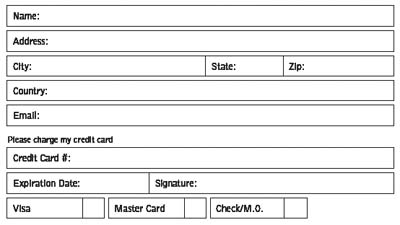

The results aren’t perfect, but it’s a great time-saver. Often, for a simple form, you only have to do minor tweaking to get a useful form. Carl Young and Ted Padova have written tutorials on using the feature in the Adobe Acrobat User Community website. (Acrobat 8 Professional also has other new form features: There’s a Distribute Form wizard that lets you send a PDF form to a number of recipients by email, and makes it easy for them to return the forms to you. When returned, you can aggregate the returned forms, and even export the data to a spreadsheet or database.)
So what does this have to do with InDesign? Of course, InDesign is the application of choice for us to create forms. We use InDesign’s powerful features to add tints, gradients, transparency, and so on to create a graphically rich and aesthetically pleasing form. Unfortunately, this graphic richness may make it difficult for the form fields to be recognized by Acrobat.
What’s the answer? Ted Padova’s posting points out that we can make use of the layers feature in InDesign and Acrobat to get both an aesthetically pleasing form and the form fields that we need. Below is a form where the fields are indicated by the contrast between white fields and a tinted background. Unfortunately, Acrobat doesn’t recognize these as form fields at all!

But we can add a layer to the file, and on that layer, create the lines that RFFR needs to recognize the form fields:

To save the layers for Acrobat, you need to directly export a PDF file. In the Export PDF dialog box, choose Acrobat 6 or higher compatiblity and check the Create Acrobat Layers option. As I pointed out in another posting, only directly exporting saves this information.

When opened up in Acrobat, the layers appear on the Layers panel found in the Navigation pane (click on the Layers icon on the left side of the screen to see them). Now if you run the RFFR feature, it correctly recognizes the form fields you need.

The final step is to hide the temporary layer you created with the lines. Click the eyeball icon to hide it. Then choose Flatten Layers from the panel menu to return the form to the good looking one you designed?but now with form fields!

Thanks to Ted Padova for this great tip!
 |
Great article Steve !
Jon
I’ve been waiting for Enfocus to udgrade Pitstop to work with Acrobat before making the switch from 7 to 8, but now I’m not so sure I want to wait any longer … RFFR would make life a whole lot easier …
Hi erique,
Enfocus Pitstop can detect form fields and remove within a PDF Profile and even within an Action List – but cannot do anything related to what Steve has documented above.
Acrobat 8 is fantastic but Pitstop 7 is not related as such (only compliancy with PDF 1.7 features)
Jon
It is anticipated that Q1 2007 is the next round of Enfocus releases:
Pitstop 7.1
Jon
Thanks for the feedback, Jon. I sure didn’t mean to imply Pitstop can do what RFFR can, just that I haven’t upgraded to Acrobat v8 (and so don’t have the benefit of RFFR) because I have been waiting for Pitstop (a vital plugin in my workflow) to become compatible.
However, now I have read the above article about RFFR, I am tempted to upgrade regardless of the (unrelated) availability of Pitstop for v8.
yay! thanks for the tip. Interactive everything is all the rave these days and as a graphic designer I’m having to pick up these interactive skills anywhere I can – post college.
Please help, i need a form that, when submitting it should generate a unique number
Great article, Steve.
But is there any way to put form fields on more than 1 layer? For example if you want both a 1-line and 2-line option for a field?
If you submit a form with Adobe 8 professional what do other users need installed on their computers to fill the form in and submit it by email? I did this with Adobe 7.0 Professional but some users have upgraded and now can’t submit my form by email I don’t want the same issue with Adobe 8.
When I go to flatten the layers that option is grayed out in the Layers>options pull down menu. Any thoughts or options?
I’ve got the whole CS3, so I’m doing what you recommend in this post, making my layout in InDesign and then exporting as a pdf to make a form. My problems, however, are not addressed in this post. When I use automatic form recognition, I get extraneous form fields-it’s seeing some graphic elements as form fields, which they are not, and I can’t figure out how to delete these extraneous form fields. Also, I’m getting text entry fields where I need check boxes, and I don’t know how to convert these from one to the other. I resorted to just making all the fields by hand. But then, the biggest and worst problem-no one without a full version of Acrobat can fill in the form!!! THATS THE WHOLE POINT OF THE FORM. My boss doesn’t need the data in a spreadsheet, it doesn’t need to be posted on the web, this is a VERY SIMPLE task-all he wants is for people to be able to key in information or check boxes, save the forms, and email them to him or print them out.
Cindy, I have to say that I have mostly given up on the auto form field recognition feature in Acrobat Pro 8, and I just make form fields by hand now. It looks like it will be better in Acrobat 9, but I haven’t tested it yet.
In general, it’s just pretty easy to open the PDF in Acrobat Pro, create the form fields (using the Form toolbar tools), and then save the document.
You can enable Reader users to fill in form fields with the “Enable Usage Rights” feature.
Thank you for this. It did take some additional trial and error but you got me started in the right direction and that has saved me a boatload of time.
Creating the extra layer in indesign is key. If you have forms that aren’t the standard simple boxes, create the simple boxes on on the extra layer and do some trial and error. Align field heads top, or bottom, or center, make it smaller, whatever and see how acrobat reads it.
Again, Thanks so much.
Say I created a PDF from my InDesign layout and add the Form Fields in Acrobat and save. Now I need to make a design or copy edit with InDesign. Do I have to recreate the Form again or can I update the existing PDF form?
Custom PDF forms at https://www.pleht.com