


Branislav’s Great Ghost Technique


How do you make text or an object a little blurry? Most people would answer, “Feathering,” but unfortunately feathering anything with details usually leaves you with a mess of icky broken lines.
Feathering text (top) vs. Blurring with this tip (bottom)
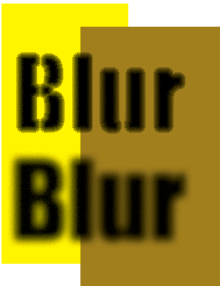
A couple of years ago, Tim Cole showed me a great technique for making text or objects blurry, but it had a little problem: It didn’t actually print correctly. That’s why I was a little skeptical when Branislav Milic showed me a new method for creating this sort of effect. But I’m here to tell you that not only does it look great, but it also appears to print great!
Branislav demoed this technique at the final “tips session” at the recent InDesign Conference in New York and told me I could post it here.
The trick relies on four steps:
- First, give your object a drop shadow. It is the shadow that you will see in the end (not the object itself).
- Change the color of the object or text to a “fake white” of something almost imperceptible: .1% black. You can make your own .1% black color swatch, or just apply [Black] and then change the tint to .1%.
- While the text is selected, sse the Attributes panel to turn on Overprint Fill.
That’s as far as Tim and I ever got… it’s clever, but in only appears properly in Acrobat (or InDesign) when Overprint Preview is turned on, and — as I noted above — it typically won’t print separations properly (at least not on the printers I’ve tried it on). So you need one more step:
- Use the Transparency palette (CS2) or the Effects panel (CS3) to set the transparency of the object (the frame itself) to 99.9%.
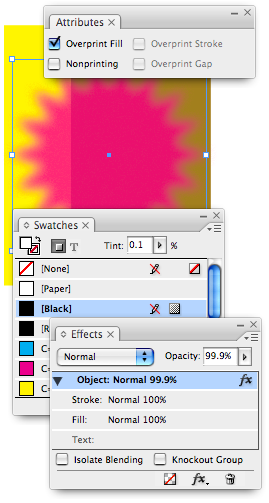
This last step kicks in the transparency flattener which performs the magic we need. As long as you export an Acrobat 4 PDF (such as a PDF/X1-a) or an EPS or print directly from InDesign, the object itself disappears, leaving the drop shadow behind. In the image above, the starburst object is colored .1% black, but it’s drop shadow is set to a Magenta color!
It seems like a lot of work, but once you do one or two of these, it’s actually pretty easy to repeat. Plus, you can set it up as an object style, making it easy to move from one document to another.
 |
To non-English spoken users, when in the US they write “.1%”, that means in non US units : “0,1 %”.
Branislav, that is a good point! (Or should I say, a good comma?)
Very nice trick.
In a 4c document you can substitute the “simulate overprint” option this way, by setting the objects in question to a high opacity.
One should be aware that it will not make a difference with a spot shadow, but I suppose these are rare.
Really fruitful post :)
There is a lot easier way to accomlpish the same result in CS3:
– give the text a shadow as said above
– tell the shadow to ignore other effects
– make the text invisible by giving it a very high feather value
– alternatively you can make the text invisible by filling it with paper and setting it (only the text, not the object) to “screen”
Both only possible in CS3 of course.
Excellent points, Gerald! Interesting. I think the idea of “high feather value” may cause problems, but the Screened Paper color is a very good idea.
A high feather should result in nothing more problematic than invisible pixels. Not bigger than the object itself since a feather always blurs inwards.
This is (as a friend told me) the standard way to animate an object going invisible in AfterEffects…
Wow this is great for mere mortals like myself who could never come up with this stuff! Thanks a bunch
Hmmm… I’ve been dalying with this technique and I have to say, I’m getting close, with text at least, by just applying basic feather, gradient feather and directional feather to the text. Not sure if it will work with all text, but certainly a neat way to a slight blur without photoshopping it.
I’m certainly not saying anything about the technique in the write-up, it’s very good and got me thinking about it. I have very very little use for effects in my line of work at the moment. That doesn’t mean I won’t in the future. Thanks for the tips, and at least I know about it now.
Cheers,
Eugene
One other technique, care of Adobe’s Matt Phillips: Set the color of an object to Paper, set the blend mode to Multiply, and then give it a drop shadow. In the Effects dialog box, make sure that Object Knocks out Shadow is turned off.
Note that this may appear wrong on screen when the object is over just the paper background. It should look correct over anything else, and it should look correct when you print/export.
When I asked Matt about this weird screen artifact, he said, “It’s similar to how a 50% opaque cyan rectangle looks different when it’s on top of a white rectangle vs when there’s nothing but the page background behind it. Turning on overprint preview or changing your blending space to RGB, or any kind of print/export eliminates the artifact.” Interesting!
Thanks for the great idea for a eye doctors ad.
Simple way to do same in IndesignCS, create steps 1,2 & 3 above give the txt on top a yelllow 0.1 or 100 if you like then output the file to pdf with all colours but black set to OpaqueIgnore then inport the file into indesign all you get is the drop shadow. Same goes for colour drop shadow, just make the text black. It’s a little more stuffing around but for us still stuck with CS at least it works
Not working for me… Paper cannot be “Screened”
Brett, try the technique I described in comment #9. Does that work?
Localeur has grown rapidly and attracted substantial buzz since being
founded early in 2013 by Spearman and Chase White, the company’s co-founder and president.
However, it is in the Old City where one discovers the story of the city and its role in American history.
There are also readily available buttons to proceed with direct bookings, renting a car, search for flights as well as access helpful services to view a flight’s status,
conduct a local search for restaurants, shops etc.
this is meant for text only?
what I want to blur is and image set as backround behind the text.
and potentially blur it in the shape of the text in a given radius around it.
Jacques: You will have to do that in Photoshop. InDesign cannot blur images.
in Design cc blurring is done from within?
Thanks