


Control Panel Keyboard Shortcut


Tom e-mailed this question:
In Quark one had access to the control bar with a keyboard shortcut (command-option-M). Is there a shortcut in InDesign to get into the first field of the control palette?
Yes, the one you’re looking for is Command-6 (Control-6 on Windows). That highlights the first field in the Control panel regardless of which mode it’s in. Use the Tab key to move the focus to the next field(s), Shift-Tab to move back.
Other ones I find useful for the Control panel:
- Return focus to the document page by pressing either Return/Enter or the Esc key.
- Command-Option-7 (Control-Alt-7) toggles the panel between Character and Paragraph formatting modes when you’re editing text.
- When a field is highlighted (or your cursor is blinking in it), use the arrow keys to increment its settings up and down. Add the Shift key to increase the increment it uses. A lot faster and easier than entering settings into those tiny fields manually.
- Another benefit of using the arrow key is that the focus remains in the Control panel field as you tap the arrow. So if you had something selected, it’s like a constantly-updating Preview. Press Return/Enter or Esc to apply the current setting and return focus to the document.
- In the Typeface and Type Styles fields, the arrow key cycles through all the choices. Or you can just type the first few letters of the one you want.
- When you press Tab to move out of a field and the next control is a group of icons (such as the group including All Caps, Superscript, Underline, etc.; or the Rotate/Reflect ones), the Tab key subtly highlights the first icon, but doesn’t apply it. You need to press Return/Enter to apply (turn on) the highlighted icon.
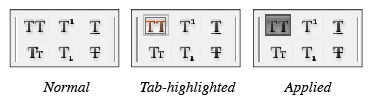
- If you don’t press Return/Enter and just press Tab again, the entire icon group is “skipped” and the highlighted one is not applied. If you want to apply one of the other icons, get the first one highlighted again (pressing Shift-Tab will work, if you’ve skipped the group), then use the arrow keys to highlight each of the icons in turn.
- To apply or enable a setting in the Control panel to the document but keep the focus in that field or on that icon, press Shift-Return/Enter instead of just Return/Enter.
Oh yeah, baby, a few more keyboard shortcut tricks than QuarkXPress!
 |
Holy toledo, Anne-Mare! While that’s a wonderful set of shortcuts, you forgot the most important tip of all: Get the keyboard shortcuts poster so you can get reminders on your wall.
Huh, hoo, wha, . . . oh I get it, a shameless plug.
Oh yes… I’m not above a shameless plug every now and again, if it means helping support our favorite indesign resource! ;)
One small thing worth pointing out…you must use the main keyboard 6 or 7. Those keys on the numeric keypad are reserved for applying styles and won’t work.
Great collection of shortcuts.
You missed Cmd+Opt+` or Ctrl+Alt+` for PCs (` is the ~ key), that returns and highlights the last used field of a panel (any panel, not only the control). I use it a lot.
Thank you for your answers! And, yes, I will order the poster with the shortcuts. After having worked for years on a AZERTY keyboard, I am now working on a QWERTY keyboard and make use of all the shortcuts.
At least in InDesign CS3, you can use the Spacebar to apply a setting while retaining focus in the Control Bar, in addition to the above-mentioned Shift-Return/Enter (at least on OS X).
A bonus Mac keyboard tip: when in Dialog boxes (Don’t Save, Save, OK, Cancel, etc.), you can use the keyboard here as well. Just Tab to the item you want; you’ll see a subtle highlight around the buttons. Then hit the Spacebar to “click”. Similar to hitting the Return/Enter key to choose the default option (the darkened button).
I always like using the arrows to flip through type faces and styles. I select the text frames with either selection tool, press t to get the type tool, then cmd-6. That way the text isn’t reversed from being highlighted, and I can do multiple frames at a time.
Of course, this is only useful when you want to change ALL the text in a frame. And it doesn’t work with linked frames. But text in inline or anchored frames stays independent.
For experimenting with headlines, or just prototyping body copy, this works pretty well.
I’m trying to change this shortcut to one of my own – do you know what it’s called or where it is in the Keyboard Shortcuts dialogue?
Cheers
No worries – I found it under “Views & Navigation” called “”Toggle focus to/from Control panel”
Cheers
Ben (too late, I know): if you know the shortcut combo but don’t know how it’s called in the Shortcut Editor dialog, or cannot find the proper subsection, all you need to do is click Show Set. It calls up a summary of all functions and currently active shortcuts, and all you need to do is use Find to locate the shortcut combo — then you’ll see what the function is called and where it’s found.
I know this is a fairly old post. but I wanted to update it with some other handy keyboard shortcuts RE: The Control Panel / Bar. (All are Mac shortcuts and based on CS 5.5)
Control the Transform point
When in Object rather than Text mode, you can press Command-6 to highlight the first field and then Shift-Tab backwards to highlight the “proxy icon” which is the little grid of white (and one black) squares that controls the origin of transforms (resizing, position etc.) you can then use keys 1-9 to change the transform point (if you use your numeric keypad it is more intuitive).
Toggle the constrain icon
This I finally figured out today, and was so excited I had to comment. When in object mode, Command-6 to the control bar then tab over to the ‘Constrain Icon’ which is the little chain (link) icon just to the right of the “W: & H:”. You can toggle this icon on the Mac using the Spacebar! I think this function may have not worked properly in CS5, but in CS5.5 on a Mac running Lion it functions properly and IS AWESOME. Now you can resize boxes and choose to constrain or ‘link’ the Width or Height or alter them independently. Sweeeeet.
[…] It is way easier to single-click on the icon, which highlights all the text in the field so you can immediately type a new value. Or if you aspire to the David Blatner/Anne-Marie Concepcion 9th Degree InDesign Black Belt, hit Command-6 to highlight the first Control panel field, then tab through to the one you want. Or better yet, read this. […]
degree in and continued to teach English on the
university level, first at Wayne State University in Detroit.
Recently I reread some of my poems from five years ago.
If this factor is not well cushioned, then there is every chance of the
idea of sending flowers becoming useless.