


Copying/Pasting Text from PDFs to InDesign


The other day I needed to copy a paragraph of text from a client-supplied PDF into an InDesign layout. Of course, I was in a hurry, and of course, the copy came in with a hard return at the end of every line. Don’t you hate it when that happens?
On the left, the selected text in Acrobat Pro 8, on the right, the pasted result in InDesign:
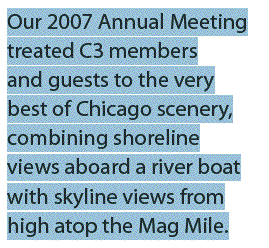
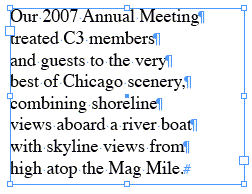
(To protect my client’s privacy, I’m using a different PDF for these screen shots. They’re from the Chicago Creative Coalition newsletter, a wonderful organization. You can download the PDFs from their Online Archives page.)
Obviously it’d be quick work to clean up those six lines in InDesign, but this was only the first of many different text selections I’d need to copy/paste from the PDF. Luckily, sometime in the recent past — don’t remember how or when — I picked up a nugget of information that allowed me to quickly fix the problem in Acrobat so that the pasted text came in properly (this one example and the others from the PDF), like so:
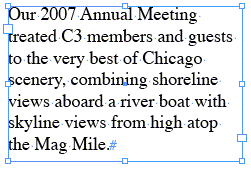
Tag the PDF
The answer is to make sure the PDF is “tagged” (made accessible to people with screen readers) before you copy text from it. How could I tell if my client’s PDF was tagged or not?
In Acrobat, a quick look at the PDF’s Document Properties dialog box (File > Properties, or Command/Control-D) told me that the PDF was not tagged. You can see that in the last line of this partial screen shot from the first panel (“Description”) of the dialog box:
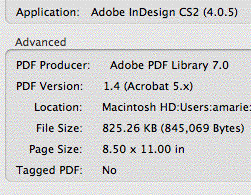
I thought it was interesting that the PDF was exported from InDesign CS2 (note the info for Application and PDF Producer) but yet it wasn’t tagged, even though all it takes is a click on the Create Tagged PDF checkbox in InDesign’s PDF Export Options:

I double-checked the PDF Export presets in InDesign CS3. Only the High Quality Print preset has Create Tagged PDF enabled. For all the other presets you’ll need to turn it on manually. Since tagging adds only a tiny amount of overhead to the PDF file size, and it has such huge benefits (not just for accessibilty, or to make it easier to extract text with Acrobat’s Select tool, but also for search engine indexing) I don’t understand why most of the presets have it disabled.
Luckily, you can add basic tagging to a PDF right in Acrobat Pro (not sure about Standard). In Acrobat Pro 8, choose Advanced > Accessibility > Add Tags to Document:
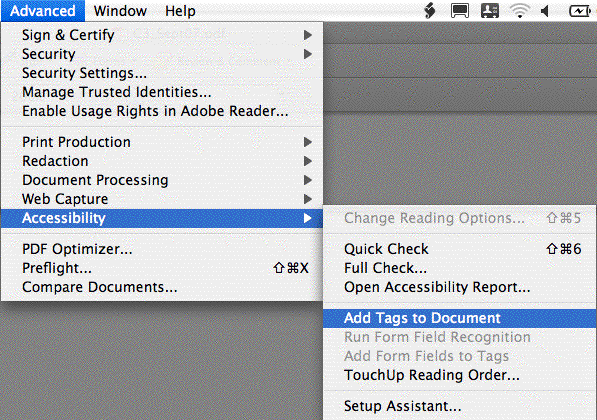
You’ll see a little progress bar appear letting you know it’s doing its thing, it doesn’t take too long at all. As soon as it’s done you can select text, copy it, and paste it into InDesign as one single paragraph. (Unfortunately, a side effect is that the copied text loses all paragraph returns, even the ones that should be there.) But that didn’t matter to me since I was just grabbing small chunks of text, and adding an occasional Return/Enter is easy.
YMMV (Your Mileage May Vary)
In my experience, using InDesign’s Create Tagged PDF or Acrobat’s Add Tags to Document commands do a “good enough” job, most of the time, to get rid of the end-of-line hard returns in text copied from the PDF. But using these commands is similar to converting a Microsoft Word document to HTML with Word’s own Save As HTML command — it gets you there, but it’s ugly. Creating accurate, 100% screen-reader-friendly tagged PDFs takes a lot more work than the automatic methods.
So, occasionally you’ll have some stubborn text that still breaks weirdly when pasted into InDesign, even though you copied it from a tagged PDF. If that happens and you just can’t stand the thought of hand-tweaking the pasted text, consider spending another five minutes or so in Acrobat creating your own content areas in the PDF. You can do that with the TouchUp Reading Order dialog box, found in the same Advanced > Accessibility fly-out menu:
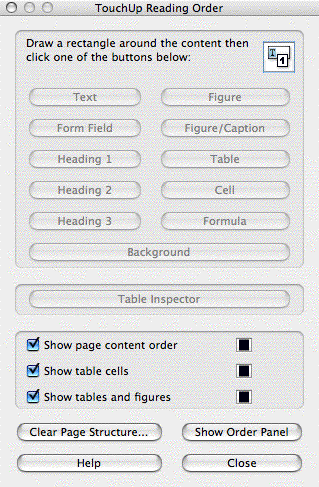
The whole Reading Order thing is interesting and complex enough to merit its own article. But if you’re champing at the bit, the quick way to use it for our specific purpose (copying text without weirdo line breaks) is to click the Clear Page Structure button at the bottom of the dialog box, drag a selection rectangle around a partial or entire column of text, and then click the Text button at the upper-left of the dialog box. Do that for each column of text you need to pull from. Click the Close button, and now you should be able to copy and paste text selections into InDesign without a problem.
 |
This last week, a client sent me various manuscripts for ID use — in PDF format. Yes, DUH! And of course that gave me the accursed hard-line returns — so thank you VERY much, Anne-Marie, for this neat, simple way to fix this annoying problem.
It seems that every time I stop by your site these days, you have great tips which makes me money and/or saves me from menial-labor boredom. What splendid fellows you are — er, and also fellowettes!
Yeah! This is great, I’ll use it daily I bet. But if it replaces the hard returns that should be there, how is it better than a find/replace?
You’re post is a bout two weeks late! I had to do this recently and I winged it just about the same you describe here. I didn’t really know what I was up to, as I never did it before. But I had fun doing it. But again, it’s two weeks too late… please try to keep up with what I’m working in the future please. :-D
Ah no, this is all wonderful stuff and thank you so much for posting it. It sorta clears up some things that I was doing without knowing what I was doing. So I my understanding of the process is clearer now.
Cheers!
Euge
Great posting, Anne-Marie.
Here’s a link to a posting I did over a year ago about creating accessible PDF documents in InDesign and Acrobat:
https://creativepro.com/creating-accessible-pdf-documents.php
It references a PDF document which is still available which goes into much more detail on the subject:
https://www.document-solutions.com/accessibility_adobe_manual.htm
I just delete returns with BBEdit.
The reason tagging helps here is because it explicitly encodes important whitespace characters, including space and paragraph-ending return. You may be aware that space characters are typically not encoded in PDFs; PDFs are based on PostScript, which had the concept of a pen that was picked up and moved across the page, producing areas of no inking that we interpret as spaces. Those are explicitly included in tagged PDF.
This is great! I always took for granted that a text fromout a PDf is bound with hard returns! I’m going to use this frequently, thanks people!
ID CS4 should add something close to Dreamweaver’s “Paste text only” (Ctrl+Shift+V, then Enter on the dialog box). It gives the exact same result than pasting it from a tagged PDF.
Re: “champing at the bit”
You got it right! I am so tired of correcting people who are “chomping at the bit.” Now, if we could just get a chaise LONGUE trend going.
Seriously, though, thanks for the tip….very useful
Great tip!
Can anybody confirm or deny that it also works in Acrobat Standard?
I just had the opportunity to use this on an 80-pg PDF full of tables that I needed to copy individual cells from and it worked perfectly!
Great tip! I only wish I knew about it a long time ago. I hate to think of how much time I’ve wasted patching up text copied from a PDF…
But, FYI (Rick A.), both “chomping at the bit” and “champing at the bit” are correct. As are “chaise longue” and “chaise lounge.”
Thank you! I bet this will come handy soon but more importantly I will learn more on creating accessible PDFs. It’s important to me since I know that some of our readers use assistive devices and I haven’t made enough for them. Mostly because of my ignorance, I supposed PDFs are accessible by design but now I see that pages with multiple frames for headlines, text, captions, etc. are not very friendly and that I could do better.:-p
i’m so glad that i’m not alone on this! i thought it’s me being un-techy to know the workaround… thank you so much for sharing this.
When exporting a PDF. Does anyone know how to get a paragraph with multiple lines of text to be exported to one text object in the PDF?
Bo, do you have the Create Tagged PDF checkbox turned on in the Export PDF dialog box? That should help keep paragraphs together. However, if it’s really just a bunch of individual paragraphs already (in ID), then you’ll likely have to convert those paragraph returns into shift-returns (hard returns) to fake a single paragraph.
NOW in cs4, can we paste the text as Alexandre Giesbrecht mentioned?
“ID CS4 should add something close to Dreamweaver?s ?Paste text only? (Ctrl+Shift+V, then Enter on the dialog box). It gives the exact same result than pasting it from a tagged PDF”
This is truly wonderful. Thanks a ton. My work involves lots of copy-paste from PDF files, this trick helped saved loads of time. Thanks much :)
PS: Yes, it can be done only in the Pro version
Cheers for that one, GREAT time saver for my Phd.
Thanks again,
Alex P
Brilliant. Exactly what I needed.
I had a 300 page PDF that I did this to, and it took awhile. So, to keep on working while Acrobat was processing, I opened up the PDF in OSX Preview. I copied and pasted the text into tInDesign…and it came into without hard returns!
Thank you Kelly for sharing your discovery, way more helpful than the whole posting. !!!
Thanks a lot Martin. ;-(
lol … it IS a great tip!
Dear All,
Have a Nice day! I have a PDF, which contains English and Hebrew characters. The Hebrew characters are created in custom font. The customer edited “Times New Roman” to inlude Hebrew characters in Glyph. Now the customer would like to convert EPUB format. We have PDF format only. While converting to word file or EPUB, accent and diacritical characters are not converted for Hebrew. Anybody have good idea to convert such type file? Please help me!
I just started copy and pasting text from my PDFs with the ‘Edit PDF’ tool turned on and it brought the text in without hard returns no problem. No tagging necessary.
ANSWER:
IF…your pasted text has double returns for the paragraphs and single returns at each line, you can do this:
Find: ^p^p and Replace: $ (or some other symbol that doesn’t appear in the document) THEN…
Find: ^p and Replace: (Leave blank) THEN…
Find: $ (or the symbol you used) and Replace: ^p THEN…
Be happy :)