


Creating Styles: My Favorite Small CS4 New Feature


Often it’s the little things you love the most, and InDesign CS4’s new method of creating styles is my favorite small new feature. And today, I discovered that that this feature is more far-reaching than I had expected.
Working with styles?paragraph styles, character styles, object styles, table styles, cell styles, nested styles, and more?is an essential part of creating and editing InDesign documents quickly and efficiently. But before InDesign CS4, there was sometimes an annoying little roadblock. Imagine that I decide to create and apply a nested style to specific words or characters within a paragraph to which I’ve applied a paragraph style. To do this, I open the Paragraph Style Options for my paragraph style, and select the Drop Caps and Nested Styles pane.
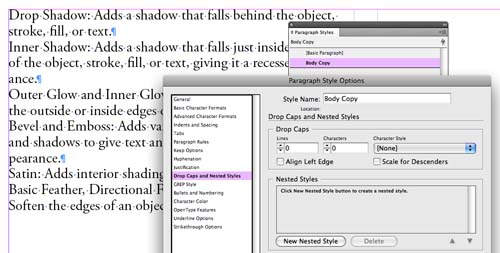
I’d like to create a nested style for an inline head: I want the bold character attribute applied to the text of this paragraph up to and including the colon in the example shown above. To do so, I click the New Nested Style button. A new nested style appears in the list for me to edit. But?oh, oh!?I’ve forgotten to create a character style. In InDesign CS3 and earlier, I would have to cancel out of the dialog box, open up the Character Styles panel and create a new character style, then tediously return to where I am now. Several annoying extra steps!
Now, in InDesign CS4, when I click New Nested Style, in the popup menu which lists existing character styles, I have a new option: New Character Style! What a timesaver!
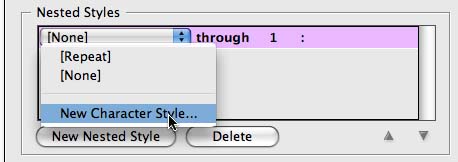
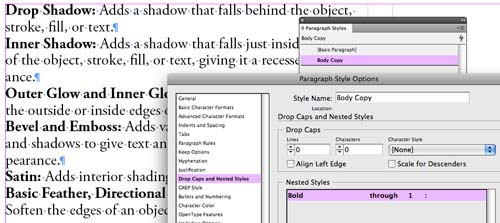
I can immediately create the character style I need?in this case, simply choosing the Bold character attribute?and when finished, preview the results in my paragraph.
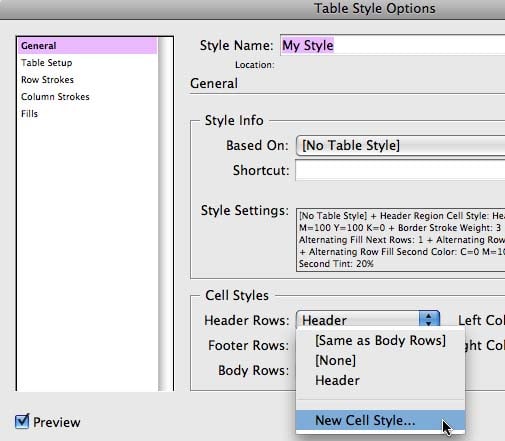
But that’s not all. Today, I discovered that this feature really is pervasive throughout InDesign CS4. I was creating a table style, and, similar to a nested style, you can include cell styles which define the different parts of a table?the Header Row, the Left Column, and so on. I had forgotten to define my cell styles ahead of time. But wait! Now, when I’m in the Table Style Options dialog, and I’m picking a cell style, I now have the choice to define a cell style there!
And if my cell style needed to depend on a paragraph style, I could define a new paragraph style within the New Cell Style dialog as well! Now that’s a great feature!
 |
That is indeed fantastic. This will definitely save me enormous amounts of time, given that I’m a little bit OCD with styles!
Awesome time saver. I just upgraded to CS4 and will appreciate this new feature. Thanks!
On the subject of styles in CS4, I just noticed that with CS4, for the first time, when you do a search for an applied character style, you get results that include application by nested styles (and grep styles). This is quite a departure from previous versions, and while I can see that it is very desirable, it is also a significant change in functionality that could cause a surprise or two.
Dave
This is great news!
How can I define a cell style to add a bottom stroke with-out altering the existing cell fill? I’m building financial tables with CS3. thanks