


Data Merging – Part 2


Last week I began a series on using InDesign’s powerful Data Merge feature. After describing what Data Merge can do, I described the data-source files it can use. In Part 2, I’ll show how to create the target document?the InDesign document into which the data will flow?and how to link the data to the document, and preview the results.
First, I’ll created the reminder card layout for our imaginary veterinary hospital. This card was created at its printed trim size, and contained the boilerplate information that doesn’t change (for example, the logo and the text of the card), and data-field placeholders. While creating the card I placed “XX” wherever the text data will be inserted. To create a frame for the pet image, I simply made a placeholder graphic frame with the Rectangle Frame tool.

Next, I selected the data source. To do this, I opened the Data Merge palette (Window > Automation > Data Merge). When first opened, the palette shows the basic instructions for how to use it. I chose Select Data Source from the palette menu, and selected the data-source file we created in Part 1.

The palette should be populated with data-field names that match the column heads (top row) of the source file. Sometimes, you may get an error message, “The data source has one or more empty field names….” This indicates your data source may have extra columns which are empty; those must be removed before Data Merge can use them. This can easily happen if you’re using Microsoft Word as a text editor, where tab characters aren’t always visible. Go back into your text editor, or Microsoft Excel, to delete them as necessary.
Next, I moved the data-field names into the layout template. You can either click an insertion point in your text frame (I highlighted my XX placeholders) and double-click the data-field name, or drag and drop the data-field name into place. The data fields will appear in the text surrounded by double angle brackets.
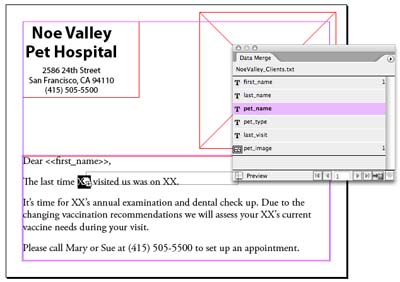
For text, you can use all of InDesign’s character, paragraph, or frame attributes to format them, including paragraph, character, and object styles. As you can see in the card, the data-field names don’t have to be in any particular order, and can be repeated if necessary. Add commas, spaces, or any formatting you need.
When you want to link the graphic image, just drag the graphic field name from the palette onto the placeholder graphic frame, and its name should appear.
Handling Variable Images. Handling variable images requires a little more preparation: If you remember from Part 1 there was one field which was for “pet_image”. In order to indicate to Data Merge that that field is a graphic, its name must be preceded by the “@” character?in this case, “@pet_image”.
In each subsequent line, the record must contain the path for InDesign to find the picture. The easy way to handle this is to place the images in the same folder as the data-source file. For my example, there were three images?OrangeCat.jpg, CuteDog.jpg, and LoveBird.jpg?located in the same folder. If you have the graphics in a different location, the field will need the exact path on your computer to the graphic, in a format appropriate for your operating system:
Mac: Macintosh HD:Photos:OrangeCat.jpg
Windows: c:\Photo\OrangeCat.jpg
Previewing Your Layout. I then previewed the data by checking Preview at the bottom of the palette, and then used the navigation buttons to move forward and back through the records.

There are a couple of good reasons to do this:
- To look for records that don’t fit the frame you have created (like a long name you didn’t anticipate). The frame should be large enough to handle the largest element in the formatting you’ve chosen.
- To look for other errors in the data. These could include extra tabs or commas (this shows up where the right data in the wrong place) or having data capitalized when it’s not supposed to be (you didn’t check over the data-source file before using it).
In general, it’s preferable to fix these kinds of problems in the data-source file, instead of in the InDesign file.
In the next episode, we’ll discuss how to merge the target document (the layout) with the data-source file to create a merged document.
 |
Glad to see this series!
Any chance your next installment could also include a note on aligning and scaling graphical content within the frames?
One more thing to clarify… InDesign CS2 supports *relative* pathnames on Windows (not tested on Mac). So, the following is valid:
images\project\my_picture.jpg
when the ID file is in a folder which contains the ‘images’ folder.
Scott,
I’ll cover the Content Placement Options in the next episode.
I’ve never needed deeply nested images so I hadn’t tried out relative pathnames. Good suggestion!
This is a very good article because it made me a newbie thrown in at the deep end swim so much easier.
Thanks for the comment, Jimmy. That’s why I wrote it: Data Merge is a fairly deep subject. While the InDesign Help actually contains a wealth of information on the subject, it’s not always presented in a way that’s easy to grasp!
I love this site!
[…] We’ll cover how to set up your InDesign document in next week’s blog. […]
can a merged file be exported to a multi page pdf for output to a color copier?
I have looked at merging quite a few times, but I never found a way to accomplish what I need to do. I suspect that it is not possible, but please enlighten me if this is at all do-able.
I have to brand a newsletter with company logos (about 50 or so) and send out the newsletter in PDF format. The problem is that IDCS creates a single merged document with no option to create multiple pdfs.
I currently do the job using Quickeys and Acrobat batch actions. But that is going to be complicated for my successor.
You can easily split up a multiple page PDF into individual PDFs in Acrobat Pro. Also I’m pretty sure there’s a script that will do from InDesign (sorry can’t put my hands on it right now).
I wish this all worked in reverse and I could move data from Indesign back into a database in real time. Ultimately I’d like to extract a document word count to a spreadsheet. Any ideas?
Dave,
To do that, I imagine that you could do it with scripting. Especially OS-based scripting like AppleScript so the data could be passed to the spreadsheet or database. (But I’m not a scripter. You might ask in the InDesign Scripting User Forum on the Adobe website.)
Dave, to move data back into a database, you’d probably want a plug-in, such as DataLinker from teacupsoftware.com.
Hi,
I keep getting the message “The data source references one or more unsupported files.The files cannot be previewed or merged” when I go to preview. I’ve tried all image formats (jpg, tif etc) and my path naming is ok. The data source file is working with text. Any thoughts?
When I do testing for problems, I try to change just one thing at a time: Change the path for the images to something very simple, like the Desktop, and see if they work there. Try a different image. Make sure you don’t have permissions issues with the images (on the Mac you’d do a File > Get Info on the images).
Hi Steve,
I’ve worked through this problem as you suggest but still no joy – might be a case of seeing if adobe have anything to say. Cheers
I haven’t had a chance to check data merge out in CS3, but I hope some logic was added, i.e. rules..
THAT would be a nice addition…
Well, InDesign CS3 isn’t out yet, so we’ll have to look at the feature list on March 27?announcement day?to see if that’s been changed.
i work on a windows computer. all of the above suggestions don’t work for images. Indesign says the images are missing, all the time.
anyone any idea why?
Hi,
It happen’t to me too, the photos cannot be merged; and the problem was always with the path ( the path was too long).So i tried this : i saved the images in eps format in a folder called “eps” and the path must be \eps\name of the image.eps. You should always state the name of the pictures, and only the folder where the images are saved.
Like this it works eveytime.
Hi Guys,
Just a quick update. My unsupported file issue resolved itself after I added “@” to the start of the image pathname, tried merging unsuccessfully (image not found), removed the @ and tried previewing again (success!!) – don’t ask why this worked, machine glitch I reckon. This is an interesting post on an adobe forum for anyone with problems – https://www.adobeforums.com/cgi-bin/webx/.3bbf6304/0
I am using IDCS2 on a mac and am having the same image problem. I have tried different paths in different locations. I noticed that in the data merge pallet the field is precceded by a “T” indicating is’t still text Im assuming that is. Splaination Lucy?
[…] It’s been much longer than I expected finishing this three-part tutorial on InDesign’s Data Merge feature, but it’s been a very busy period for me. You’ll find part 1 here, and part 2 here. When I left you, I had created a reminder card layout in InDesign CS2, and created text and graphic frame placeholders. I selected the data source and linked the data fields with the placeholder frames. Finally, I previewed the result. […]
I initially had some problems with image paths on Windows, but then made sure drive letters were lowercase and I think that made a difference – but now can;t seem to recreate problem so there is something funny there.
InDesign doesn’t have a way to automatically do data merge for facing pages, since it treats the entire spread as a “page.” In other words, if you’d like to have “first header” on the left and “second header” on the right, you’ll get “first header” on both sides if you link it to the same column in the data file.
A workaround I used is to combine data on the same row in the data file. If you originally had:
header@pic
header1 pic1
header2 pic2
Combine lines and use the columns:
left_header
@left_pic
right_header
@right_pic
Where left_header and @left_pic were row 1 of the original file and right_header and @right_pic were row 2, etc.
Hope this makes sense. It still might be a pain, but it works. Also, you can leave some column data blank to skip a page if you wish.
I mail merge address a small newsletter, 6 pages (3 sheets doublesided). The address area is on page 6. It works fine, except Indesign keeps incrementing the page numbers as it replicates the newsletter! Is there any way to make page numbering restart for each copy of the newsletter?
Steve, this is a great explanation of Data Merge — much better than InDesign Help! I’ve also written about InDesign’s Data Merge and assessed other personalization features in the Creative Suite. Check out: https://www.veedeepee.com/2007/10/free_vdp_1.html
Steve,
Used datamerge for some years now and have a problem come up….. can’t speak with adobe as their own knowledge of datamarge is that limited, I know they will not be able to help.
1. I have a catalogue of product.
2. I want indeisgn to plan them 6 up to a page and the template is based on 9up. Therefore, in the database, I insert 3 blank rows per 6 which normally always works fine. I simply delete the 3 blanks and lay the product out design side.
3. Problem is, the blanks are being skipped.
No settings are checked to skip blank lines but there obviously seems to be something adrift!
Even written a complete new database to eliminate the chance of a corrupt file.
Hope to hear back.
Regards
Barry Heath
hi, i have a problem with the data merge multiple record layout,– background design has bleed– so when creating merged document, it moves or shifts the background image to the left. what’s the best way to do this?
You are sorta my hero.
Thanks :)
Terra
Hi!
We’ve recently been trying out Data merge, and wanted to add a few updates for image file path references when working on a Mac.
– Macs no longer need colons in the file reference. All of the newer versions of the OS, including snow leopard, work with slashes, same as windows.
– The file path is relative to the data file. So, for example,lets say that you want to link to an image (portrait.png) that is stored in a folder called “resources”. This folder lives in the same folder as your .csv (or tab-delineated) file. Your image path should read:
/resources/portrait.png
regardless of whether you are working on a Mac or a PC, and regardless of where your .indd file is located.
Hi Robyn, thank you for the info. This example is for a folder inside the .csv file, but how about a .jpb that lives one step above the hierarchy in the computer. Do I write a // to go one step up? I’ve tried many things on my Mac with no avail.
It looks like its the first 4 lines of code can give you an error. I am using Excel 2007, Exporting from Filemaker the csv file. It is making these ? files in the csv files. You have to clear the first four lines of code of the question mark files maybe a few more lines to get it to see the whole document and not pop up with the error that it doesnt recognize the document.
Thanks for going though this in so much detail. – Brilliant help thanks.
I’ve tried to create the image field and it is giving me the text <> correctly. However, when I check preview or merge documents, I keep getting the following error.. “There is at least one data placeholder that cannot be found int he data source. Make sure all placeholders correspond to the field in the data source.” Not sure what this is referring to in my data file. I’ve tried many suggestions I’ve found here as far as ‘@ and listing the path, etc., but none seem to work. Everything worked perfectly until I added the image field. Any suggestions??
@Carrie: I feel your pain. Troubleshooting these kinds of issues is a hassle. I don’t have any immediate ideas, though maybe this article? https://creativepro.com/zap-gremlins-in-problem-data-merge-files.php
is there any way to merge data “one to many”?
like I need to create a letter to many recipients, the text body will remain same for all except the name which variable, the probem is that each recipient will have multiple policies.
Example:
Mr. XXX
Policy Date of issue Date of Maturity
XXX fund 00/00/2014 00/00/2014
please help if this is possible.
Could you be more clear Sajid?
Hi!
Any tips for creating the CSV file with the numbers 0001 – 0799 without typing them in manually?
@ Jenny //
Type in Excel or Numbers in column of numbering in first cell “1”, in second underneath it “2” and in third – “3”. Then select that 3 cells. You’ll see a little square in low right corner of selection. Click on it and drag it across down all cells that you want to numbering.
If you’re on Mac, try http://www.myserializer.com. Saved my day.
Makes data mergin easy – was a little buggy but the newest version seems to be solid.
It has a built in sequence Generator – no need to add numbers to your Data source.
When typing @image as the header in Excel, it replies with “That function is not valid.” Is there different way to merge multiple images on a page or a different function than @image?
Okay, I answered my own question. Just in case anyone else runs across this issue, just place an apostrophe in front of @ in the excel doc.
also-select the cell and click format/cell/number/text. now the cell won’t try to compute the @.
HELP
WHY WONT INDESIGN PICK ALL FIELDS FROM CSV FILE?
Pam.
Pam: It may be easier to answer in our forums (click Forum in the navigation above). My guess is that the CSV file is messed up somehow. I can’t think of why it wouldn’t be working. Also, there are more posts here about data merge, including: https://creativepro.com/zap-gremlins-in-problem-data-merge-files.php
thanks, very helpfull
nice article! where is part 1? I already found part 3
I’ve had the same issue with missing images. I’ve resolved it by placing the spreadsheet (file type .txt) into the same folder as the indesign file and all images.
For some reason when the .txt file was in a different folder the images didn’t link.
All working now, FYI I am linking .jpgs and .pdfs using an @ at the beginning of the column name.
Good luck and hope that helps :)
Tracy – thanks for that confirmation that it’s a pathing issue. I also was able to merge images, once I put all the documents in the same directory. I need to be able to pull from different directories, so it’s not a long term solution for me, but it narrows down the debugging to know that the pathing is the problem.
Is there a way to have the point size of the text automatically adjust to fill/fit the text box? I have a job that I need the company name 36pt or as close to that as possible to fit in a certain area. Is there a way to have the point size automatically adjust between a max point size and a minimum size to fill the text box? Or does all need to the the same/smallest pt size to fit the longest line?
nice article! where is part 1?
Follow the link in the first paragraph