


Discretionary Line Breaks


There are so many new features in InDesign CS3 that it’s easy to lose track of some of them. One I’d like to draw your attention to is the new discretionary line break.
Like a discretionary hyphen, the discretionary line break (“DLB” from here on out) finesses where and how InDesign breaks a line of text if that line must be broken and wrapped. The difference between the two is that the former, the discretionary hyphen, breaks with a hyphen while a DLB just breaks, sans hyphen.
DLBs are useful as occasional substitutes for manual line breaks or soft returns. When you insert a manual line break with Shift+Return/Shift+Enter, you force a line of text to break and wrap to the next line. The initial effect between the two is identical. However, should your text reflow, a manual line break will not automatically roll back up; you could be left with awkward breaks in the middle or even beginning of a line. By contrast, a DLB has no effect unless it approaches the end of a line; if your text reflows such that the DLB is not close to the end of a line, the DLB-created break becomes inert again and the line doesn’t break at that point.
When would you use it? Well, in episode 60 of the InDesign Secrets Podcast Anne-Marie provides a perfect example: URLs. Left to its own devices, InDesign will break a URL wherever is convenient and with a hyphen. Sticking a hyphen arbitrarily into a URL isn’t the best idea because readers may not realize the hyphen isn’t an intended part of the URL.
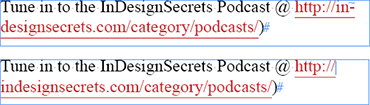
InDesign can break text awkwardly with a hyphen (above), but a discretionary line break prevents the insertion of superfluous hyphens (below).
 |
Very nice, thanks for explaining this new feature.
Augh! More and more reasons to upgrade. But the answer from the boss is always “Not on budget yet”. Maybe next year. Maybe for CS4?
While the DLB is great, this example is better done (in any version of InDesign) using a discretionary hyphen in place of the DLB. I like to use discretionary hyphens when trying to avoid hyphenation. Putting them at the beginning of a word prevents hyphenation. No doubt DLB are cool, but it actually doesn’t always work to prevent a hyphenation in cases like this. Only if it’s close enough to the edge of the frame will the DLB work. A discretionary hyphen would work every time, regardless of proximity (of course it just prevents the hyphenation, it doesn’t force the line to break). DLB are great, but I don’t think this example isn’t the best use of them.
Dan, that’s an interesting solution. So in the example above, you’d put the discretionary hyphen (command/ctrl-shift-hyphen) before the word “indesignsecrets”. That forces that one word to stick together. You could also select that word and use the No Break command (which I like more than the discretionary hyphen for things like this).
However, the discretionary line break is more elegant in many cases because you can place the break exactly where you want it. In some very long URLs (or other very long words), you want/need more control over the position of the break.
In my experience setting type full of URLs, it’s fairly rare for InDesign to hyphenate words they contain. 90% of the time it breaks them after periods or slashes. (Try setting the same type in QXP to see what we *used* to have to deal with.)
When it does hyphenate a word, inserting a DLB before it doesn’t guarantee the line will break there, as shown below. It depends on your other H&J settings.
Inserting a discretionary hyphen before the word *does* guarantee the line will break there because you’re disabling hyphenation for the word; so ID has no choice other than forcing it to the next line.
But if you export it to PDF, Reader/Acro’s automatic “sensing” of linked URLs sees that disc hyphen and includes it in the URL; resulting in 404 Not Found pages in a web browser. (It sees auto-hyphens too, which also break URLs.)
For all the above reasons I use the No Break style for the word that’s hyphenating. That does the trick for the line break and Acro/Reader still understands the entire URL correctly.
Great post and great tip, we all have our own way of working and this is how I do it.
I have a “No Break” character style for stuff like this, I GREP search things like website addresses and emails and apply a character style that has nothing else but the no break feature in it.
But again, this is where I want that “keep (x amount of ) words together” feature, like for when you have one word at the end a paragraph I would love to keep them together, also this could work with keeping email addresses, web addresses and other things together that could be automated without having to put in hidden characters or specific styles. What’s needed is intelligent typesetting features.
The secret is that the discretionary line break is emulated by InDesign with Unicode zero width space char (U+200B) and that *IT WORKS* too in ID CS and CS2!! You just have to insert a U+200B character. How? Using the InDiCode script:
https://marcautret.free.fr/geek/indd/unicode/part3.php
So it’s not necessary to buy CS3 to have this feature.
More secrets about ID spaces:
https://marcautret.free.fr/news/nw0706.php#S4
Thank you Marc! It looks like your web site has some great information but I don’t speak French. So I used my handy-dandy translation trick* to get this English translation of your web page (the second link): June 2007. (Scroll down to “InDesign CS3 and the Crazy History of Space.”)
It’s a far from perfect translation (and it can’t do images, which captions in your illustrations appear to be), but it helps to make some sense of the other text.
*The trick: Copy the URL of the web page you want to translate and paste it into Google’s search field and search for it. Only one “hit” will result — the same page — but you’ll see a “Translate this page” text link next to the name of the hit. Use that Translate link to view the page.
Yes, we sort of discussed this (the 200B character) a long time ago… or perhaps it was FEFF. Check out the script and info in the comments on this page.
[…] PostsBreaking Very Long Lines with No Hyphens by David Blatner Discretionary Line Breaks by Pariah S. Burke Everything Goes in Ukrainian by David Blatner Making a Vertical Bar in a Table […]
Is there a way to avoid Explorer breaking a line after a hyphen, dashn minus?
Example:
Abc-, Def-, etc,…
May look like
Abc-
, Def- etc.
This is an ancient post, but still very relevant.
The problem of breaking long URLs in InDesign was slowing me up a lot (some books are full of extra long hyperlinks, for better or for worse).
The solution was this script: https://www.id-extras.com/products/break-url-correctly which is now available on our website.
It will find the optimal place to insert a discretionary line break in a long URL to produce the best possible spacing. At the same time, the script respects the rules laid out in the Chicago Manual of Style regarding where it is permitted to split long URLs.
This speed things up considerably.
Nine years after your post and it still has relevance…it still is helping folks like me. Thanks so much for creating and maintaining this site!!!