


FindBetween: A Useful GREP String


Hey, with the help of Peter Kahrel’s GREP in InDesign CS3 book, I was able to figure out how to do something in InDesign that I’ve always said was possible to do with GREP, but didn’t really know how. Not only is it a handy Find/Change action, but it’s very easy to modify for different situations that designers are often confronted with.
The action is this: Find [some text] that’s in between [whatever], and then apply formatting to just the text, not what’s surrounding it. One example would be formatting parenthetical text without formatting the parentheses themselves: turn (this) into (this) and (that other thing) into (that other thing) all at once, throughout the story or document, with a simple click.
Here’s the GREP expression that finds one or more words of parenthetical content, but doesn’t include the parentheses themselves in the found instances:
(?<=\().*?(?=\))
If you copy and paste that GREP string into the Find What field in the Edit > Find/Change > GREP panel of InDesign CS3, and then click the Find First button, InDesign selects the first instance of parenthetical text, but not the parentheses themselves. Cool!
That means that back in the Find/Change > GREP panel, you can change just the found text’s formatting by specifying what you want in the Change Format area (leave the Change To text field blank). Here I’m specifying that InDesign should italicize parenthetical text, but leave the parentheses untouched:
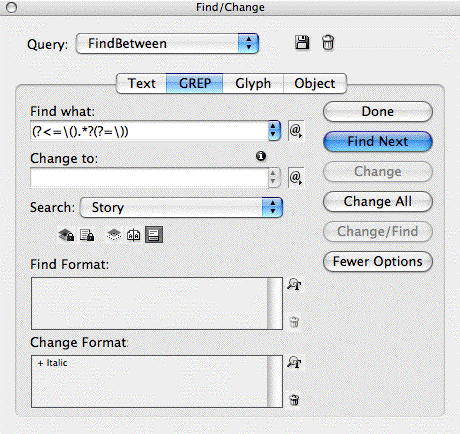
Easily Modify the Search
Below is the same GREP string, but this time the characters that govern what the “surrounding items” should be are highlighted in red so you can see what I’m talking about:
(?<=\().*?(?=\))
The first instance is an opening parenthesis, which needs to be “escaped” with a backslash so InDesign knows it’s a literal parenthesis, not some more GREP code. The second instance is the closed parenthesis, again preceded by a backslash to escape it.
I typed these in myself, but it’s simpler to let InDesign drop in the special code that GREP needs. Just choose the special character you want from the dropdown menu next to the GREP Find What field:

So, to find text surrounded by a pair of em dashes (but not the em dashes themselves) you’d change both instances of the red characters so it finds an em dash instead of an opening or closing parenthesis. According to the dropdown menu, GREPese for an em dash is a tilde followed by an underscore:
(?<=~_).*?(?=~_)
Here’s the string to find text in between any kind of double quotes, nice and simple:
(?<=“).*?(?=“)
In case you’re wondering, Peter says this type of GREP search is called a “Lookaround” — a combination of a Lookahead and a Lookbehind. All the “look*” type of GREP searches share one thing in common … they let you tell InDesign to find some text based on a character that precedes or follows it, but not to include that character in the found text itself.
Save the GREP String
If you think you’d find this useful, don’t forget to click the disc icon in the GREP panel of Find/Change so you can save it and recall it from the dropdown menu of saved searches from now on. I called mine “FindBetween.”
Just for fun (and to test out sharing saved searches), I uploaded my FindBetween search … it’s a tiny XML file …. in case you want to download it. Drop it into the GREP folder inside your Preferences > Adobe InDesign > Version 5.0 > Find-Change Queries folder on your hard drive.
 |
Hey that’s a neat GREP. Very useful. That is certainly better than how I was approaching the problem.
May I ask though, what would happen if you had a parentheses inside parentheses though? What if the text read something like
(This is my example (what would happen to it)) ?
That can appear in math too
($max-depth*k) – (($depth+1)*$max-depth – 1)
I was often inclined, after I tried a similar GREP search for some text, and it didn’t work because of the parameters that I decided to just select all the text inside the parentheses with something like
(\(.+\))
and replaced with
$0
Inside Parentheses Italic
then find [\(\)]
Inside Parentheses Italic
and change that to Roman or no character style.
Sorry if my syntax is off, but I don’t have CS3 available to me right now to test it.
That is really cool though, I must give it a go.
Also, would it be possible to reverse engineer this so that that it would only find the parentheses and not the text inside? I often have text that comes across and it’s in italic, that’s fine, but the [ and ] are in italics also. It’s for a [Emphasis Added] that’s in italic. So any instance of this could find the [ before Emphasis Added and find the ] after Emphasis added and change it to Roman, I don’t really want to change any other instances that may occur throughout the text.
That’s cool though, I like it very much. Thanks.
Eugene, the GREP expression doesn’t work for parens inside of parens. As soon as it encounters the first closed parens following an opening one, it selects what’s between. If you made it italic it would look like this:
(Some text (more text) inside parens)
Perhaps there’s another way to write the expression to do what you need.
The reverse engineering of a lookahead or lookbehind unfortunately doesn’t do what you want either. The example I wrote about is called a “positive” lookaround because it finds/matches based on the surrounding characters. You can easily turn those into “negative” lookarounds (by swapping out the question mark for an exclamation point in both sides of the example, I believe); which makes InDesign find text not preceded/followed by the specified surrounding character.
I think you could do what you want with two GREP searches: Find an opening bracket (followed by the phrase Emphasis Added) … the part in parens would be your positive lookahead. Then you could change just the formatting of that opening bracket. Repeat the GREP F/C with a positive lookbehind: (the phrase Emphasis Added) preceding a close bracket.
The $0, $1, $2 approach is great for swapping positions of found text, but InDesign doesn’t let you apply formatting to just one of those references. I’m pretty sure that the only way to apply formatting to just some of the found text is with the Look* sort of GREP searches.
You cannot match nested parentheses with any regular expression. This is a distinctive limitation on the class of strings that can be matched by such expressions. If you need to know why, you would have to go into the formal language theory underlying the notation.
There have been proposals for ‘recursive’ regular expressions, which would allow them to be used for such nested constructs, and some programming languages support such things, I believe. However, InDesign doesn’t, so the only way to approach such tasks is with a script.
Anne-Marie, thank you for your reply. I am already using a two-step-grep to get what I need, as I was doing with the parenthesis also. But you have a one-step-grep which is wonderful and obviously that is the goal.
Thanks
This is both very useful and instructive, Anne-Marie — thank you! And you’ve even learned, finally, to give your visitors real, downloadable code — who knows, maybe even INX project files are next?! :-)
Please post more practical GREP tricks like this one now and then.
I should have been more precise in what I wrote previously. You can’t match arbitrarily nested brackets with any regular expression, so you can’t, for example, parse arithmetic expressions that way. However, if you know how many brackets there are you can. For instance, it’s easy to adapt the original expression in the article to match two brackets before and after something.
This isn’t too useful in the present case, though, because although you can use any regular expression as a lookahead, you can only use constant text as look-behind. (Because regular expressions don’t go backwards.) So in your example, you couldn’t put an expression to match a ( followed by any text then another (. You could only do it if you knew the exact text between them.
I just found out something similar today. I won’t be able to purchase CS3 for a while so my grep work will have to take place outside of InDesign. And since I’m on a PC I can’t use either BBEdit or TextWrangler. On one of the InDesigner postings I saw that someone had suggested UltraEdit as a PC editor with powerful grep capabilities so I downloaded it yesterday and worked with it a little then and today. After getting help on their forum I now have a pretty good template. The examples below are self explanitory.
sample text:
NL03?1:30?2:30 pm
John Smith History of Surgery Lecture:
John Smith: First Generation American, First Surgeon General
Lecturer: John Smith, MD, FACS, Chicago, IL
Sponsored by the Advisory Council for Neurological Surgery
search for:
%^(NL*pm^p^)^(*:^p^)^(*^p^)^(Lecturer:*^p^)^(Sponsored*^p^)
replace with:
^1^2^3^4^5
end result:
NL03?1:30?2:30 pm
John Smith History of Surgery Lecture:
John Smith: First Generation American, First Surgeon General
Lecturer: John Smith, MD, FACS, Chicago, IL
Sponsored by the Advisory Council for Neurological Surgery
Now the only problem is (despite the fact that I turn on import options and choose ansi pc) when I import this into InDesign I see the tags as text. So that’s the next thing I have to figure out.
Even though I haven’t got this exactly working yet I thought those with CS2 on PCs might find this interesting.
sorry the end result didn’t show up as it should.
before line 1 is
a greater than symbol pstyle:A less than symbol
before line 2 is
a greater than symbol pstyle:B less than symbol
before line 3 is
a greater than symbol pstyle:C less than symbol
before line 4 is
a greater than symbol pstyle:D less than symbol
before line 5 is
a greater than symbol pstyle:E less than symbol
I wouldn’t actually name my styles with an Alpha sequence in a large document but it works to figure out the template
oh man sorry again the replace with didn’t show up correct either. That should be:
less than symbol pstyle:A greater than symbol^1
less than symbol pstyle:B greater than symbol^2
less than symbol pstyle:C greater than symbol^3
less than symbol pstyle:D greater than symbol^4
less than symbol pstyle:E greater than symbol^5
Hmm, the end result looks the same as what you started with.
Are you exporting styled text from ID as InDesign Tagged Text? Or are you working with a plain text file and importing that. (I can’t figure out what “tags” you say ID is reading when you import it.)
never mind i screwed up my explanation of the replace again
it should be
greater than symbol pstyle:A less than symbol
greater than symbol pstyle:B less than symbol
greater than symbol pstyle:C less than symbol
greater than symbol pstyle:D less than symbol
greater than symbol pstyle:E less than symbol
I’ve totally screwed up my posting Anne-Marie. None of the greater than or less than symbols showed up on your site.
i can post a link to the exact posting in the forum where i received help if that’s ok with you guys.
and to answer your questions I did a search and replace on some raw text in UltraEdit using grep and then imported it into InDesign. I managed to come up with text that indicates where paragraph styles should go but when I import the text the coding comes in as text.
Go ahead and post the link Bernie. After it’s up I’ll clear out your attempts to write it.
I believe you need to use HTML entities to get left and right brackets in a comment (see the tip under Leave a Reply).
If you want ID to recognize InDesign tagged text make sure it begins with the right preamble. Export a story from ID as tagged text and open that up to see the preamble, then copy/paste into your file. I think you only need the first few lines (you don’t need the definitions of the styles if the receiving ID doc already has the styles defined).
ok found the problem that I was having on importing
i had to ad the following as a first line to the tagged text i’m importing
greater than symbol ASCII-WIN less than symbol
now InDesign reads the tags
take a look at this page and it’ll be cleaer if the url will post correctly:
https://www.ultraedit.com/index.php?name=Forums&file=viewtopic&t=5614
ok that works. so the only thing a PC CS2 person needs to do is ad that bit of coding i indicated in posting 16
Looks like they took down my posting at the UltraEdit site. I’ll e-mail my grep template to you guys and you can decide how to best pass along the information. What I’m giving you is the PC version of what Michael Murphy posted regarding pattern searches using grep way back in episode 9 of the InDesigner.
This is coming close to being a solution for something I’m trying to automate. Perhaps you can help?
I, like many other people, like to put a thin space before and after an em dash. Currently it’s awkward, requiring three steps. I wanted to find a way of either having InD CS3 do it automatically when I insert an em dash (perhaps with scripting? Not sure), or to do a find and replace on all em dashes WITHOUT a thin space before and/or after, and to replace all such instances with one that does have a thin space before and after.
Can anyone here suggest how I can either use the find and replace feature (as outlined in this blog post) to achieve this, or to automate it from the start with a script or something to that effect?
With thanks,
Jonathan
Jonathan, here’s the GREP code you need:
For ‘Find What’:
( )(~=)( )
For ‘Change to’:
?~
Hey, that truncated my text. Let’s try again.
For ‘Change to’:
~
One more time. Apparently HTML competes with GREP and wins. So let me just describe:
In the drop-down menu for ‘Change to’ select White Space/Thin Space, then type $2 (2nd item found, which in your case is your en dash) and then again select White Space/Thin Space.
hello, love the cast and magazine… i’m trying to get the example (?
hello, love the cast and magazine… i’m trying to get the example to work to find text inside () and it says cannot find match… Mac CS3 have text in (), searching document, in the grep find panel… is there something i need to enable…
weird, no grep finds worked, even “any digit” so i restarted ID and now it works – go figure
Hey Mike, glad you finally got it working! If only life let you restart like software programs or computers. ;-)
So true, anne-marie…
ok, ran into another issue… doing a non-profit yearbook -yikes, but datamerge is great… but the issue i am having is changing the students 5-digit id number into “their five digits” + “.jpg”… should be easy… i can find them by:
(\d\d\d\d\d\d).*?(?=”slash”t)
but i cant figure out how to make the replace work…
it always replace the characters with whatever i have in the change to box, not the original digits…
thanks in advance.
ok, i figured it out by just adding different “shift-characters” to the beginning of the string based on bernies post above…
find: (\d\d\d\d\d\d).*?(?=?slash?t)
replace: $1.jpg
think i’m going to now purchase that “GREP in InDesign CS3” book, as it is really useful. thanks. love your cast and magazine…
How do you fix a typo when an uppercase character has been typed between two lowercase characters such as:
HelLo
to this:
Hello
I’ve tried all the variations in this blog archive, been able to isolate the uppercase L but cannot figure how to change it to a lowercase L.
Note, I have a document where the typist is typing so fast this happens in many words, so I am not just looking for the word hello.
Appreciate any answer.
I’m not having any luck with a similar (to me) “find between”.
I want to reorganize a set of tab-separated columns that are currently NOT in numerical order: Product, PartNum, Price1, Price3, Price2. That last item is followed by a return.
I have had zero luck with backward looking:
(?<=t)(.+)(?=t) selects the GROUP of PartNum, Price1, and Price3, and skips the last Price2 because it is not followed by a tab stop.
I have tried all sorts of other patterns (.*, etc). The PartNum info sometimes ends with a digit, sometimes with a letter.
I’m missing something that has me stopped cold.
Thanks for any help.
Example:
Product PartNo Price1 Price3 Price2
Watch BB100 $25.00 45.00 35.00
Ball BB200 16.00 65.00 10.50
(?<=»)[^«|»]+?»|«[^«|»]+?(?=«)
searching for double/wrong or missing `»´ + `«´ chars, very useful in long documents
what if I want to change a single line paragraph inside my story, i mean paragraph head, how i can change every single line paragraph to be centred and bold and in different color inside story
I want to write a GREP that will find any e-mail address, whether it contains letters, digits, hyphens or underscores, periods, etc. Can you help?
Tom, check out this forum topic which is dealing with that stuff.
Hi, does anyone know the code to insert non-breaking spaces (the alt+cmd+X) between all instances of [1 or 2 digit]+[space]+[Jan/Feb/Mar/Apr/May?June etc] and turn that space into an nbsp and or thnsp?
just discovered GREP, so excuse if this is an obvious question.
the findbetween string works perfectly but is there a way to delete the parentheses (or whatever denotes your search) within the string
KEITH: Simply don’t use the lookbehind/lookahead … That’s only of use when you want to find but not replace.
The parentheses example would look like this:
\(.*?\)
and will find anything inbetween parentheses, including themselves.
You still have to “escape” the parens because they are ‘special’ inside GREP expressions.
That’s awesome! I used this to solve an issue with a ®. Usage on this calls for Egg Beaters® to have a subscripted ® rather than superscripted. So I GREPped the Paragraph Style sheet to look for all instances of Egg Beaters, followed by a ®, and told it to apply the subscript Character Style sheet to just the ®.
Like this
Character Style Sheet: ® (subscript) (this is what I named the Character Style Sheet – you can name it anything you want, just so long as the Character Style Sheet is set to subscript the font)
Find: (?<=Egg Beaters)~r
(make sure to put this after the GREP that makes all the other ® superscript, if you are using one like that, since GREP is hierarchical; most modern fonts already superscript the ®, but in case your font does not, use a Character Style Sheet that superscripts the font, and your Find will be: ~r)
What if i want to replace the ?any character? character, for a hole word. For example, I want to replace the period ?.? for the letter ?a? and thats how im doing that, but it just doesnt work.
(?<=?)\a(?=?)
Like JK asked above, I too am looking for the correct way to include a non-breaking space – in my case, into the GREP Style section of my Paragraph Style.
I have GREP Style definition that includes applying an italics Character Style to both
Figure \d+
and
Figures \d+ and \d+
This works fine except in a few instances, the last number wraps to the next line and hangs there like a runt. I want to have a second style definition that would include a non-breaking space after the word ‘and’.
I’ve tried using ^s and ~s but that doesn’t work. What am I missing here?
thanks for any help
I’ve NEVER used Greps, and am so glad I found this. I’m adding in a geological dictionary, combining several into one, which result in thousands of duplicates. I tried your GREP in find and replace and it worked like a charm!
Thanks a million!
Susan
This solves the issue I had initially with multiple words inside parens! Thanks!
I have been trying to create a variation of this and have not gotten there yet. I need to format sets of words contained in parenthesis, the word sets are separated by a forward slash. I want to apply the formatting to the only the words and not the forward slash. Is this possible? I tried to do it many ways including a look between parenthesis and forward slash but it doesn’t seem to work if it is not a matched open/close.
Any ideas?
BTW I did create a separate GREP to override the formatting on the forward slash, but I was wondering if it could be done all in one GREP instead.
Thanks!
I am using cs4 and am completely unfamiliar with greps. I need to change charts with plain numbers to charts with numbers surrounded with parentheses. I managed to muddle my way through the grep screen in the paragraph styles to superscript certain columns, but does anyone know how to write the command to put the parentheses around the numbers. I probably have ten thousand cells to change and I really don’t want to do it by hand. ;)
Thanks!
thank you very much for that.
what do I need to add if do want to find both the parentheses and whatever include between them?
thanks,
Shlomit
Shlomit, this is the Special Case. If you want to include the parentheses you don’t have to do anything special (except escape the parens with a backslash because otherwise they will be interpreted as GREP commands).
Not sure if it was mentioned (too many comments to read them all)…but the great thing about the lookaround is that it works great in a style as well. Once I discovered the lookaround, I was able to shift some of my find/change routines into integrated GREP in styles. Great tip!
I would like to ask how would you make the word inside the open and close parenthesis bold or how would you find a specific word inside the open and close parenthesis.
for example: (EX GST)?
I can’t figure out how to make a grep code for this one.
Aina, that is exactly what this post is about! The example changes the text inbetween to italics, but surely it ought to work the same for bold.
To find your specific word inside parentheses-but-excluding-them, don’t use the wildcards but simply enter the to-be-found text:
(?<=\()EX GST(?=\))
I work in the publishing industry and often have to format books, such as cookbooks. The text comes to me with tags at the beginning and end of each block that needs to be styled a certain way. This would be easy if the tag was at the beginning and/or end of each paragraph or line but it is not. I might have an entire ingredients list that begins with a tag, such as:
then lists the ingredients and after the last one, ends with:
The same goes for multiple paragraphs of text – codes at beginning and end of multiple paragraphs, not each one.
I am trying to figure out if it’s possible to format these easily. I tried:
(?<=).*?(?=)
but it only recognizes the first line. It seems the end paragraph mark messed things up. Any advice you can offer will be greatly appreciated. Thanks!
Lisa, did you figure this out? I am in the same exact situation: A list of ingredients, para breaks at end of each line. First line starts with a hard code, . Last line ends with a close code, . I want to apply a Para style to all paras within those bracketed hard codes. I’ll go search the forum but if anyone has a link to the convo, please let me know!
Oops, sorry. The codes are:
Start: Open angle bracket + I + close angle bracket
End: Open angle bracket + forwardslash + I + close angle bracket.
i would like a link too. having this issue right now with the exact same situation!
Well that’s weird – my grep string changed after I hit the comment button.
@Lisa, as you can see in comments before yours, our site destroys a lot of grep codes, especially things with angle brackets. It thinks it’s html code or something.
In general, I would recommend asking questions on our forum instead of a particular blog post. (Click forums in the nav bar up above. You’ll need to have a free membership to post.) You’ll still need to “escape” those special character with backslashes, but more people will see it there.
Hello, any help is greatly appreciated.
I have this code that “applies style to any character between and including the pipes (\x{07c})”
(\x{07c})(.+)(\x{07c})
Works fine.
But, the PROBLEM: I can’t get it to let me specify any character within this: not a letter, not a caret….nothing. Any ideas on how to do this?
Basically, I have a normal paragraph that includes examples of HL7 messages. Like this. For example, |AB^Abbott^^^MVX|
WHY: In my full samples of Code (separate Code paragraph style) I have the Carets=red, the Pipes=green, etc…. I’m trying to duplicate this, but I need it to only be between the pipes because these characters also exist in the paragraphs independently not as a coded sample.
Jamie, the problem is to locate any given character somewhere inside a string, you would need a positive lookbehind of undetermined length. InDesign does not support that (that’s not so weird, I have yet to find a program that uses GREP that can).
Thank you for the help. I really appreciate the information :)
hi, please help me with these script in indesign CS3
app.findGrepPreferences = NothingEnum.nothing;
app.changeGrepPreferences = NothingEnum.nothing;
app.findChangeGrepOptions.includeFootnotes = true;
app.findChangeGrepOptions.includeHiddenLayers = true;
app.findChangeGrepOptions.includeLockedLayersForFind = true;
app.findChangeGrepOptions.includeLockedStoriesForFind = true;
app.findChangeGrepOptions.includeMasterPages = true;
app.findGrepPreferences.findWhat = “(\[*\\d{1,2}|\[~8{3}\])/(\[*\\d{1,2}|\[~8{3}\])/(\[*\\d{4}|\[~8{3}\])”;
app.changeGrepPreferences.changeTo = “$1@@$2@@$3”;
app.changeGrepPreferences.underline = true;
app.changeGrep();
app.findGrepPreferences = NothingEnum.nothing;
app.changeGrepPreferences = NothingEnum.nothing;
I found that it can work with Find/Change Box in Grep but not with the java script, why??
You need to double each and every single backslash in your findWhat expression.
Any random questions on scripting are better asked in the Scripting forum. You can go there (surprise!) by clicking the word “Forum” at the top of this page. You can register for free (suprise again!) and then ask away.
Anne-Marie’s examples are for single-character things like text within parentheses or dashes, but I’ve found the expression works wonderfully no matter how many characters. For instance, I had some UUID code bracketed by at the rear. The expression (?<=\) found just the UUID. What Anne-Marie said bears repeating: this expression will find anything between anything. What a gem!
Please excuse my previous posting. I didn’t use the proper HTML encodings for markup sensitive characters, but the gist of my comment is unchanged: Anne-Marie?s examples are for single-character things like text within parentheses or dashes, but I?ve found the expression works wonderfully no matter how many characters occur in front or behind. A truly useful expression!
I am trying to make sense of GREP find and replace and does sound like what i’m trying to achieve should be able to be done by all the comments above.
I am trying to find all instances of:
‘Source:’
where it fills within parentheses.
I then want to format everything inside the parentheses and including the parentheses to a certain Character style.
Any help would be much appreciates.
Regards
Ross
Hello – -this script finds all the text after a tab and before a return. Works like a dream in my paragraph style, thank you…
(?<=\t).*?(?=\r)
What I woudl love to find out is how to tune the script to find all the text between TWO consecutive tabs and a return…
Would be incredibly useful; trying to assign a character style to numbers in an index…
thanks for your time and assistance!
what if i DO want the parentheses included in the search?
Fede, that is easier. You should be able to use
\(.*?\)Thanks Dave!
i missed the ? and searching for \(.*\) selects the first open and the last closed parentheses and aaaaaaall the text in between.
So what will be the full code? I am not figuring it out. Please.
This is great! AND what about if I want to only find italic text within the parenthesis? :)
I had a problem with setting up a document that imported xml from a CMS tool that would allow variable laser text but I need to also not only find anything between anything but to also include the anythings and colour them magenta so the printer could replace them.
ie: $Salutation$ $First Name + Last Name$
I found that using this with a minor tweak would work like this:
\$(?<=).*?\$
Just as a note anyone who deals with printer and variable text will know that they normally use but this will not work, but following a call to the printers and a test they found they could use $ signs instead of
Thank you so much!!!!, you just saved me hours of work!!!
Thank You, Thank You, Thank You
Is it possible to use a GREP solution to add a period to the beginning and ending of every string of character styled italics? I’m trying to figure out how to add markers to over 3400 film titles in a film encyclopedia.
Plaeisng to find someone who can think like that
This forum needed shaking up and you’ve just done that. Great post!
Yup, that’ll do it. You have my appreciation.
Update: Obi-wan Kenobi (the one and only) discovered that since InDesign CC2014 DOES support recursive regexps: https://forums.adobe.com/thread/1821612
It can be used to match ALL text inside parentheses, even if it contains NESTED parentheses: “(Some text (more text) inside parens) and more …”
Hello. Thanks for your website, I’m learning very much with your posts. I have a problem, I’m searching a grep style to apply a character style if the title has less than 14 words or to apply other style if the title has more than 15. Someone told me that I can do this with grep but I can´t find nothing similar. Do you know how can I do it?
Thank you.
how can i convert al numbers
before
4846303
393251561
44010
14560656
12702185
44763
that what i need
4,846,303
393,251,561
44,010
14,560,656
12,702,185
44,763
how can i do it please
Find what:
(?<=\d)(\d{3})(?=$|\.)
Change to:
.$1
But you need to click "Chage all" twice.
it dosen’t work withe me
Great, thank you so much, your tip saved me a heap of time correcting a book I’m correcting for a customer.
help me plz :)
i want to put space between two anchors on all text box
Hello:
I want to share a issue: I placed a Word text into Indesign. The original text had a lot of superindex numbers but on Indesign looks like: Lorem24. There are any way to using GREP to substitute all at the same time? Perhaps making a code to looking for numbers joined text?
Thanks in advance!
I am trying to GREP adjust text ${q://QID62/ChoiceTextEntryValue/1}. I want to select everything from $ to } and apply a character style to it (make it orange). Does anyone know how to write the GREP code?
Hi I am looking for an automatic formation of some parts of a text.
Example:
Koral, S.M. (2013). Mercury from dental amalgam: exposure and risk assessment. Compendium of Continuing Education in Dentistry (Jamesburg, N.J. : 1995) 34, 138.
I used ((?<=\)\. ).*?(?=\.)
But if you have a ? or ! it doesn't work and in addition i want the . ! or? to be italic too.
I am stucked does anybody has an idea?
Andreas: I don’t understand what you’re trying to format. Can you explain?
This is a great solution to a problem I’ve been having with finding/changing sentences that have *some* italics in them. But it’s part 2 of a two part solution. I’m having trouble with the first part.
Basically, I want to *tag* italicised words with a character on either side of the word/sentence. So if “this is in italics.” could become “(this is in italics).” You’d think you could just do a GREP find/change, with !$0! in the change box, with “italics” set in the Find Format bar. But all this gets me is “(this)”. For whatever reason, $0 is only grabbing the first four characters. Is this a bug, or how it’s supposed to work?
i tried to use this code (?<=\().*?(?=\))
in cs6 but it doesnt find anythig.
what shall i do?
Hello
How do I search the brackets with parentheses in InDesign while in the midst of the special characters such as comma (,) available
Like (amir, 12)
Thank you!
THANK YOU! this article has saved me a ton of time :)
Hello,
Can you help me how to find entire text in between two tags. I have mention below the example text
In this para how to find text between tags
News of his escape would be transmitted all over the area by 150 telegrams and three battalions of Landsturm would be mobilized to search for him. A search party would the frontier, and trying hard to appear as if he belonged there, even exchanging the occasional ‘Guten Morgen’ with the odd civilian or sentry.
Does this work on Mac?
its possible to use this find grep to delete a “anchor” that is the first thing in a paragraph?
even if I have to use other char next to the “Anchor”
Hi, I find this all fascinating but having trouble understanding and can’t come up with a grep style to do the following using InDesign CC:
Example:
Melbourne in the State of Victoria (Australia) [2018] Melb 3000
Using the above, I would like to italicise all words before the ‘(‘ that is ‘Melbourne In the State of Victoria’. Can anyone please assist?
Hello.
For this kind of problem I would use the following expression : ^[^\(]+
which can be explained this way :
– ‘^’ : start of the paragraph
– ‘[^\(]’ : any character that is not an opening parentheses
– ‘+’ : one of more characters found
This works as long as you don’t have parentheses in the text you want to transform in italics.
Good luck.
You ripper, fantastic and thank you so much, I am good to go using this.
Salve, ho InDesign 2018 e vorrei sapere come poter mettere lo stile italic ad un testo fra caporali … senza coinvolgere i caporali stessi.
Grazie
I want to italics the words between first perenthesis only in a paragraph. And all others word between the parenthesis looks normally. What expression I should uses in the grep field in InDesign.
Hi !
I’m looking to search every dash in quotes, is it possible ?I tried many things but didnt found that specific thing..
From : Lorem – ipsum “dolor sit amet, consectetur – adipiscing – elit. Vestibulum – fermentum blandit ante in lacinia.”
to : Lorem – ipsum “dolor sit amet, consectetur__adipiscing__elit. Vestibulum__fermentum blandit ante in lacinia.”
Thanks,
I can’t do it in one pass, but you could use the following expression which gets one ‘-‘ per pass for each pair of quotes and repeat till it finds nothing.
“[^”–]+\K–
In case it helps, this is how it works :
– “ : find an opening quote
– [^”–]+ : find any number or characters following the opening quote which are not closing quotes
– \K : ignore any found characters till this point
– – : find the dash quote you wish to change
For the replacement part, you just have to type the characters you want, ‘__’ here.
If there is too much repetition with the find/replace, you could use a script to automate that part.
Good luck.
Dear all, very interesting post here. I am trying to find a code only affecting the round brackets. I want to place the round brackets in “normal” (easy to do by applying, this only affects a font with pro features. as in my document all round brackets are placed in “capitals”). But I want to do the search only on text that starts and ends with one of the descender characters [acegijmnopqrsuvwxyz].
So SEARCH: text (one or several words) between round brackets, but only start or ends with one of the descender characters.
REPLACE: only apply a style that effects the round brackets themselves
If I understand you correctly, I would do the search with this expression :
\((?=[acegijmnopqrsuvwxyz])|(?<=[acegijmnopqrsuvwxyz])\)
This works by searching either an opening round bracket followed by the descender characters
"\((?=[acegijmnopqrsuvwxyz])"
or a closing round bracket preceded by the descender characters
"(?<=[acegijmnopqrsuvwxyz])\)"
Both searches are done at the same time by combining them with the 'or' character "|".
For the replacing part, you can either do the search manually and apply the desired style in the search panel or use the grep styles in the paragraph definition which will apply the style automatically as you type.
Good Luck.
Dear Emmanuel, thanks a lot! It works, but what I actually was searching for was an expression to find both opening and closing brackets. So, to find the opening and closing brackets (of one element, for example “(xyzq piru)” at the same time. But I do not know if this is possible. All best
Well, you can do both round brackets at once if you apply the style to the intervening characters as well.
If we want to check only the first and last characters inside the round brackets, the following expression will work (but it may change the upper case characters inside) : \([acegijmnopqrsuvwxyz][^\)]+[acegijmnopqrsuvwxyz]\)
If you want to ignore round brackets with capitals inside you can use this modified expression : \([acegijmnopqrsuvwxyz][^A-Z\)]+[acegijmnopqrsuvwxyz]\)
Other characters to ignore can be added inside this part of the expression “[^A-Z\)]”
Thanks a lot, Emmanuel!
I have a document with reference numbers in brackets [number]. Can I make a GREP style that ad char style (superscript) and afterwords hide the brackets?
It can be done, but it will be two styles and three greps.
The two styles are the (superscript) you want for the numbers and an “invisible” style you apply to the brackets to make them disappear. These days, for an invisible style I use the following rules :
– font-size : 0.1 pt ;
– horizontal and vertical scale : 1 % ;
– font and border color : none.
These characteristics make the text so small that it effectively disappears and it doesn’t disturb the printing.
For the grep styles, I would use the following :
– “\[\d+\]” : for applying the char style (superscript) to the numbers and the brackets
– “\[(?=\d+\])” : for applying the “invisible” style to the opening bracket, when and only when it is followed by numbers and a closing bracket.
– “\[\d+\K\]” : for applying the “invisible” style to a closing bracket, when preceded by numbers and an opening bracket.
Good Luck.
Hi. I want to convert open and close parenthesis in footnotes to open an close brackets at the same time. Do you know if there is a GREP expression that could change both at the same time, only the symbols. This (xxxx) to this [xxxx]. Thanks
@JP: Yes, you can search for
(\()(.+?)(\))and replace it with [$2]Thank you very much David :)
How replace all characters of paragraph to characters of kashida ~W by tap GREP?
Hi
Could l get Grep of what does shourtcut shift+Tab
THANK YOU
How would I go about removing the surrounding characters from an arbitrary string?
I’ve used the above code to target strings that were surrounded by square brackets in order to change the formatting of text inside of the square brackets, but I then want to remove the brackets…
I do a find and change again changing the “target” to “nothing”.
I don’t quite follow, sorry Rafael.
I used “\[.*?\]” to target all text strings inside square brackets, and make the matching results bold.
So [ABC] becomes [ABC]
That’s a necessary step for targeting those strings and changing the format accordingly, however, afterwards, I’d like to do another search, in order to strip the surrounding square brackets so that [ABC] becomes simply ABC. I want to leave the ABC in tact, but if I understand your advice, everything in square brackets, inclusive, gets deleted.
Hi.
In grep, search your text with : \[([^\]]+)\]
Replace with : $1
Apply Bold to the found text.
This should allow you to do all you want in one pass.
Perfect! Thank you!
Hi:
I want any number in the first 8 characters from the paragraph
Is possible in GREP?
Hi. It depends on what you want to do with those numbers.
1 : do you have some text and want to keep only the numbers present in the first characters (and what must be done with the letters in-between numbers) ? This should be doable with a multiple request.
2 : do you want to apply a special character style to the numbers in the first 8 characters ?
3 : something else ?
An example would certainly help.
4. Does it have anything to do with this topic “Find Between”?
A better place to ask (including all relevant details) would be at the forum: https://creativepro.com/forum/general-indesign-topics
Thanks Emmanuel. I have a list type:
from “1.1.1 Text Here…” to “13.4.1 Text here”
My idea is select (with grep) the first 8 Characters (only numbers and dots) anda apply a style character.
For this you can do : “^[\d\.]+” in the Grep Styles part of your paragraph and replace with the style character you need.
Emmanuel, many many thanks!
Hi, I don’t think I will ever understand this stuff but I know it is so powerful.
I am trying to find a grep to help me do the following:
Find words prior to a phone number which consists of two digits, space and two digits and then bold those words.
I have a charter style setup so I know how to do the bit, it’s just the find part I can’t get right. Please help
This is super useful – but there is a typo in one of the examples that is confusing when you try to use it. So – when you search between double quotes like this:
(?<=“).*?(?=“)
you get odd results because the second quote mark needs to be a *closing quote". At the moment the expression as given uses two opening quotes!
Hi! This is wonderful, but I’m struggling to figure out how to make it find things in a paragraph. If the two characters being searched are on different lines of text, the search fails.
In other words it can find the text between
targetwordorcharacter1 “lots of other words” targetwordorcharacter2
but it can’t find the text between
targetwordorcharacter1 “lots of other words”
“lots of other words”
“lots of other words”
targetwordorcharacter2
And despite a ton of searching, I can’t find the GREP expression for “anything at all no matter what it is”
In other words, I want to do a GREP search that turns this:
(?<=().*?(?=))
into
(?<=TARGET WORD).absolutely anything at all including new paragraphs or line breaks or whatever(?=TARGET WORD)
help?
Hi, just coming across this useful GREP expression now, thank you!
I tried this out using brackets, because I want to find and then delete everything in the brackets.
(?<=[).*?(?=])
When I leave the change field empty, it deletes the content within the brackets, is there a way to modify this to delete the brackets as well?
Thanks.