


How Can I Align Double Digits in a Numbered List?


Question: What is the secret of getting numbers to align correctly in numbered lists in CS3? If you want numbers to align on the decimal or align right, simply choosing ‘Align right’ in the Bullet or Number Position area seldom does the job. It takes a lot of fiddling. Is there any logic going on behind the scenes?
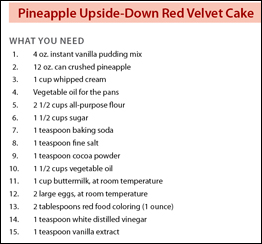
Answer: Ah, the dreaded DDDLU Syndrome (Double Digits Don’t Line Up)! Dontcha just hate that? The coward’s way out is to just stop at Number 9, but that’s not a viable solution; look at all the ingredients you’d have to leave out of the Pineapple Upside-Down Red Velvet Cake (yuck!):

Indeed, there is a trick, and it does NOT involve hitting the tab key before each number. It’s one of those things that’s sort of hiding in plain sight.
If you’re creating a numbering scheme as part of a paragraph style, the secret is in the bottom of the Paragraph Style Options dialog, under ‘Bullet or Number Position.’ (See below)
 What do the options mean?
- Alignment refers to the alignment of the numbers themselves, not the paragraph they’re in. If you want right-aligned double (or triple) numbers, choose Right alignment.
- Left indent controls the left indent of the paragraph, but – and this is the really important part – it also controls the ‘elbow room’ for numbers. If your multi-digit numbers don’t pay attention to your choice of Right alignment, jack up the left indent value and watch what happens; once you allow enough room, your numbers will fall into place. If you want to right-align double- or triple-digit numbers (the most common scenario), you must stake out enough space for them. There’s no magic number; the proper amount depends on your font size.
- First Line indent governs, well, the first line. If you want a hanging indent, this will be zero or a negative number. Again, the amount depends on the effect you want and the size of your text.
- Tab Position establishes the space between the number and the next character in the first line.
If you’re not using a paragraph style (Shame on you! Styles are your friends!), you’ll find the same controls in the Paragraph panel (Window > Type & Tables > Paragraph) (see below).

Either way, once you’ve sussed out the magical values that work for your text, your multi-digit numbers will line up and life will be good:
[Note that there is more on this topic on this post.]
 |
Great tipp, thanks!
Best regards from Austria
Martin
Claudia,
THANK YOU! This has puzzled me for quite some time, and I’m ashamed that I didn’t dig deeper into the list controls and figure it out myself.
I think part of the reason this is easily overlook is because the word “Alignment” needs more self-description (even though right above it it does say “Bullet or Number Position”. We’re (mostly) used to thinking of alignment in terms of the entire paragraph, not a sub-part of it. If the drop-down menu next to it said “Bullet/Number Aligns Left,” those of us who are a little thick in the head might “get it” more intuitively.
I must admit I was surprised that even after I knew what to do, creating a hanging list with turnover lines was far from intuitive. I finally gave up using the dialog box and directly manipulated the indents in the tab palette, and then read the values for the indents.
I’m also a bit puzzled by the implementation of the tab position. As I was trying to write up the behavior, it became too confusing to attempt a short/good explanation.
Bottom line — I hope this area is baked a bit more in IDCS4. It eventually does give you the results you’re looking for (hallelujah!), but getting there is much more difficult that I would have ever expected.
Andy MacBride
PS: Now that you’ve teased us with this interesting list of cake ingredients, I think you’re going to have to post the complete recipe. ;-)
excellent!!;o)
there’s still a problem with certain numbers…maybe it depends on the font, but in helvetica, the 10 and the 12 line up to each other, but the 11 looks like it needs kerning between the two 1’s. but you can’t kern these numbers, right?
Lauren,
No, you can’t kern those numbers, because they are “generated text” that you can’t select. But there are several options:
–Set your kerning to Optical, rather than the default Metrics
or…
Convert the numbers to plain old text: Type > Bulleted & Numbered Lists > Convert Numbering to Text. (Or you can right-click on selected text and choose Convert Numbering to Text). Then you can select the numbers an manipulate their kerning.
Or, consider using an OpenType font such as Myriad Pro, which offers Tabular Lining and other options for numbers. They tend to set numbers more evenly to begin with.
Hope this helps!
In the old days–before desktop publishing–publishers would request that numbered lists “clear for ten” in their typesetting specs. The way this was done for fonts with lining numerals (most fonts) was to add an en space before 1 through 9. Lining numerals, and an en space, are all the same width. I find this trick still comes in handy at times.
Also in the olden days (2001) I was shown by a very experienced typesetter to insert the first 9 numbers as 11, 12, 13, 14, 15, 16, 17,18, 19 and to whiten the 1 at the start.
A method I no longer practice, thankfully.
Lining figures should all be set on a width of one en space if the typographer created them correctly.
I place a en space in front of single-digit list entries when creating a numbered list style sheet. This takes into account the correct position for “set list flush for 10”, which is the way I used to spec type many years ago went we sent manuscript to typehouses.
ummm… in financial typesetting, all numbers in a column have to anally align.
The way we do it is set all type using “optical kerning”
Then when the number columns are set up in a table, select those cells and use “metric kerning”.
If it still gets stubborn, define that attribute (optical,metric) simply as “0”.
Thank you! I never thought I would figure this out. This website is so much better than the InDesign book I bought.
Perhaps I’m not doing it right, but when I set the left indent for the numbers per the yellow highlighted area in Claudia’s sample, the hang indent on any turnlines in the list text turnlines shifts over to the same point. In CS3, the left indent for the list text and the left indent for the number can only be the same value. If you switch it in one place, it also switches in the other. Claudia’s sample shows no turnlines, so her technique works beautifully when working with a short-entry list but not with lists with any turnlines. InDesign would need to allow separate values for both boxes to have this work effectively for long document work.
So I’ve returned to a manual numbering on the number lists with a suggestion to others to use InDesign’s “figure space” instead of the en space to clear for 10. I set up a custom keystroke for this space. The en space will line up standard lining figures as well, but the figure space allows an easier time with nested styles and find/replace functions since the en space has many other uses besides just clearing for 10.
Claire;
Your numbers will probably be different from mine: I was just trying to show which values you need to experiment with.
I can’t post a graphic, but I used these values in a quick test of multiline text to get room for the numbers, plus a hanging indent:
-Left indent: .625″
-First Line Indent: -.375″
-Numbering: Left indent .625″
-First line indent: -.375″
Aaah! I get it now! The negative amount needed for the “First line indent” isn’t referring to the space between the list text and the furthermost left edge of any type (here the numbers) like traditional uses of a negative indent does. For numbered lists with automatic numbering applied, a negative “first line indent” is the space BETWEEN the numbers and the text.
For example, if text is set in Stone Serif, a numbered list with a hang indent of 18 pts needs to have a left indent of -5 pts to set two-digit numbers with periods FL, and clear for 10 / line up the numbers on the periods. It’s 5 pts between the period and the start of the list text. Geez, it would be good for Adobe to come up with a better description of this like “space between numbers and text.”
Many thanks!
Claire