


How to Insert a Schwa (or other phonetic) Character in InDesign


S.G. wrote:
I need to use the schwa character in a text. I don’t need a full-fledged phonetic font, just an easy, reliable, and cross platform way to type a schwa character.
Fortunately, many fonts include the schwa character (which looks like an upside down “e”), though sometimes it takes some digging about until you find it. The key to finding it lies in our friend the Glyphs panel.
Create a new text frame and open Type > Glyphs. Choose an OpenType font from the Font menu in either the Type menu or the Control panel. (You can choose a font from the Glyphs panel, but sadly it won’t indicate font type there.) But which font to choose? The best bet to start with is one that is usually associated with Microsoft. For example, both Arial and Times New Roman have a bazillion phonetic (and just downright odd) characters.
Now comes the fun part: Start scrolling through the Glyphs panel until you find the character you want. There are some tricks, such as choosing a subset of the font from the Show pop-up menu at the top of the panel — but while that works for math or Greek symbols, I don’t think phonetic characters fit into any of these categories.
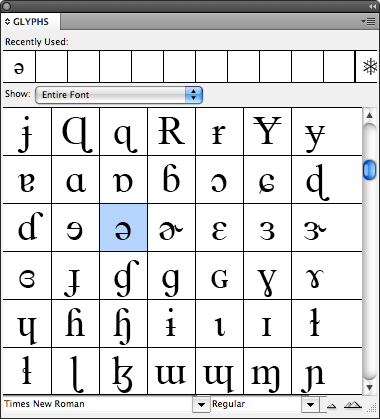
To place that character into the text frame, double-click it.
Alternatively, if you know the Unicode number for the character you’re looking for (the schwa is 0259), you can bypass this in a couple of ways. For example, you could use the Compose.jsx script or the dotlessi script which I talked about here.
Once you have the character, you can copy and paste it from place to place (or use find/change to replace some other stand-in character with it).
Or, select it and change its font. If a font doesn’t support the glyph, you’ll see a pink rectangle appear. Here’s a fun trick: select the character, place the cursor in the Font field of the Control panel, and press the up or down arrow keys on the keyboard to choose the previous or next font. Keep scrolling through the list, one font at a time, and you’ll quickly see which fonts do and don’t support it. I was surprised to find that Adobe’s Minion and Myriad fonts don’t have a schwa, but the TrueType version of Marker Felt does! Will wonders never cease?
Of course, you can always just create your own schwa in any font by selecting an “e”, choosing Type > Create Outlines, then selecting the resulting inline object with the Selection tool and rotating it 180 degrees in the Control panel!
 |
Hello,
Just to say that Adobe Minion Pro and Myriad Pro have a schwa called Cyrillic small letter schwa (Unicode 04D9)
Ah! You are correct, Laurent. Thank you for pointing that out. Interesting that there are two Unicode schwas.
Thanks for this great info! Now that I know how to find the schwa character and find a font that has a draw for it, I think I have found another way to make it accessible — I just created an modified keyboard layout using a utility called Ukelele: https://scripts.sil.org/cms/scripts/page.php?site_id=nrsi&id=Ukelele
The documentation was quite clear: You open one of the provided keyboard layout files, and also open the Show Character Palette — after that it’s drag and drop. Then you save your layout and put it in /Library/Keyboard Layouts.
I have created an alternate keyboard layout file in which I replaced the oe ligature assigned to Option-q with the Unicode 0259 schwa. It seems to be working.
The only quirk so far has been the keyboard layout filename. I named it Schwa.keylayout, but the operating system displays it as US extended. But my schwa character is there under Option-q.
Another good idea is to make glyph sets if you use these things a lot. I only recently discovered the power of glyph sets for weird characters! I especially like that you can save them without saving the font in memory. I’m making a glyph set of all the accent characters I use, and it’s really saving me time!
People who often need to find special characters might investigate a product called PopChar (www.ergonis.com) – it allows you to search all your installed fonts for glyphs with a given name / whose name contains a given substring, and can then tell you which fonts contain it. For many apps, you can then double click on the glyph in PopChar and it will be inserted into your document.
UnicodeChecker does a similar thing. It’s especially appealing for tech heads like me, because you can search for the Unicode name of the character, and see in which local fonts you can find it.
Adobe Minion Pro and Myriad Pro have a schwa called Cyrillic small letter schwa (Unicode 04D9)
Correct, but that’s a Cyrillic character, rather than the IPA one. It’s an incredibly minor point, but valid if you want to produce a searchable PDF. If you copy a (real!) schwa in the Acrobat Search field and search a PDF I created, that’s what you’ll find.
Compare to regular ‘A’ and uppercase ‘Alpha’ — while they may look the same, they aren’t the same character.
Instead of outlining it, I’d probably anchor it.
oops–David said that when he said “inline object.” My bad :(
On Mac OS X, you can also enable the Unicode Hex Input keyboard layout (in System Preferences / International / Input Menu). It?s useful to enable the checkbox Show input menu in menu bar there as well.
Whenever you need to type in any Unicode character, you can switch to the Unicode Hex Input keyboard layout using Cmd+Option+space, then hold Option and type in the Unicode codepoint (e.g. 0259 for the schwa), and then release Option and press Cmd+Option+space to switch back to your standard keyboard layout.
Use the free UnicodeChecker app to find out the Unicode codepoint of any character.
The schwa exists twice because it exists as an IPA extension in Latin script and as a letter in Cyrillic script. Unicode organises characters in blocks, mostly by language script, and so it is correct for it to appear twice.
Jongware is right that, depending on your file’s end use, it is often important to make sure you get the character that not looks right but is also in the correct area of the Unicode table. In addition, unless you are familiar with the script being used, it pays to be very careful when visually matching characters. A small visual difference can separate characters (eg in the IPA extension block, have a look at the character with the Unicode of 027A compared to 0279)
So long as one is careful though, the Glyphs palette is an incredible powerful way of adding an occasional character. It is certainly useful for phonetics, or for a word or two in a foreign language that you do not know the keyboard of. For more than the odd character, I’d still resort to a “foreign language” typesetter or getting a native speaker of that language to type the text!
You can also find the unicode number for any character or glyph in the ?Show Character Palette? under the flag icon on the Mac.
Is there just a way to type a unicode symbol without having to use a script? I used to work on a PC, and you could hold down a modifer key and then type your unicode number. But I haven’t ever been able to figure out how to get it to work on a mac, using InDesign.
@Kelly: Do you get InDesign Magazine? I wrote a piece about exactly what you’re talking about in this month’s issue. You have to set it up as a custom keyboard in System Preferences. But honestly, the script is so easy, and you can set a shortcut to run the script.
@David: I thought I remembered seeing something about that recently, but I couldn’t remember where…Thanks! I will read that now.
I want to know how to use Greek word like alpha, beta, gamma etc. used in GREP style in design CS6 (Master Collection) Please help me
I continu bracht mijn half uur om dit te lezen website ‘s artikelen dagelijks samen met een kop koffie.