


InDesign’s Trapping in a Composite PDF


The question of trapping pops up periodically, and as we say in podcast 48: Let the printer do it! Trapping is the correction that is often necessary to cover up for slight misregistration on press. Humans should not have to do manual trapping with overprinting strokes any longer. (If you don’t know what I’m talking about, just smile and be happy that you never had to manually trap a file.)
But every now and again, we hear someone say, “Yes, but we really need to do trapping in InDesign.” Well, InDesign’s Attributes palette lets you control overprinting, and its Strokes palette lets you control stroke thickness and position. Or, even better, you can use InDesign’s built-in trapping feature by printing separations to disk.
But what if you want to create a composite-color PDF file with trapping… that is, you want to be able to open the PDF in Acrobat and actually see the color and print separations there (instead of just seeing black and white pre-separated plates)? For example, let’s say we want to trap this page:

Here’s what you do:
- Instead of using File > Export, choose File > Print, and then choose PDF from the Printer popup menu. (You’ll need Acrobat Professional installed to see this, I believe.)
- Set up the various panes in the Print dialog box. For example, if you want crop marks, you’ll need to add them in the Marks and Bleed pane.
- In the Output pane, choose In-RIP Separations from the Color popup menu. In this case, the “RIP” is Acrobat Distiller.
- Now you can chose Application Built-In from the Trapping pop-up menu. That tells InDesign to handle the trapping when it writes PostScript to disk (before it gets to the Distiller).
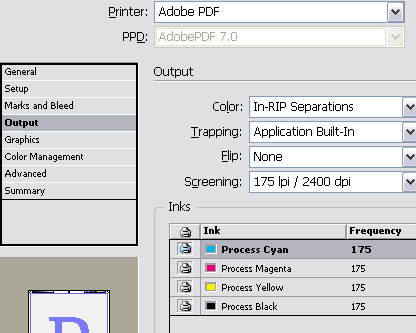
Note that you can control the Acrobat Distiller settings by clicking the Printer button (on the Mac OS) or Setup button (in Windows) at the bottom of the Print dialog box. Then, when you’re ready, click Print. InDesign writes trapped PostScript to disk and then launches the Distiller to convert it to PDF.
When you open the file in Acrobat, be sure that Overprint Preview is turned on for best effect. Here’s the trapped file in Acrobat (zoomed in a lot, of course):

(Anne-Marie also wrote this technique up a couple of years ago for DesignGeek.)
 |
And Adobe’s Nick Hodge also wrote about it on his excellent site some time ago. This is a pretty cool hack, leverging “features” (or are they “quirks”) of both InDesign and Distiller…
When I started to show that feature when ID CS1 came out, I saw attendee’s faces expressing Wow !
For those who are fluent in French, A 25 minute QuickTime video tutorial on this subject is available on my site for 7 euros.
https://www.milic.com/indesign/formations/didacticiels-video/index.html
David, you should mention how great it is to have a black (C:30 – K:100) square with a [Paper] knockout shape and how the trapping engine will perfectly trap the cyan all around the square and the shape that is knocking out.
Thanks, Peter. I had forgotten that Nick wrote about this in the good old days. Of course, these days Nick talks more about Excel than InDesign. Sad.
Also make sure that you tell Acrobat to set the trapping key to TRUE. This can either be set with a job setting in Distiller such as PDF/X or manually via the Document Properties in Acrobat.
Otherwise you might get a double-trap occur with trapping libraries at the print provider’s renderer …
Jon
It’s a very cool option and I use it every time I need a trapped composite PDF but I have a little question about it. It doesn’t work with imported eps files but seems to work with native AI files (with PDF compatibility, of course). Can you confirm this?
Thierry, you are correct that this doesn’t appear to work with imported EPS files (at least in CS3). The same image saved as PDF and EPS works with the former and doesn’t with the latter. Wow. That may be a bug.
David and Thierry, you can’t trapp EPS files freely, this is speciffic to the file format and is not an InDesign bug. EPS means ‘Encapsulated PostScript’, so, as it is encapsulated, InDesign is not allowed to change anything in it by definition. The EPS files can carry in not only images, but also speciffic instructions, screen dot shapes, or, for example, different color plate screen angles, and therefore, this is feature, not bug. This is documented in ID help.
Does anyone know how to PRINT the separations from a printers so I can look at them? I’m talking C on one page, M on one page, etc etc.
When I try to print separations from the dialogue box, the printer spits out one sheet with the colours listed on the bottom.
Benjamin, you should be able to choose Separations from the Color pop-up menu in the Output pane of the Print dialog box.
I did that, but when I print, it only prints out one page (but with 4 colours bars and CMYK listed along the bottom).
Any ideas? Or did I stump ya?
Benjamin, I’m sorry but I have no idea what you may be doing wrong. When you print separations, you should get one color per page (cyan on one page, yellow on another, etc.). That’s the whole point of separations. Are you printing seps from InDesign or from Acrobat?
[…] create a PDF using the print function (it’s not possible with Export). This method is explained in an article posted on InDesignSecrets.com. It uses a powerful trapping engine inside InDesign. If you want to […]
I have done a test and it works pretty well. Just as a matter of info I had a file testing the overprints I had made. It ignored trapping on the overprints. Any ideas why?
Hi,
I have issues when I use file>print, often the PDF when viewed in Acrobat reader or proffesional has strips of colour missing, as you zoom in they move or change and I’m sure they’re not there but if I use file>export I have never encountered this problem.
Also I once file>printed a final artwork and it was printed in china and the image which overlapped behind the text box wasn’t printed but outside the text box it was. Also files from file>print are much smaller, what is the catch, from my observations it seems to create an inferior PDF?
The problem is the PDF printer is gone from Snow Leopard (see other thread on this topic).
It’s a good thing our office is bi-platform, so we can do this Print to PDF step in Windows. I can get a trapped file on a Mac by exporting to a PS file and passing it through Distiller, but the color numbers change. Not exactly the best solution, as far as I’m concerned.
Any tips how to achieve Application built-in trapping in InDesign on a Mac OS? It’s driving me crazy, and to think I’m on Windows.
Now that PDF printer has gone from Snow Leopard, you can normally choose save as PDF from the print dialog. However InDesign doesn’t allow this but you can choose ‘Save as Postscript’ and double click the PS file to convert to PDF with either Preview or Acrobat Pro.
this will preserve the trapping info.