


Interactive PDF from InDesign CS5 Always Has Spreads On


[Editor: Note that this article is no longer relevant in CS6 and later.]
It was long-time reader Eugene T. who first pointed out that the new PDF (Interactive) export setting in CS5 had a little problem: It’s missing a number of the features from the PDF (Print) export dialog box. Most of these omissions aren’t that important (after all, you don’t need trim marks or transparency flattening in an interactive PDF). But there is one very important feature missing that can cause some grief: Spreads.
The Spreads checkbox in the PDF (print) dialog box lets you tell InDesign whether to merge left- and right-pages in a spread together into a single page in the PDF. For example, if you have a Letter-sized page in InDesign, and your document is set up for Facing Pages, then pages 2 and 3 appear to be two Letter sized pages in InDesign. However, when you export the document with the Spreads checkbox on, pages 2 and 3 are fused together into a single 17″ x 8.5″ page, called page 2.
So it’s rare that you’d turn Spreads on. Perhaps for proofing, or printing on a big laser printer. But when making a PDF? Rare.
However, there is no Spreads checkbox in the PDF (Interactive) dialog box… and Spreads is always turned on. So if you have Facing Pages documents in InDesign CS5 and you export as PDF (Interactive), the spreads always end up as spreads. Bad, bad, bad…
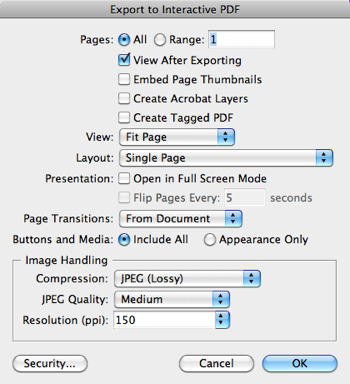
The solution is fortunately relatively simple: Open File > Document Setup, turn off Facing Pages, export the document, then Undo (to get back to facing pages).
But with every silver-lining, there is a cloud. As Eugene pointed out: “?The problem with the solution is the running heads for verso and recto can be different at times, and that’s where the Facing Pages is really needed, breaking this means I no longer have alternating running heads.”
Indeed: When you turn off Facing Pages, all the pages become “left” pages, so any items on your right master pages disappear!
The only other solution is to export as PDF (Print) and then add the interactive features manually in Acrobat, which is not much fun.
We hope that Adobe sneaks a Spreads checkbox into that export dialog box. Or, even better in my opinion, merge the PDF dialog boxes into a single export dialog box again so we have all the controls in one place.
 |
Thanks for posting this David, I hope it gives the issue some profile :)
There has been an independent request on the Adobe Help Forums too, so I’m not the only one missing the feature https://help.adobe.com/en_US/indesign/cs/using/WS67cb9e293e2f1f601190118d12483c0dbb5-8000.html
And I’ve linked to this topic on the Help Files so others can read about it
If you want this I urge everyone who reads it, regardless of whether you will ever use it, or post a comment here, or do post a comment, I simply urge everyone to fill out a feature request here
https://www.adobe.com/cfusion/mmform/index.cfm?name=wishform
And I’m 100% behind David, bring back only the one PDF export dialog box and put all the controls under one roof.
There is a better workaround. Set the document up as facing pages, select all the pages and disable “allow document pages to shuffle.
Then just pull the spread apart. You’ll still have left and right master items and you’ll have single facing pages in the PDF.
Of course, this shouldn’t be necessary, but it works.
Excellent idea Bob – it should have dawned on me, I have this in my Scripts and I recommend it to a lot of people – how it slipped my mind?
https://creativepro.com/breaking-pages-apart-to-bleed-off-a-spine.php
The script mentioned in the comments of the above
https://in-tools.com/indesign/scripts/freeware/SeparatePages.jsx
And how to install scripts
https://creativepro.com/how-to-install-scripts-in-indesign.php
I now have a workaround :)
Thanks Bob
I wonder if there’s a way to put all the pages back together?
There is a slight problem with Bob’s excellent workaround. Is that images that span the spine will be left on one page or the other, depending on what page as the majority of the image.
And the other slight problem is it’s a long way back to … hold that thought.
If you click on the Allow Document pages to shuffle, and then select No when asked, the pages recombine.
Hmmm.. apart from the image spanning on the spine, this workaround is awesome.
Can’t thank Bob enough.
It wouldn’t be a workaround if it was perfect. I can’t help but wonder if the spread setting can be accessed through a script.
Ha, too true Bob.
Script, hmmmm that would would be awesome?
I have found this problem, but no time for investigate wich is the cause, and wich is the solution.
Thanks, David, and Eugene and Bob, for the workaround!
Thanks for the tips!
But I have another problem with the new simplified interactive pdf export dialogue, it is no longer possible to export to interactive pdf with bleed.
I make templates that are intended for both print and interactive. To avoid printing the buttons I have placed them outside the sheet to be included only when exported with bleed …
Is this something that can be fixed with a script?
That’s really not the best way. You can choose to have buttons non-printable when creating them in InDesign.
To do so, select the button and from the Button Panel menu choose PDF options. There’s a check box for Button is Printable. Deselect that and your button will appear but won’t print.
I know that, but I don’t want the area the buttons occupy to be empty on the print… so my solution is to have an A4 page size (best for print), and then export with bleed 43 mm to the left (where my buttons are placed) to make the interactive pdf fit widescreen format…
hmm… there also seems to be s.th not quite right with Links/Bookmark handling in InDesign CS5 when working with the ToC generated Links/Bookmarks and the Book feature in conjunction with Export to Adobe PDF (Interactive) option.
I just tested this in response to an Adobe Forums post, and have reported it as a possible issue. https://forums.adobe.com/message/3056176#3056176
Would be good if some of you can verify this though, as I only tested on Mac OSX 10.6.4 but apparently the issue appears on Mac and Win.
I’m trying to find a workaround for my problem mentioned above. The new feature with different page sizes could solve it, but only if it is possible to make the auto page numbering just count the odd pages, and preferably if it’s possible to export only the odd pages to pdf.
I really appreciate any help!
I’m thinking out loud here, but I wonder if we could somehow take advantage of Acrobat’s Replace Pages feature to work around some of this stuff.
Clearly you all are thinking of much more comprehensive solution to the single sided vs. FP issue. I went for the quick and dirty workaround of alternative header/footer structure on different layers, so I could just “swap out” layers for different output/export formats.
@Bob:
I just took a quick look, and it looks like this can be fixed with scripting. I don’t know if I’m going to have the time right now to fiddle with this, so if someone else wants to take the lead, feel free! ;)
Too late. It was really easy! :D
This one line script toggles the export between spreads and single pages…
app.interactivePDFExportPreferences.exportReaderSpreads = !app.interactivePDFExportPreferences.exportReaderSpreads
FWIW, I just went through all the scripting options one by one, and the spreads is the only option missing in the dialog. It looks to me like someone just forgot to add a checkbox to the dialog!
@Harbs: You rock!
That script does the trick.
Sorry … How do you use the script? Copy and paste into a plain text files, save as .jsx, drop it into CS’s scripts folder …? And then …?
Just double click. There will be no visible sign anywhere, but internally the export will have individual pages instead of spreads.
Double click again and it goes back to spreads.
Perhaps better add something below that line to reflect the new state, like this:
alert (“Spreads are now “+(app.interactivePDFExportPreferences.exportReaderSpreads ? “ON” : “OFF”));
Just for cosmetics purpose:
// Toggle the 'exportReaderSpreads' hidden flag

// (InDesign CS5 JavaScript)

// ---------------------------------

alert(

"Spreads are now " +

( ( app.interactivePDFExportPreferences.exportReaderSpreads ^=1 ) ? 'ON' : 'OFF' ) +

" in Interactive PDF Export Preferences."

);
That works great, the little message is useful. Thanks!
In case anyone wants to download togglespreads.jsx
, there you go. It’s zipped … just unzip and put the .jsx file into your CS5 scripts folder.The gift that keeps on giving – six years later! Thanks to all of you, including the folks who kept asking the questions I had, too!
Marc:
Very nice expression!
Bitwise operators always makes my eyes go in concentric circles… ;-)
This one will definitely leave novice scripters scratching their heads… B-)
Thank you all SO MUCH. I’ve been struggling with this all week and thought I was being stupid/doing something wrong. Went through all the options, still not right. But the script and advice absolutely rocks (never used that expression before but it seems to fit!!) and AnneMarie’s togglespread.zip is perfect. Thank you. Now all we need is shading down the middle and a PDF page flip! Thank you again.
Ain’t this just the coolest place on the web to hang out? Thanks Harbs, Marc, Anne-Marie! This is a big help.
@Ann: On your master spread, add a layer above all other layers and make a sliver of shadow the height of your page using black and a directional feather on one side and place it at the gutter edge of one page.
Reduce the whole thing to maybe 20% opacity.
Copy, paste in place, transform>flip horizontal, and move the copy to the gutter edge of the facing page.
That should give you what you need. You can toggle off the layer for printed versions.
Would the Script work for Exporting to SWF? Adobe removed the Spreads checkbox in CS5.
@Jane: the Scripting Ref lists this:
“dynamicDocumentExportReaderSpreads: If true, each spread in the exported document is combined into a single page that has spread’s original width.”
but I wouldn’t know where to start to test it :)
You can try this (it works on CS4):
//DESCRIPTION:Toggle SWF Spreads' flag// (InDesign CS5 JavaScript)
// ---------------------------------
alert( "SWF Spreads are now " +
( ( app.swfExportPreferences.dynamicDocumentExportReaderSpreads ^=true ) ? 'ON' : 'OFF' ) +
" in SWF Export Preferences.");
@Anne-Marie — thank you so much. You’re a treasure. I’m off to add ‘realism’ to PDF pages now. Thanks again.
Oops — sorry, not that Anne-Marie isn’t a treasure, she is, but it was Alan that suggested a way of making PDF pages look ‘realistic’. I do beg your pardon Alan and thank you very much. You, like all the clever people on this list who always help me out, are a treasure too.
You’re completely welcome. I hope it turned out well.
I thought the script above worked great, until I opened the PDF and none of my interactive buttons were there. With spreads On the buttons are there, with spreads off, the spreads go away but so do the buttons
@MattG: are your buttons on a master page that is no longer being applied to the pages?
I whatch some videos of D.Blattner,excellent works.
InDesign,masterpages,colors CMYK and SPOT,outputs previews, press problems with pdf’s not good,etc.
Well exporting pages to swf, make an “flip pages”, but how can I ‘ adjust that H&W for web space?It is not enough entering the value in H and W space….why?!
In Design is most valuable program in my whole designer’s prepress “career” if I could say so.
Bravo to whole team!
Sorry, need some assistance here. Never used scripts before. I downloaded the file from Ann-marie and unzipped it, placed it in scripts folder, does it need to go in any of the sub folders here?
Now what do I do? Double click ? Where ? On what ?
Geof: if you open the Scripts panel in InDesign and see the script in there, it’s in the right place ;-)
The Scripts panel is opened through the menu Window, submenu Automation. (See also https://creativepro.com/how-to-install-scripts-in-indesign.php)
Each time you double-click the script name in the Scripts panel it will toggle the setting and the alert will show what “state” it is in, so if it reports the wrong state, just run the script again.
Great, thanks alot!
In CS5 it is in Windows > Utilities > Scripts
but you got me on the right track!
Thanks everyone, great work !!!!!
I am having issues getting the buttons to activate when exporting to PDF (be it Interactive or Print). All my hyperlinks work, but not the buttons. Plus, I sometimes have the buttons show up once exported and sometimes not. It very confusing why they aren’t working. Any suggestions?
Same result here too…
Most buttons don’t turn up in the interactive PDF once the script is used. Some turn up but in different locations. Hyperlinks work fine.
= script doesn’t work if you’re using interactive buttons
I was so hopeful! :)
@ Bob
I was having trouble making my spreads export to single pages without turning off facing pages. Your workaround, (de-selcting allow pages to shuffle) worked fabulously!
I have a 280 page INDB document, and when you export to a pdf otherwise, it turns each spread into only 1 page. My pdf was only 140 pages, and our sales people couldn’t follow the references to page numbers without doing some math.
Thanks again Bob!
buttons and interactive links have never worked when saved to newer versions of indesign. not from 3 to 4 nor from 4 to 5. this is very frustrating as I had to go all the book and chnge them manually.
the main issue i still haven’t solved is the TOC. no matter what it does not survive the upgrade. and evem if i re crete it from scratch.
Thanks all for all the groundwork on this issue.
I just returned to this thread after finding it among the hits of my Google search for “InDesign book interactive PDF links fail,” without quotes. I had seen it in the past, but hadn’t needed to export an InDesign book with a TOC whose links I wanted to preserve.
I examined the failed exported “Interactive” TOC links in Acrobat and found that they garbled the Mac’s paths to the their target. The links contain the full path from the highest level of the file system, down to the file itself, plus, it repeats a fragment of the path for no sensible reason. Why not sensible? Because the book component file it points to doesn’t exist as a PDF; it’s been subsumed into the single PDF book file! D’oh! Where were we when we were beta testing this stuff?
Examining the successful links exported as “Print” reveals that they point to page-number destinations.
My tests (MacBook Pro Snow Leopard InDesign CS5 7.0.3) seem to indicate that the key settings are exporting Format: Print, and Include: Hyperlinks. Options that don’t seem to matter are facing/non-facing pages, Create Tagged PDF on/off, Include: Bookmarks on/off.
I’ll file this as a bug.
Regards,
Peter
_______________________
Peter Gold
KnowHow ProServices
Thank you, Anne Marie and all, you save me a lot of time in a job I was doing. What the hell was Adobe doing/thinking getting us totally crazy? A simple check box could have done it, but that script was amazing, and post after post I finally learned how to use it and finally I got it perfect … Gracias mil. regards, Pepe
Hi There!!
I´m having a big problem concerning an interactive file that I did on Indesign and I really need some help to solve it!!
The thing is after I exported this indesign file into an interactive pdf, whenever i click the buttons that has a path to open other pdfs, instead of opening it on different windows, it actually closes the original file (in which there is the buttons).
My question is: it´s possible to keep the original PDF opened (the one I exported from Indesign) after clicking the buttons that opens other pdfs?
Crossing my fingers that is a solution for this…
Regards,
Camila
I am using InDesign server to build interactive PDF files for the web. However when I export from IDS my flash files and mpeg audio don’t start automatically like they do when I use the desktop version. Does anyone know the relevant script setting, I can’t seem to nail it down!
app.interactivePDFExportPreferences.pageRange = pages;
app.interactivePDFExportPreferences.exportReaderSpreads = !app.interactivePDFExportPreferences.exportReaderSpreads;
var pdfFile = File(pdf);
myDoc.exportFile(ExportFormat.INTERACTIVE_PDF, pdfFile);
This site is the best, very helpful! I have been breaking my heart in trying to get a newspaper (laid out in InDesign, of course) to become an Interactive PDF that we can put on our Web site as an “e-edition.” I thought I had it within my grasp after implementing some of the scripts in this and other posts (swfpresenter is wonderful!), but somewhere along the line all my pages have become shifted up about halfway on the page when I export the PDF. It doesn’t seem to matter whether I’ve split them or not with the page-splitting script, and the togglespreads script seems to be doing something funky (or maybe I have an odd setting somewhere) because the PDF still looks as though it’s in spreads even though there’s only one page on the “spread.”
I don’t want it to do fancy animations, either. All I want is hyperlinks and interactive page turn. (At least for now!) I wouldn’t even mind it being in spreads (or appearing in spreads) because it would look more like a newspaper, but I’d rather set that up in the PDF so the pagination would be correct.
Any ideas? Or am I banging my head against a brick wall? Thanks, and Happy New Year!
THANK YOU, UGH THIS HAD ME FRUSTRATED FOR A HOT SECOND…
I just stumbled upon this thread and have to thank those who figured out the solution to turning off the auto-spread generation. That was brilliant and a huge life-saver.
thanks everyone, these tips were really helpful!
I just wanted to say that I love this website. You are all brilliant
Hi,
I’m not sure if this is the discussion blog I need to be in to ask this question but I’m sure someone will have an answer. I wanted to show a catalog I designed it’s 40 some pages long but I just wanted to show the cover and a few of the inside pages that you could turn, for a website. Would an interactive pdf be the file I should create for that? I am new to the interactive pdfs in inDesign.
Thanks and I love this site!
Books and interactive links…..
Our manuals are made up of a bunch of individual files. The TOC is in it’s own file. I’d like to add a hyperlink/button on the master page used throughout to always take you back to the TOC. When I PDF the book file the link only returns you to first page of its individual file. Can this be made to work? Thank you
Hello experts,
I’m a novice with ID and this is my first forum post. I have a book with 30 chapters set up. Most is fine in the pdf export but 4 or 5 problems are unsolvable so far. One is this:
It’s set up for facing pages but displays 3, 4 or more pages at a time depending on size of monitor. I followed the above suggestion of deselecting “Allow document pages to shuffle” — but:
How would I “just pull the spreads apart”? Don’t see any way in the Pages panel.
I’m sure it’s simple but could someone spell it out for me please? Thanks much.
@Galah246: Actually, this is not the forums; you just added a comment to this blog post. You’ll need to click “Forums” at the top of the page and post your questions here.
However, you might also find the answer to your question here: https://creativepro.com/breaking-pages-apart-to-bleed-off-a-spine.php
should i ask about how export a pdf file from indesign and make it independant page like (every page alone in the pdf file) and every page have a personal no.
@him: This blog post might help: https://creativepro.com/automatically-generate-multiple-pdf-pages.php
Now the interactive pdf is single paged (from CS5, InDesign) – thanks to this Forum :-)
But… the interactive buttons are in the middle of the page in the pdf, and only on every second page.
… Does any of you know a solution to that?
When I use the togglespreads.jsx script to turn off the spreads feature then all my buttons disappear! I’ve reset my prefs and tried it in a new test document just to make sure. If I toggle the spreads back on, then the buttons come back. Can anyone else verify this?
If this is the case, then turning spreads off isn’t really a solution. This is really frustrating, as I’ve spent 2 hours now trying to get a 500 page document with over 200 buttons that is designed for both online and print (without the buttons) exported properly from CS5 that worked beautifully from CS4. The new PDF export is turning out to be a real nightmare.
I’ll probably have to split the file out to 2 versions, one for print and one for interactive, and set the interactive to non-facing pages and redo the master page for it.
Sorry, let me clarify — the buttons disappear from the exported PDF(interactive) if you have “Buttons & Media: Include all” turned on. They still appear in InDesign.
@perdman, I’m getting the same results?all of my buttons disappear with this script. I’m going to try the workaround next.
Hey everyone,
I have been searching like crazy for an easy solution to this and had a sort of “Eureka!” moment.
I used the “breaking pages apart” solution found here, exported as interactive PDF with the settings “Fit Page” and “Two-Up (Cover Page)” selected and it works like a charm! All my buttons and table of contents are working as well!
The only negative is that they are no longer side-by-side spreads in design view, but oh well. Does this sound like a decent solution or am I missing something? I’m a bit of a newbie…
Massively appreciated fix, Eric!!!
Hi Eric
your script worked 100%
thanks for everyone’s contribution… much appreciated!!!
One year after the fact, you guys still rock. Thank you for the script.
I am new to ID 5.5, having been using the original ID CS for the last few years and immediately ran into the problem that you have been discussing.
KeithGilbert has posted a script which works for creating a single page interactive pdf but it causes funny button behavior, like they disappear or show up on a different part of the page.
I have my buttons on master pages and discovered that if I convert them to hyperlinks it works beautifully. You lose a little functionality, like mouse over, but I am using the same button graphic with appearance settings of Type: Invisible and Highlight: Invert.
There is a small difference in their appearance but it is negligible. I’m sure others have figured this out but since I didn’t see it in the posts, I thought I’d toss it out there.
I too have this problem and will add a request for Adobe to fix.
Problem: the workaround described above works to an extent, except when I pull the pages apart my chapter-opening right-hand pages lose a color bar across the top that is part of the two-page-spread design.
I’m inexperienced with scripting, and my doc is only 72 pp so I separated the pages by hand in the Pages palette. Do you think the script would fix the loss of the master color bar on the right-hand pages? I’m running out of time!
I haven’t read all the posts, so someone might have said this before.
In order to export single pages, I simply exported using the Adobe PDF (print) option, and made sure that “create tagged PDF”, and include “bookmarks” and “hyperlinks” were checked.
It seemed to work fine, and there was no need to alter the print document first.
Thank you, Thank you, THANK YOU!!!!!!!!!
I would have eventually been brought to tears or temper if I hadn’t found this page tonight. I really can’t thank you enough for posting that script. You just saved me the hours of work I would have had to spend re-creating a document. I had just naturally assumed that the “single pages” option in the export menu would actually produce single pages.
Can I add one more little detail to your installation instructions… for InDesign 5.5, to make sure you drop the script into the folder Scripts>Script Panel>Samples>JavaScript – otherwise the Script Panel doesn’t recognize it.
That was probably a given to you more experienced folks, but to someone installing a script for the first time ever, it did take a little bit of figuring out.
Again, THANK YOU!!!
Thanks for this, I was going nuts for a few minutes…
Thank you soo MUCH!!!
Sucess!
Great thread, I had no previous knowledge of scripts in inDesign and fixed this problem in a matter of minutes, thanks so much!
Hey, thanks for this helpful hint, appreciate this and can’t believe Adobe would omit that!
Can anyone help please? The “spreads” script is great, however, my buttons disappear once the file is exported to PDF. Thanks so much everyone for such helpful tips.
Can someone tell me exactly what exporting to an interactive PDF does that I cannot do by exporting to a different PDF default setting (e.g., smallest file size) and then modifying those settings (e.g., turning hyperlinks on)? FYI, I’m using CS5 on a Mac.
I loaded this script and ToolTips and now all the interactive buttons move to the centre of the page when outputting to pdf. Trouble is, turning them off and hasn’t stopped the problem. I removed them and still the same problem. This wasn’t happening until I loaded the scripts so I don’t know why it would still be happening. Even rebooted the PC and it didn’t help. This is a real problem, I have 3 x 24 page documents to get out
Thanks, I’ve been looking for a good hour on how to do this
Wow, that was easy. Thank You Rachel!
I am running into this exact issue. Thank you for your excellent discussion. Do you know whether this issue has been fixed in later versions of InDesign? Thanks very much.
Kelly: Yes, more recent versions of InDesign DO offer a “Spreads” checkbox, so you can export just pages or full spreads. Very helpful!