


Make It Look Like a Book in the Acrobat PDF


Editor’s note: Since this post was first published in 2009, Adobe has added the Publish Online feature to InDesign, which could be an improvement on this client proof workflow for some designers. New information below also includes links to other Creative Pro posts about this feature.
Sandra wrote:
With book documents, chapters usually start on a right page. If I want to make a pdf, the spread option does not work for the last page from one document and the first page from the next document. I get single pages for these two. (This is not for final print, but only to show clients what their pages look like.)
Making a PDF of a book actually look like a book isn’t as straightforward as you might hope. It is tempting to turn on the Spreads checkbox (in the Export PDF dialog box) in order to show what the book will look like, but I encourage you not to.
First of all, as you found out, InDesign cannot merge the two pages (last page of one chapter and the first page of the next) together into a single spread. But second, all you’re really doing is telling InDesign to pretend that the whole spread is a single page — and that the document is made up of single-sided pages. Of course, you’d also need to draw your own line in the document to show where the spine is… Blech.
Instead, give this job to Acrobat.
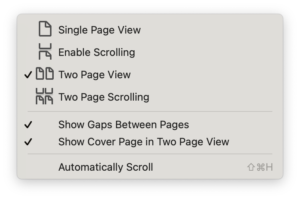
After opening the PDF in Acrobat, you can adjust the view (View > Page Display) to show the spreads. Make sure the Show Cover Page During Two-Up is selected, too, or else page 1 will become the left-hand part of a two-page spread.
But you don’t want to have to tell your client to do this. So open File > Properties (Command/Ctrl-D) and, in the Initial View tab, set the Page Layout to “Two-Up (Cover Page).”
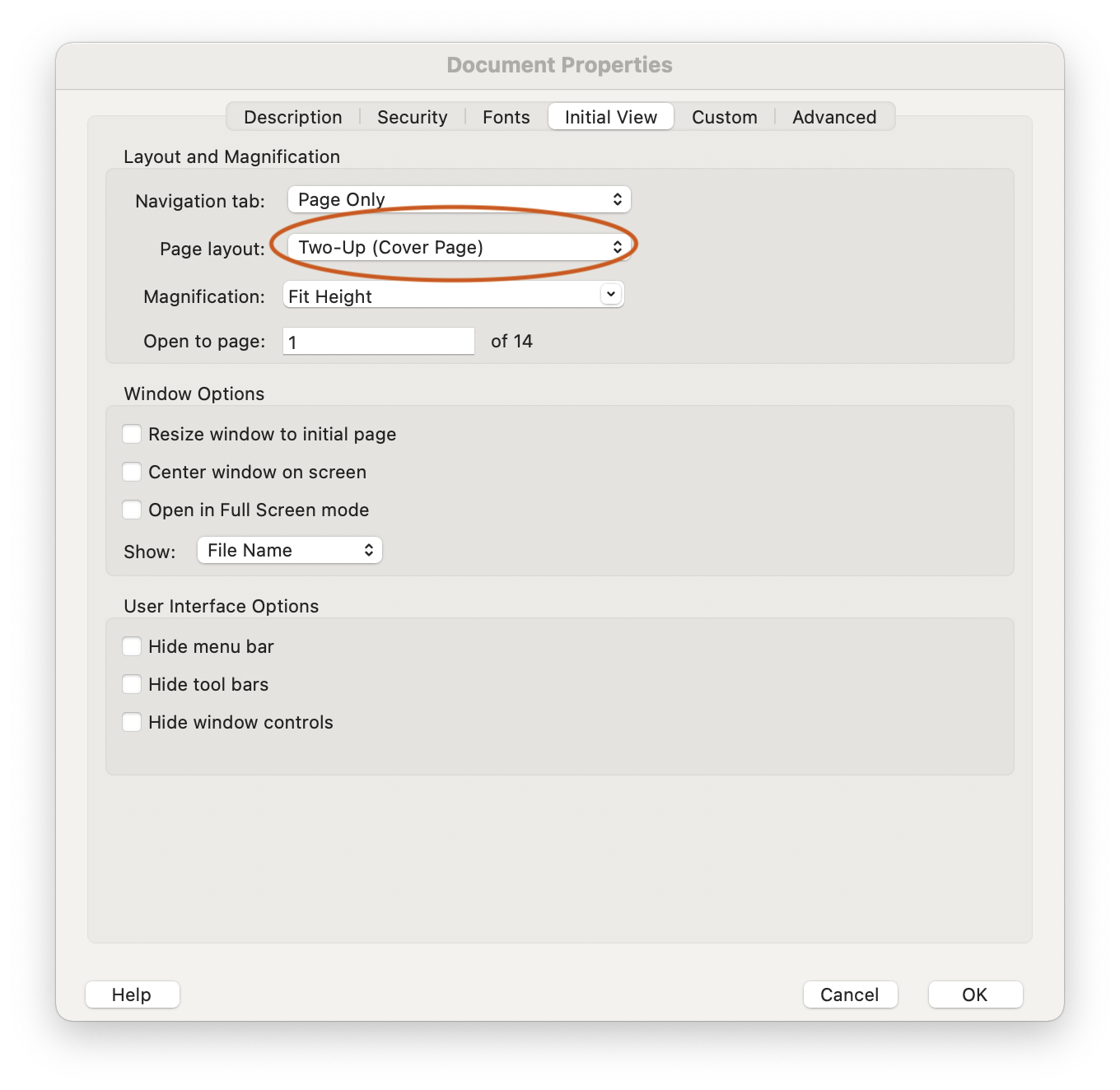
(You might be tempted to click a check box underneath that menu which says, “Open in Full Screen Mode.” Don’t! If you do, your work will display in Acrobat without any of the user interface. It also will display as single pages, all other instructions to the contrary.)
You can set up a PDF Preset to directly export PDFs for your clients that will automatically have this attribute. Go to File > Adobe PDF Presets … > Define. In Layout (in the Viewing section), select Two-Up Continuous (Cover Page). (You can also use this preset in Publish Online. We’ll get to that.)
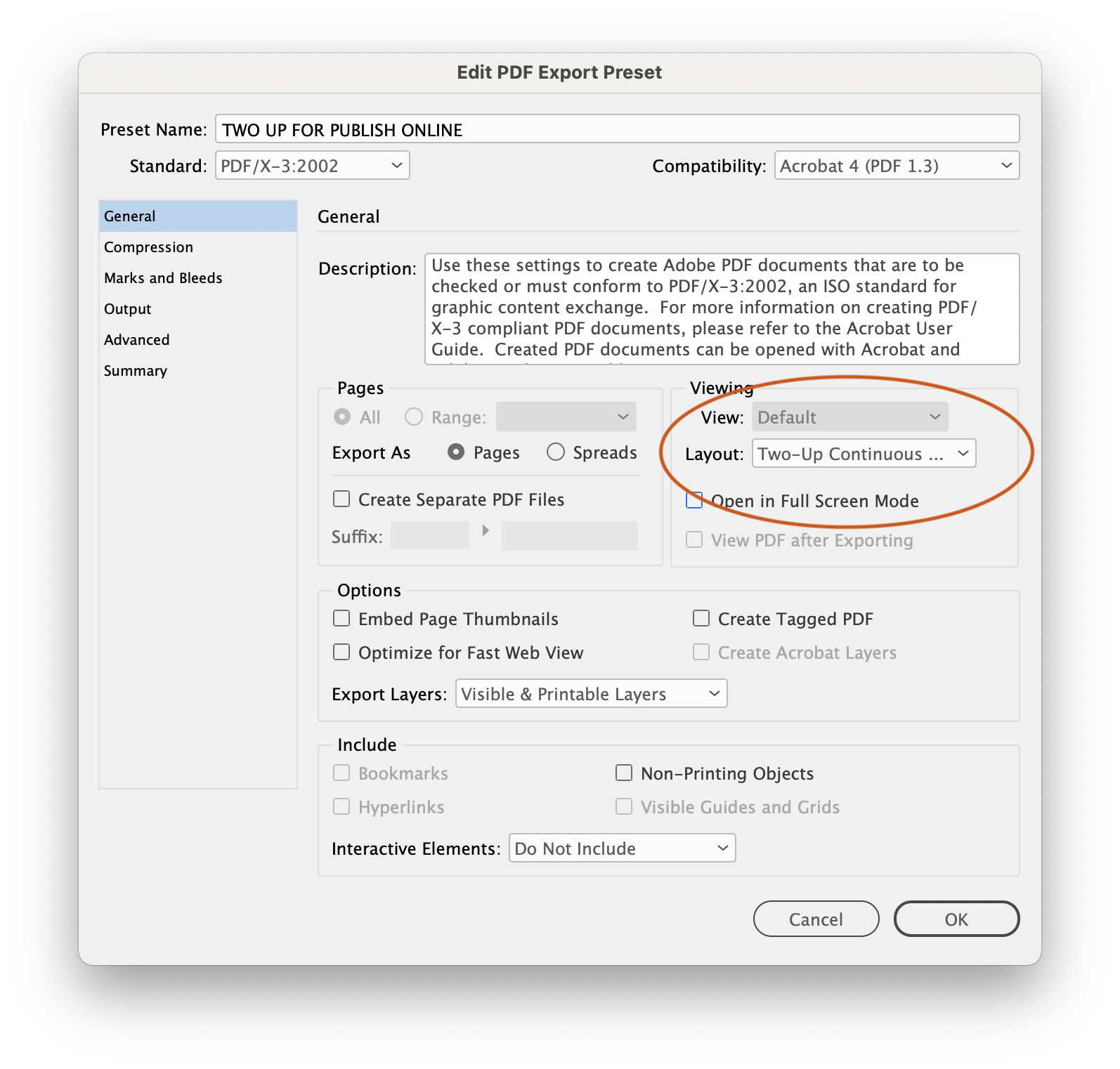
PDF Preset for generating PDFs that Acrobat will display with facing pages.
Then click OK and save the document. That way, when you client opens it, it will open just the way you intended—if they’re using Acrobat or Acrobat Reader.
If your client is using another PDF viewer—at least the programs that come preinstalled on today’s operating systems—it probably won’t read the Initial View tag properly. If that’s the case, you will need to figure out the instructions for setting the reader for two-up pages.
- If your client is using the MacOS Preview application, they will need to select View > Two Pages. Preview presumes the file starts on a recto (right-hand) page.
- If your client is using Microsoft Edge in Windows, they will need to navigate to the Page View icon in the toolbar. Once they select Two Page to view spreads, an option emerges that will let them see the cover page starting on the right.
Publish Online might be better!
Since this post was originally published in 2009, Adobe has introduced Publish Online as a service along with a license to InDesign. For some designers, this option will give you more control over how a client will view your work and will actually provide a better solution for this problem.
Publish Online works only with single files, so if you are using the Book feature, there’s no good way to present the whole project. It does automatically start odd page numbers on the right hand page, and if your file uses a Section Start to force the document to start on a left-hand, even-numbered page, that works as expected, too.
To present your document in this manner, go to File > Publish Online…. Under Export As, select Spread.
If you want your client to be able to download a PDF that will read as spreads in Acrobat Reader, click to the Advanced tab and under Download PDF Settings, select your special preset.
For more on Publish Online, check out these Creative Pro posts:
- Using Adobe Publish Online
- What I Learned at Creative Pro Week About Publish Online
- Controlling Publish Online Image Resolution
 |
Awesome! Thanks for the info. I was also trying to think of a way to do it with my book in ID. Never thought of Acrobat.
Another *very* important reason not use Spreads when exporting from InDesign is that it completely messes up the page numbering in your PDF.
BTW: I would also set “Magnification” to “Fit Page”. Looks much nicer when first opening the PDF.
One of my #1 gripes about InDesign is precisely what you’ve described here–the fact that users need Acrobat to activate PDF features rather than using InDesign. You’ve described one such feature, another is making PDFs to which users can add comments.
Why should we need Acrobat for those sorts of things? They’re little more than flags inside the PDF file. I can see why something as complex as form creation should be left to Acrobat. But there’s no reason why ID can’t flick on or off mere PDF flags, the more the better.
Adobe is doing a good job of making ID the single source for many different outputs: PDF, Flash and ePub. That’s great. But with more review and publication going digital, ID users need to be able to create full-featured review and publication copies of PDFs without going through Acrobat. What they’re doing now is as absurd as automobile companies making cars without trunks, so we have to use their pickups to transport our luggage. The result is wasted time.
I was gonna give the same tip Sander Pinkse gave above: the Magnification set is also important to give the look of a book.
I agree with Mike Perry above, completely. Due to (insane, nonsensical) business constraints, we’re ‘publishing’ a book to the web as a PDF (don’t ask), but we want to show facing pages. So, for every chapter, I have to manually go into the created PDF and set it to Two-up (facing) and Fit Visible. Lame.
You can batch this. Batch processoring, then “open options”. I’m still learning it but it should work.
This will help me in many projects in the future and is deeply appreciated. Keep up the good work. I read this site every morning after looking at several newspapers. (They don’t have good tips.)
David, thankyou very much, this I could never have figured out myself. Thinking out of the InDesignbox :-)
Thanx a lot!
Just out of curiosity, how many people actually use the book feature? I work on books all the time with anywhere from 100 to 400 pages and I never use the book feature. And these are complicated books with lots of tables and figures. When Quark first came out with the feature I started to use it because it seemed safer to have smaller size files to work with. But that does not seem to be an issue anymore. Mind you, I work alone. I can see it in a collaborative environment where people may wish to work on different chapters at the same time. But other than that, I really see no reason for it.
Most excellent tip and timing – as usual. Just finishing up a 60-page report so this came in handy.
Answer to John McKercher: some publishers demand a certain way the final documents are delivered. And it can be very handy if for example you have a book where every chapter uses it’s own set of colors.
I like using smaller documents and connect them with the book option, but I don’t use it all the time.
@John: It’s true that InDesign doesn’t require you to break down long documents into smaller “chapters” (individual docs in a book panel). However, I still do it for anything over 100 pages, typically — especially if there are a lot of graphics making the file size bigger and bigger.
This is just what I was looking to find out how to do, but I don’t seem to have the two-up options in my version of Acrobat Pro; what version are you’re screengrabs from? I have version 7.
thanks
@Emerald. Oh, sorry, this is from Acrobat 9 Pro. I’m not sure when they added those features.
Thanks; will have to upgrade I think.. (ps can’t believe I made the you’re / your mistake – I hate that!)
:)
@Emerald
No need to upgrade. In Acrobat 7 it’s called ‘Facing pages’. Cover page is always on, there is no option to switch it off.
We have catalogs that we would like to put on CD’s to give to customers to view instead of printed copies. I have used Acrobat to do this but would like to know is there any other software that could make it look more “book like”? For example when you go to Target’s website and you can view their weekly ad.
Thanks for your help!
This may be useful to some of you:
When viewing book PDFs with the facing-pages (two-up) view option, one usually wants left-facing pages to be on the left so that spreads are viewed as they would be in a printed copy. Unfortunately, Acrobat 8 often defaults to the opposite. This simple AppleScript toggles the View menu option Show Cover Page During 2-up.
https://www.macosxhints.com/article.php?story=20081205121929624&query=acrobat%2Bview
“No need to upgrade. In Acrobat 7 it?s called ?Facing pages?. Cover page is always on, there is no option to switch it off…”
Not so. I’m also still on Acrobat 7, and my PDFs usually can’t start with a spread (although sometimes they do!), which makes me think it’s something to do with how I set up pages in InDesign. My viewing preference is on ‘facing pages’… I’d love to get a fix for this, as it’s been a pain for a while!
Cheers
Very helpful. Thank you so much!
This is exactly the information I was looking for.
Thank you so much…
David, you rock!
Martview is “WOW” software simulating real book experience!!! Google it!
Thank you SO much for these tips! Absolute lifesaver!
When i set my booklet to spreadsheet i could also trim the first spreadsheet in half to get a PDF that looks like a book. (Tools > Advanced Editing > Trim ) With this way, the document keeps the same layout in Acrobat and in OS X Preview!
Why does the trimmed spreadsheet moves to the center and does not stay on one side or the other ?
Please help me out ;-)
Erika: that’s because the ‘current page’ gets centered in the window.
To not get that either don’t make your own spreads and use Acrobat’s own “Two pages plus cover page” (can’t recall the exact term), or leave your first spread as it is, without trimming off the left side.
(In case anyone might think your document starts with two visible pages, you can put a text on the left side: “This Is Not A Page”; or put a big mid gray rectangle over it. Or tell anyone who cares that books always start on a right side page.)
Thanks for your fast reply!
In the “Two Up Continuous (Cover Face)” ,”Show Gaps…” mode the cover is on the right side but the spreads are too close together. In the “Two Up (Cover Face)”,”Show Gaps…” mode the spreads have some space to each other but the cover is in the center.
How can i have the cover on the right side, some space between the spreadsheets (top and bottom) and a PDF clients can view not only in acrobat ? (is there absolutely no way to move a page out of the center ?!)
Excellent! Thanks for the advice. Most helpful. That almost reads like spam, doesn’t it?
Finally! This has bugged me for years. Keep hoping it will be solved in new versions. Just this morning I was daydreaming about this being solved in CS5, since the discs arrived yesterday and I’m now just waiting on the new computer so I can install them. Glad I found this way to do it while I’m still in CS3 (and since I’m sure it’s not going to be solved in CS5).
Thanks!
I don’t have inDesign installed but I have got some PDF’s that I would like to set so that by default users see it in two-up view; any suggestions?
Basically I’m an amateur so I use MS Publisher for some work and it is intended to be viewed as two-up and currently I have to tell everyone to change the view to that.
How do I get the pages to actually look like paper with the shadows toward the center? Is that a function within Acrobat or InDesign?
@Kelly: I have never seen that in Acrobat or InDesign. I suppose you could place an image of a spread as a graphic in the background in InDesign before exporting the PDF.
I want the pages in sequential order – 1,2,3,4, – oon my pdf, not in publisher order where they have to be printed out and put together. This is for proofing purposed for those not familiar with print specifications. How do I get a pdf in page order instead of publishing order.
Carol: you have already gone the wrong way by physically altering your page order in InDesign. It should not have been necessary — it’s fully the responsibility of the printer to shuffle your document for imposition.
There is no way to automatically undo the damage you already done; I guess you need to rebuild your document manually …
Thank you, thank you, thank you! This is a fantastic post and so helpful. Many many thanks.
This is so helpful – thank you! But, I’m enormously frustrated by the problem of OS X Preview not reading spreads as spreads. I have Acrobat 8. Does anyone know if this problem has been fixed in later versions?
Short cut key for viewing pdf like a book or InDesign view = alt+v+p+v followed by alt+v+p+t = 1st page showed on the right side.
Any way to do this in Adobe Reader X (10)? There is no ‘initial view’ tab within ‘properties.’ I can set mine up to view it the desired way, but, as said above, I do not want to ask my clients to do this. Is this done differently in the newer version? I was so close…
Fantastic, this perfectly solved my problem. Thank you.
Thanks David. This is the internet at it’s best!! I spent too much time searching for an a solution to this issue – firstly in Acrobat Help & next the web – then I came across your article. You’ve increased my knowledge in two areas today – two PDF pages on the one screen & then I discovered “resize window to initial page”. Talk about two birds with one stone! Cheers and thanks again!!!
Thank you! Been using Acrobat Pro for a long time and didn’t know about this. Also never used the File-Properties to unify how doc opens. All good tips here. Thank you… even if initial post was almost 4 years ago!
HI! I have just downloads the Acrobat Pro 11 but can’t find this feature anywhere!! Help!! x
don’t worry! FOund it!
so if I print it will it print in this format? because doing it at office works on self serve and cannot have booklet printing options
@ckmoron: No, sorry. This is a screen-only feature. However, I believe that Acrobat has some features for printing booklets.
Thanks so much! You’ve saved me a huge headache!
THANK YOU SO MUCH!
I have been googling this all day and FINALLY found an answer!
You are wonderful!
This has been incredibly helpful! Been searching all day on how to fix this issue. Thanks so much!
Came across this article while looking for this answer and thought I’d suggest an update that might not have been available when this article was originally published in 2009.
If you export as Adobe PDF (Interactive), the dialogue gives you the option to set layout as “Two-Up (Cover Page)”. Might you save a step or two.
Since many of my clients are using their phone or the built in PDF reader in the browser, is there anything I can do to make sure my book ALWAYS shows as facing pages? I notice that using Adobe Reader on my phone doesn’t obey my preference that I set in properties.
I just had a client request I center all the text on the page because he saw only continuous pages when I had selected the properties for facing pages.
Bonnie: Sorry, you just can’t really control how a PDF appears on every device and every reader. There are too many PDF reader options and they all have their own rules. Frustrating, I know. Just another reason, perhaps that interactive reading is heading away from PDF and toward fixed layout EPUB.
Hi David:
nice website, and thanks for the tips. Nice that five years later this still works!
Cheers,
-JP
thank you thank you thank you!
Is there a way to do this if you have two pages you want in single page view, and then the rest in spreads? I have a cover and title page which should both be in single page view, but then the client wants to look at the rest in spreads (but have it print entirely in single page). Is this possible? Thanks all!
Hi Kelli,
I have the same issue and couldn’t find the answer (if there is one) below…
Did you find a way to make it work?
Thank you,
M
Hi Michel,
It’s been a while, but I think it turned out to be not possible to do it as requested. Unfortunately. Sorry I’m not of more help!
Kelli
Have you tried Issuu? You could upload your book that way and it read like a book/magazine.
This was brilliant. Thank you.
This didn’t work for me? What am I doing wrong? I am able to see the PDF Doc 2 up but then when I email it…even to myself it opens as a scrolling 1 page document? I need to be able to have a title page, end page and booklet in between to be emailed for upload to a website and I am desperate to learn how to get my document side by side (booklet) with Title Page and End Page when you view it? Please help!
Kim, well if you open the PDF in some other program (like email or a web browser or something else that is not Acrobat), then you cannot control anything. Some PDF viewers just aren’t very good.
David, THANK YOU so much for taking the time to respond and Thank you for even posting this. It is very informative and I very much appreciate the information you have provided. I do my best but I am not an expert so forgive my novice questions. That being said, programs are so smart/innovative these days, that I just don’t get is why on earth (in 2015) it is so hard to email/view a document 2 up like a booklet? I don’t know how to send to someone so they can upload in that 2up format? What am I missing? Is there another program that does this? How do people do this? I can screen cap the file (it becomes a PNG which I can’t use) but then I lose resolution and all the words are garbled/blurry? MY “booklet” (comprised of JPEG’s, TEXT, etc) has to be emailed for them to upload it to their site. They specifically want PDF format and they want me, on my end, to send 2up with title page/end page so they can simply upload to their site. How do I do this? Is there ANY way that I can save this PDF booklet in a side by side with a Title Page? Would spread help me with this even though each page was created independently? Any additional information you can give or links to information etc. would be much appreciated. Thank you in advance!
Kim: Yes, you could probably export a PDF with the Spreads checkbox turned on. That would force each 2-page spread to act like a single page.
David, Thank you so much! I’ve been scrambling for hours trying to fix this issue and once again Indesign Secrets has the answer. You are the best!!
Thank you ! This tip saved a lot of time and effort .
Thank you!! I wish I had know this was possible a long time ago!!
Thank you a lot kylie. you are a cool person that I ever met on this website Kylie!
The same tattoo that helped defined you in the past may now be
a source of embarrassment. Just make sure that they look real because if they’re not, no
one will buy them for fear of being ridiculed. This is the reason why tattoos stay in place
for a long time, if not for a lifetime. A few years ago you never saw anyone with feet tattoos, now
you see tattooed feet where ever you go.
David, i don’t have the tab initial view :( what can i do ?? & does it work for any pdf file ? or it must be originally Indesign file ??
Hi! I want to knw how to reformat PDF files (meaning its properties and stuff) to show both facing pages by default on any device. When I open pdf files on my Ipad Air, only 1 page is shown. Because of this sme pictures which occupy both pages are cut. Someone posted a comment sayin that it is the PDF file that shud b made that way!! Please do giv me a solution for my problem! Thanks!!
Angad: Unfortunately this is not available on all PDF readers. It is often a problem with the PDF reader (the software), not the PDF.
You could export the InDesign document as “Spreads” which makes the left and right page a single wide page. (That is, page 2 and 3 will become page 2.)
Hi, how do I open/import a PDF magazine in Indesign? I hv a magazine in PDF format which does not show both the facing pages in ibooks. I want to export it as “spreads” as you said abve? Als I hav tried numerous pdf readers from appstore, but they all do not shw both the facing pages… I hv a lot of problems as most of these PDF’s are drawing tutorials….
Angad: I see… you have a PDF, but not the original InDesign file! InDesign cannot open/edit PDF files. (Well, maybe you can use a tool such as PDF2ID from recosoft.com) But for what you want, perhaps the best thing is to create a new document in InDesign and use File > Place to import the pages of the PDF. You can turn on Show Import Options in the Place dialog box to choose which pages to import. You could place the pages next to each other, and then export the document again as a PDF.
Hi, I downloaded Adobe Acrobat on my computer and was able to save my PDF as an Adobe file, however when I go to properties there is no initial view tab. Any tips?
Pauline, did you download the Adobe Acrobat Reader (the free Acrobat software)? If so, that’s likely the problem. I think the Initial View is a feature only available on Acrobat Pro.
Thank you!
David;
Thank you so much for the instructions for creating a flip version of a pdf! Exactly what I need to make my multi-page pdf’s look more professional.
~Rebecca
Thank you David for taking the time to create this tutorial! You rock!
Excellent, made my day!!
Scribus is free and open-source (GPL) desktop publishing software that can produce fillable (and dynamic, via JavaScript) PDF forms.
I’m trying to make a Book Cover. I’ve been sent a template from Ingram’s in the correct trim dimensions and it even has the barcode ready for publication. However, I can’t figure out for the life of me, how to merge my cover image (with title and text) onto the .pdf Cover template I received from Ingrams… can anyone help? And can it be done in Acrobat?
This was really helpful, however, do you know why when I view it in Fullscreen mode it reverts back to one page view?
@Tracy: Is your “cover image (with title and text)” an actual image, or a PDF file?
If it’s an image, you can Place it into Acrobat, similar to Placing into InDesign. Open the PDF template from Ingram and make the cover the active page. Switch to the Edit PDF tool, right-click on the PDF page, and choose Add Image … from the contextual menu. Then you can choose the image you want, place it, position it, and scale it, all with the Edit PDF tool.
If it’s a PDF, you should be able to use the Edit PDF tool to select all the page elements, then copy and paste into the template.
@Hannah: Well, simply, Acrobat doesn’t support 2-up view in Full Screen Mode. Only one page at a time.
If you need to show a facing pages document in full screen mode, you’ll have to fake full screen mode. Just make the PDF window fill the screen, and hide everything that isn’t the document. Hide Menu Bar is Command-Shift-M, and Hide the Toolbars is F8. (All from View > Show/Hide).
Or, you can export from ID to Acrobat with Spreads enabled. Then Acrobat considers each spread (single cover page or facing page ones) as a single “page.” Change Acrobat’s view to Single Page and then Full Screen Mode will show what you want.
(Or, just do the full-screen preview in InDesign, if that works for your situation. Jumping to View > Screen Mode > Presentation Mode (Shift-W) will do the trick.)
@Anne-Marie — I’m at the start of creating a two-up view in InDesign for an interactive PDF. After reading what you wrote, I tested it, exporting from InDesign to PDF and then displaying in Full Screen.
I was surprised to see that I can see the 2-up view in Full Screen. Maybe I am misunderstanding your words?
Ahhh — now I get it. :-) Acrobat counts it as one page even though there are two pages within both normal and full screen view.
Hello, unfortunately, in my Properties box I don’t have the “initial view” option, although the other options are there. I just updated my Adobe Reader to the latest version 10.1.16 and that problem still persists. Can you help me please?
Antonia: That’s very odd. Unfortunately, we don’t have a lot of Acrobat tech support here on this site. If you’re using CC 2015, note that InDesign now lets you set this Layout in the export PDF dialog box.
Hi, amazing advice. But won’t work on my phone (android) switches back to viewing as per page and in a continuous downwards scroll. I’m worried the client will open it on their phone or similar device and layout will be wrong.
Lauren: Good point. Ultimately, you cannot control where someone will view it, or even what kind of PDF reader they will use. There are probably PDF readers that do not support 2-up anyway.
Thank you David.
I think I’ll just advise them that it is created for viewing on a computer and maybe create a different layout for viewing on a phone, if they would prefer.
Thanks again!
Thank you so much!
A single page PDF turned into a spread one without having to explain to view …just what I needed.
Thank you so much for sharing this helpful tip
HI, is there a way i can publish the PDF as a booklet, whereby the set up should be viewing a page at a time, but instead of scrolling downwards to the next page, the next page appears when you flip the current viewing page horizontally?
I can’t seem to view 3/4 of the options on my Acrobat Pro. They icons are all highlighted out!
It’s a monthly fee I am charged and I would think I would have all the options.
Doesn’t work for me(
This setting is just a flag, but you can’t ensure, that every app or browser will take care of that. The only way to ensure double siding is to enlarge every (un)even page to twice the width and place the follow-up page as a watermark on that area. Here’s a script for that (if you want the first page to remain single, choose “With Cover”):
on open dropped_file
set file_path to POSIX path of dropped_file
set AppleScript’s text item delimiters to “.pdf”
set convert_path to every text item of file_path
set AppleScript’s text item delimiters to “_doublesided.pdf”
set save_path to convert_path as string
set AppleScript’s text item delimiters to “”
tell application “Adobe Acrobat”
activate
open file_path
set page_count to number of pages of document 1
tell page 2
set page_cbox to crop box
set new_value_1 to 1st item of page_cbox as integer
set new_value_2 to 2nd item of page_cbox as integer
set old_value_3 to 3rd item of page_cbox as integer
set new_value_4 to 4th item of page_cbox as integer
set new_value_3 to (2 * old_value_3)
end tell
set cover_type to button returned of (display dialog “Bitte wählen:” buttons {“Without Cover”, “With Cover”} default button 2)
if cover_type is false then
error number -128 (* user cancelled *)
else if cover_type is equal to “With Cover” then
set loop_start to 1
set loop_end to ((page_count – 1) / 2 – 0.5) as integer
else if cover_type is equal to “Without Cover” then
set loop_start to 0
set loop_end to ((page_count) / 2 – 0.5) as integer
end if
repeat with actual_page from loop_start to loop_end – 1
set script_set_media to “this.setPageBoxes(‘Media’,” & actual_page & “,” & actual_page & “,[” & new_value_1 & “,” & new_value_2 & “,” & new_value_3 & “,” & new_value_4 & “]);”
set script_set_crop to “this.setPageBoxes(‘Crop’,” & actual_page & “,” & actual_page & “,[” & new_value_1 & “,” & new_value_2 & “,” & new_value_3 & “,” & new_value_4 & “]);”
set script_set_bleed to “this.setPageBoxes(‘Bleed’,” & actual_page & “,” & actual_page & “,[” & new_value_1 & “,” & new_value_2 & “,” & new_value_3 & “,” & new_value_4 & “]);”
set script_set_trim to “this.setPageBoxes(‘Trim’,” & actual_page & “,” & actual_page & “,[” & new_value_1 & “,” & new_value_2 & “,” & new_value_3 & “,” & new_value_4 & “]);”
set script_set_art to “this.setPageBoxes(‘Art’,” & actual_page & “,” & actual_page & “,[” & new_value_1 & “,” & new_value_2 & “,” & new_value_3 & “,” & new_value_4 & “]);”
set script_add_watermark to “this.addWatermarkFromFile({cDIPath: this.path, nSourcePage: ” & actual_page + 1 & “, nStart: ” & actual_page & “, nEnd: ” & actual_page & “, nHorizAlign: 0, nVertAlign: 0, nHorizValue: ” & old_value_3 & “, nVertValue: 0, nOpacity: 1, nRotation: 0, bOnTop: true});”
set script_this_delete to “this.deletePages(” & actual_page + 1 & “,” & actual_page + 1 & “);”
do script script_set_media
do script script_set_crop
do script script_set_bleed
do script script_set_trim
do script script_set_art
delay 0.5
do script script_add_watermark
delay 0.5
do script script_this_delete
end repeat
save active doc to save_path
close active doc saving no
end tell
end open