


Making an Object or Text Change Based on Left or Right Page


Sometimes you need text or a graphic or an object to look one way on a left page and a different way on a right-hand page. InDesign has several features that let you change an object’s position based on the position of the document spine, but nothing that lets you swap out one graphic or text for another.
But where there’s a will there’s a way… if you’re tricky, you can create an “object” that changes. I put that word in quotes because it’s actually a composite of several objects. By the way, I’m not even saying this is the only way to do it; it seems like there must be other ways to do it, too — but here’s my first take on the challenge.
It’s a three step process: make the objects, set their horizontal alignment, then make a mask. Let’s see how it’s done:
First, create both objects, place them next to each other, and group them together. It’s helpful if the objects are about the same size.
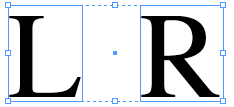
Next, select the group with the Selection tool and cut it to the clipboard. Then click inside a slightly larger text frame with the Type tool and paste. The result is that the group becomes an inline object:
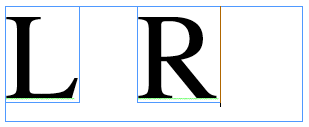
Now on the paragraph where the inline object is, set the Horizontal Alignment to Align Toward Spine (or away from spine) in the Control panel or the Paragraph panel:

Bizarrely, InDesign lets you make a text frame smaller than the inline object it contains. In this case, drag the frame down so that only one of the two objects is inside the frame:

Now it’s time to make a mask. A “mask” in InDesign is usually accomplished by creating a new frame and using Paste Into. So, first, here’s the new frame:
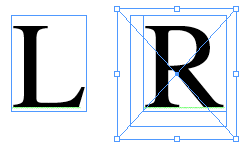
…and here’s what it looks like after we select the text frame (the one containing the inline group), then cut it, then select the new frame and choose Edit > Paste Into:

You see how just one of the two objects is visible?
Unfortunately, I was actually setting this up on a left hand page, but the “R” is visible! Oops. Easily remedied mistake: Use the Type tool to click in the text frame — the one that has the two anchored objects. If you have trouble with this, you may want to use the Select Container buttons in the text frame to choose the correct frame. Now change the horizontal alignment to Away from Spine instead. That’s all you need to do to fix it and show the correct object for the side of the page you’re on:

That’s it! This object shows “L” when its on a left hand page and “R” when it’s on a right-hand page! Magic! They said it couldn’t be done!
Of course, you’d never want to do all these steps more than once, so when you’re done, save the object as a snippet, or put it in a library, or use copy-and-paste so you can use the same object over and over again. That’s what I did… you can download the snippet I made of this object here so you can play with it yourself.
(Of course, when you’re dealing with verso vs. recto pages, you often have other concerns — such as placement of the objects. If you need a lot of power in how objects are reflected, you should check out the Reflective Objects plug-in from In-Tools.)
 |
David,
I use this technique combined with another. All my master objects (unassigned, picture, texte) are inlined in text frames because text features have more option than object features, especially in find & change.
To make things more clear : because ID cannot find&change the position and dimensions of objects, it is possible if you place the objects in text frames and play with the text features.
Ingenious and useful — so thanks! And we even got a fine, little downloadable file to play with — so we won’t have to spend a whole Sunday reconstructing your verbose explanation. Thankee! :-)
Very clever trick. Thought I was going to have to flip several hundred icons one-by-one, but this works like magic. Thanks!