


Making Relative Hyperlinks to Files in InDesign


I’ve been asked a number of times over the past couple of years about how to make InDesign create relative hyperlinks rather than absolute links. For example, lets say you have two PDF files (or SWF files) in a folder and you want one to open the other. You should be able to just name the file, but InDesign usually balks at that — InDesign wants the absolute file path, the full hierarchy from the hard drive (or URL domain) down. What a pain in the tuchus.
However, I recently discovered something curious: Some kinds of hyperlinks can be made relative, while other cannot!
In CS4 and CS5, if you use the Hyperlinks panel to make a “File” type hyperlink, it appears to always be absolute. That’s too bad, because a “File” hyperlink seems like just what you’d want.
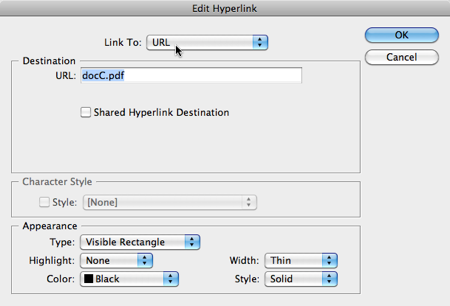
However, if you choose to make a URL hyperlink instead (choose URL in the Link To pop-up menu), it does create a relative link! For example, this URL hyperlink would link to another PDF document in the same folder as the current PDF:
Another way to make a relative hyperlink in an interactive PDF or SWF file is with a button. But when you use the Buttons panel to create a “Open File” action, the result is an absolute link. (It also only works in PDF; Go To File won’t work in SWF.)
The solution? Make a Go to URL button action instead! Here, the button sends a message to open the file based on a relative link, not an absolute link.
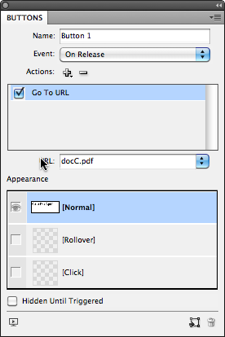
In my tests, Go to URL buttons are the most reliable way to make relative hyperlinks for both interactive SWF and PDF files.
You can even make them find files in other folders. For example, if you make a Go to URL button link to ../docC.html, it will look “up one folder” (dot-dot-slash means the folder above this one).
However, there is one important caveat for PDF creators: Note that when the viewer clicks on one of these hyperlinks, Acrobat asks the default Web browser to go open the link! Acrobat does not open it itself. That’s pretty frustrating. To keep it all in Acrobat, you’d need that Go to File action, which seems to take you back to absolute links. CS6, anyone?
 |
This is an excellent tip! I have been using this as a workaround to the CS5 bug that drops out hyperlinks that link to other documents in epub.
This is something I’ve really wanted to know for a while how to do. Thanks David!
I’m working with CS4 and I wasn’t able to get it to work with these examples. My workaround was to create a button in InDesign and then use the object selection tool in Acrobat to change the properties of the button to open the file with a relative path.
For instance, let’s say you want to want to open a file in a folder inside your root directory. Let’s say the file is titled “file.pdf” and the folder is simply titled “folder.” You would need to go to the object selection tool, select your button by right clicking on it and selecting properties. In the properties dialog, select Actions. Trigger = Mouse up. Action = Open a web link. URL would be: folder/file.pdf.
It’s a pain if you have to modify a lot of buttons but it works like a champ. However, it does still make you click “allow” to view the file.
For certain projects, I use PDF attachments, and I have to manually attach and link to them from the main PDF, in Acrobat. I think it would be cool to be able to create add PDF attachments right in InDesign, and then use a relative linking trick to link to them from ID.
But this is still an awesome tip!
Do you know of a way to create relative graphic links, rather than the standard absolute graphic links?
@Stacey: I tried your Acrobat-based solution on a hyperlink whose properties I edited (Acrobat 8 Pro, Mac). It didn’t work for me. If I just type ‘/filename.pdf’ in the URL field of the link’s properties, it starts Safari which then reports the error ‘No file exists at the address ?/filename.pdf’.
If I instead type your suggested ‘foldername/filename’ Safari bizarrely says this:
‘No file exists at the address ?/Users/Aaron/Desktop/ Design/foldername/foldername/filename.pdf?.
In other words it gets closer by actually looking in the right main folder (‘ Design’) but repeats the precise folder name — although I only entered it once in the URL properties!
Tres bizarre, non?
I’d like to see if this works for anyone else. I think I have found a solution. I’ve tested it and it works for me. The basic approach is to create and save your ID document on your desktop and place the files you want to link there as well. Make a button in the ID file for each file you want to link to and then export to Acrobat making sure interactive elements is toggled on and saving on the Desktop. ID apparantly writes a relative link at this point.
Next, move your PDF and the linked file to another directory, CD, Server, etc. but be sure to preserve the relationship of being in the same folder. This part is crucial. Because the original link was done in the same folder (the desktop) wherever you move them too needs to have the same structure.
I would be very interested in hearing back from anyone who tries this out.
I linked to a video as a file and it worked perfectly from my hard drive and a network server. Good luck!
Michael
I’m having the same issue as Aaron as it’s giving me a “This Webpage is Not Found” message. I’m using ID CS5. I don’t want to save the main file to my desktop with the linked to PDFs as I want the linked to external PDFs in a separate folder.
Any other workarounds lately?
Thanks!
Hi
I need to export to swf, but I also need to link to other documents from that swf. I am using InDesign CS5, and have had some success in exporting to swf … with one noteable exception.
I have been able to link to videos which get automatically placed in the resultant ‘resources’ folder which accompanies the exported swf and html file, but no matter how I try, even if I place a couple of pdf’s into the same resources folder and re- export the swf with those ‘apparent’ links, it will only work if I launch the html file BUT NOT IF I LAUNCH THE SWF !
I guessed that this would have been some kind of security thing, so I zipped it all up, and asked a colleague to do his thing to upload it all to his sever.
Again the videos streamed perfectly, but those pdf’s l created in the same folder simply would not launch
I want to use the buttons I have created with InDesign to launch those pdf items, from the various buttons and pages inside my exported swf.
All of the functionality and facility to do that appears to be part of the InDesign UI … but clearly this is not the case.
I need to send a complete finished job ( all zipped up with all the resources ) so that the client can simply upload the swf, the html etc to their site.
I have no real knowlege of Flash or Actionscript
What on earth am I doing wrong ?????
Harry
relative path instead of an absolute path
it works in swf but after execute by mmb they change into url
thanks
This does not seem to work, Go to URL. It is not respecting that link once files move from system to server. Working with CS5 currently. I have used Acrobat Advanced Editing tools Also and those links work.
I think I might have part of the solution. Using URL hyperlinks instead of File hyperlinks does allow you to remove the url in InDesign and just have the file name, which should make it a relative hyperlink, and does. Here’s the kicker: How you call the file containing the links will determine if they remain URL links or become File links! For example, if I create a file called Policy.pdf containing relative URL links that are just filenames with no url prefix (i.e. just ‘filename.pdf) and save it to someplace like \\intranet\wwwroot\PDFs\, how I open the file will determine whether or not the relative links behave like file links (requiring you to approve of opening them when the annoying popup happens), or as relative URLs. For example, if I open the Policy.pdf file with a link defined as \\intranet\wwwroot\PDFs\Policy.pdf it will make all the links in the document act like file links. If, however, I access the file with https://intranet.foobar.com/PDFs/Policy.pdf, then the relative links remain URLs instead of files. Here’s another tip. My pdfs are called from an html page that presents them all in an ordered Index. If I call the Index.html page the first way, the links in any pdfs opened in its results frame act like file links, but if I open the Index.html file the second way, I get the URL behavior I want. Of course, calling it as an URL causes it to open in Acrobat Reader in Internet Explorer, but that’s how I roll. Hope this helps someone.
thank you, i just stuck in my project. but you give solution.
it works in inDesign CS6
Thank you very much…. :)
God bless u!
Thanks a lot!!!!
I am positive I managed a way to do this before in Acrobat 8 or 9.
I am creating a small flash drive with multiple manual files for a distributor and I’ve been asked to create a simple menu system for them that is PDF friendly since the computers might have no access to the web, might not even have Office…
The majority of these are videos, but there are powerpoint files and pdf’s in there too.
I just want to make a file, add some links and be done with it.
But no.
How about creating attachments and making links from that?
Nope.
Geez!
How in the heck am I supposed to be able to predict what drive letter a flash drive is going to be when it is plugged into a computer on the other side of the fricking planet????
Hey Im using CS6
trying to imbed multiple pdf documents into an interactive document
Ive got the pdf linked but how do i get it from the last page in the pdf to get to the next slide in the interactive?
pls help lol
am about 2weeks old using Indesign….but i’ve advanced pretty much in it….
I’m having this problem with .swf files
I embedded images,a video and an audio file then exported to .swf
everything went fine if i open the .swf where i saved it with the image, audio and video file….
the problem is when i copy the file out of that directory, the images remain but the video and audios disappears………
what do u think i should do>????
@Fehintoluwa: The video and audio are linked and are in the Resources folder. See: https://creativepro.com/topic/videos-in-swf-files and https://creativepro.com/topic/swf-from-indd-trouble
I followed the steps above and i opens my other swf file fine, however it opens it in my browser rather than in flash, how do I fix that?
The fix works brilliantly on ID CS6. I’d been struggling with this for ages before finding your guide — thanks!
The fix forces content to open in a web browser but this is fine for my purposes as most of the content comprises of local web pages.
I was getting a problem whereby each time I clicked on a link I was getting a security warning, this was remedied by creating a privileged location for trusted content following these steps:
1. Select Preferences > Security (Enhanced).
2. Select the Enable Enhanced Security option.
3. Click ‘Add Folder Path’ and navigate to the parent folder containing your entire PDF presentation & linked content; select ‘Choose’.
4. Click OK.
I would like to export indesign file to swf file with hyperlink (something like taht “on release or tab go to URL desktop and close file”). Swf file is on desktop. I do not know how to make hyperlink in indesign for swf file, which will execute closing file and return me to desktop. How can i do that?
You say at the end of your (almost really useful) tip:
Note that when the viewer clicks on one of these hyperlinks, Acrobat asks the default Web browser to go open the link! Acrobat does not open it itself. That’s pretty frustrating. To keep it all in Acrobat, you’d need that Go to File…
Do you know if this is resolved in CC? Can I write relative links to other interactive .pdfs and get them to open as Acrobat files, or must I use portfolio to do this?
Any help appreciated.
Sine: I don’t think anything has changed there.
Hi.
I create catalogs and would like to embed the unique hyperlinks to their item descriptions on our Website so customers can place the item in our shopping cart for their orders. InDesign’s DataMerge feature allows the attribute for images using the “@” symbol to identify images during the import process; is there such a “flag” or “tag” that I can use for my hyperlink field in my .csv file that I setup for the DataMerge import? If not, why have they overlooked this need for so long? https:// is just as unique as .jpg or .gif. Thanks for your insight!
I am trying to create relative links to folders in IDCC… I can make it work using absolute links, but we need to move the whole directory onto a USB drive and then on to another network… Is this even possible?
I am working on a document that will be an interactive PDF with at least 20 videos (they wanted about 60) and maybe 15-20 additional links to other PDFs. My client wants the interactive PDF and all videos and linked PDFs to open and function from a flash drive in case the user does not have an internet connection. Is this even possible? Almost everything I’ve read or found in video tutorials indicates videos either have to be embedded in the InDesign file or linked to the video on a website. I did find a post in a forum talking about relative links, but I can’t make that work. Same thing with the PDFs. When I tried to create a relative link from the minimal information in the forum post, it found the PDF but didn’t open it. Am I missing some steps or just trying to do something that won’t work at all?
Judy, InDesign is definitely not designed to do this. I thought I could fool it by using a file:// path instead of https:// path, but it just crashes InDesign repeatedly. Sigh.
Yep no longer works.(CC2014) -It appears that Indesign prepends a http:\\ to whatever you place in the url field if it is not there.
Oops pressed post too soon – I have tried to embed a link to a movie and it tries to open a browser and gives the browser’s 404 error.
My use case is the same as Judy’s. I need to be able to distribute a pdf worksheet on a stick/cdrom with video as not all my students have access to reliable internet or if they do its mobile & very expensive.
It does not work on CC2014. Can anyone help me?
How to create a link relative path on interactive pdf;For example, by clicking a hyperlink is displayed video
This worked for me! I even had my colleague open it on his PC (Mine is a Mac) and it worked like a charm! Thanks so much! I am using CS6.
Hi Dave –
I recently inherited an InDesign catalog file from another designer. He was using CC and I was still clinging to 6, so I blamed the following issue on this. However, I just upgraded to CC and, guess what, this issue is now in my InDesign file.
What I want to see is the following Name of Folder/project.indd/images/image.tif. This would allow me to give the project to someone else and prevent them from having to relink over 200 images.
For example – Brochure_Interior and Barn Door Catalog_2017\Images\FDR3044-3684.tif
This is what I am now seeing –
F:\Krista\Krista\Pacific Crest Building Products\Brochure_Interior and Barn Door Catalog_2017\Images\FDR3044-3684.tif
This is fine as long as this stays on this computer only. However, in the files I recently received, there were paths like this – \Users\bonniebenedict\Documents\Glyphics\JOHN HORTON\UNITS – HI RES\INTERIOR – BARN WITH HARDWARE\M3044-SShdwr-inset.jpg. All of these images were showing in the document as gray boxes for obvious reasons
I am not on bonniebenedict\Documents\Glyphics – The rest of the path is on Google Drive. This necessitated locating each file on Google drive (hours of work for over 200 images).
Some of these files also pointed to the Benedict Dropbox – also no access for me.
Is there a solution for this? Why is this happening? Thank you.