


Moving A Table Row to a New Position


DM wrote:
How do you move a row in a table to a different location? For example, move the 4th row to the 7th position. Drag and drop doesn’t work. A copy and paste creates a table-inside-a-cell effect.
[If you are using CC, then please see this comment for an update.]]
You’ve discovered one of the weaknesses in InDesign’s tables feature. There is no “move row” feature. (There is, however, a “go to row” feature under the Table menu that most people don’t notice. It allows you go jump to the 4th row, or the 405th row, quickly. Perhaps it’ll be an obscure feature of the week-eek-eek sometime in a future podcast.)
Anyway, moving one row to another ends up being a bit of a hassle. The best method is copy and paste, but as you noticed, copy and paste will sometimes give you an undesired effect. The trick is in how you paste.
First, select the row you want to move:

Next, cut it to the clipboard (Command/Ctrl-X). You’ll notice that the whole row disappears. (I wish there were a way to make it work like Excel — take the data and leave the cells.)
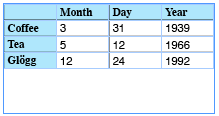
Now insert a new row where you want it (place the cursor in the row above or below the position you want to put the new row and then choose Table > Insert > Row). What you were doing is placing the flashing cursor inside a cell and pasting. That gives you a table inside the cell. Instead, select the whole cell itself (press Esc to toggle between selecting a cell or the text inside it), or select the whole row:

Finally (and this is the hard part), choose Edit > Paste. That should do it.

There are, I suppose, other ways to do this. For example, if it’s a simple table (no merged cells), you could convert it to text (Table > Convert Table to Text), move the data around, and then select it all and then convert it back into a table. But that, too, is fraught with peril in other ways.
Should it be this difficult? No! But as my grandmother is fond of saying, “nothing really important is ever easy.”
(Hm… perhaps my grandmother wasn’t referring to software… I’d better rethink that. :) )
 |
Not to slight your grandmother’s wise remark, but two hundred years before her Benedict Spinoza said: “All things excellent are as difficult as they are rare”.
:-)
The great thing about this that this also allows to copy/paste data in a table! There was a script that populated a table with copied data (tab/return seperated) but this technique makes this script obsolete!
Excellent post, I hear this question a lot. I’m always compelled to try to drag and drop table selections because Word lets you do it; and InDesign tables “feel” like Word tables in many ways.
One new feature in CS3 tables that users might find useful is that you can paste tab-delimited text into a selected row and InDesign does the “tab to cell” conversion on the fly. (In CS2, Paste was greyed out when you had a target row selected; so all you could do was click inside a cell and paste all the tabbed text inside that one cell.)
If the tabbed text you’re pasting in needs more columns than the table has, ID adds more columns to the right of the table to accomodate it.
Also, pasting in multiple paragraphs of tabbed text will result in multiple table rows; even if only one row of the table was selected before pasting. Don’t do this in the middle of a table because ID won’t add rows there; it’ll replace existing row data with what you’re pasting in.
But if you add a single empty row to the end of a table, select it and paste in multiple paragraphs of selected text, ID does add as many table rows as necessary to accomodate.
Klaus, well who do you think Baruch Spinoza heard that lesson from? That’s right…
If you have Dave Saunder’s PopTabFromClip script and access to Excel (or other spreadsheets I would surmise although I’ve not tested it), you could also copy the content of the table and paste to Excel.
Reorder the cells in Excel as desired.
Copy from Excel and run the script to populate the table with the new order.
Fails horribly if there are merged cells in the table, though.
Wa, that script is still HIGHLY useful for those of us that have tables upon tables of data (rates for insurance for example) that have to be reliably pasted into an InDesign table without messing up the formatting. I do not know if CS3 and Table styles makes this less critical as I am still in the world of CS2. I use Dave’s old Apple script from InDesign 2 days (still works quite well aside from the merged cell note above).
For a simple group of rows (or columns) I use a method basically the same as David has outlined. Although I usually wait to delete the old row until after I’ve pasted the new row data.
-mt
FYI: CS3 includes the copy in Excel, Paste into an InDesign table features like Dave Saunders (excellent) script offered. It’s great that this ability is now built into CS3. Just make sure to highlight at least the top left cell before pasting.
It’s not table styles that obsoletes PopTab in CS3. It’s the ability to paste the clipboard into a table just like PopTab makes possible in CS and CS2.
Dave
If you select a group of cells instead of a row (or column), you can cut (or copy) the data and leave the cells intact.
The trick is to select all the row (or column) but one cell.
ok. i m satisfy with u that help to me to move the row by cut and paste.
Yes, it is a CS3 only feature that lets you copy/paste Excel data to InDesign tables, but we were talking about only CS3. In CS2 the script is very useful, in CS3 you simply do not need it any more.
This is what I was looking for …. except I am going to able this to columns.
Hello,
I have had a strange problem with Indesign tables. I have a 2 column text frame on an A6 page. I insert a table in the left side column. The table works fine as long as the content in the cell can fit within that column. However if the content of a single cell runs beyond the column height, all the text seems to disappear. Can anyone let me know if there is a fix for this?
Dural, no there is really no fix (if I understand the problem correctly). InDesign cannot break tables across two columns; each cell must be able to fit in the table. If the row should be able to fit, then perhaps there is some other problem, such as a Keep With Next Row setting (in the Rows and Columns tab of the Cell Options dialog box).
Another weird thing, or let’s say a lack of function:
If you copy a complete row into the clipboard, you don’t have a chance to choose whether you’d like to paste either the cells’ content only or the cells as such (with all their attributes), which is the default.
Hence, if you create a new table row, select it and press Ctrl/Cmd-V, all cell attributes will be applied as well.
Workaround for c+p content only:
1. Copy the complete table row.
2. Paste it into a “stupid” text editor like “Notepad” on WIN.
3. Copy it again in this text editor.
4. Select the table row in InDesign and press Ctrl/Cmd-V.
“vai de capu Vostru”(Ro). I thought there’s realy something helpfull, like Drag-n-Drop, but… not to be. Cut/Copy is a… loose of time
Sory for my english
I know this post hasn’t been looked at in a while, but just as a quick update for anybody who might stumble across it – in the latest InDesign CC (this may be an option for earlier versions as well) all you need to do is select the row/column you want to move. Then hover your mouse over it (pretty much anywhere over the selection) and your mouse should show what looks like a small square with two lines in it alongside your mouse. Just click your selection when this cursor is showing and drag and drop to rearrange your table. You’ll see a large highlighted line showing you where you will be placing the selection. I hope that makes sense – it’s much easier to understand if you can see what I’m talking about, but it’s a very simple process. Hope that helps anybody else like me looking for a simple solution to rearrange their table!
This is exactly what I need today – thank you! I just have one question… I’m using a wacom pad. I’ve tried ‘control click’ and various other short cuts, but I can’t seem to replicate the mouse hover in order to view the ‘small square with two lines in it’. Can anyone point me in the right direction? Thanks
I had this same question recently and made a remarkable discovery. I do an equal amount of table work in both Word and InDesign. I was working in InDesign and needed to reposition some rows in a table, so I did online search. I did the search asking how to do this in Word. Not realizing the mistake, I went into InDesign and following the directions found for how-to in Word… it WORKED!
Here’s how…
To move a row or column using the mouse, follow these steps:
Select the entire row or column that you want to move.
Click on the highlighted row or column, and hold down the mouse button. …
Drag the row or column to the place where you want it to be. …
Release the mouse button.
I work in and out of Word, PowerPoint, and InDesign on most work days. I serendipitously discovered a “how to do this” in Word one day. When thinking I was working in Word, found that the instructions also work in InDesign. This is how to easily move a single or even multiple rows/columns in a table….
1. Select the entire row or column that you want to move.
2. Click on the highlighted row or column, and hold down the mouse button. …
3. Drag the row or column to the place where you want it to be. …
4. Release the mouse button.
As you are dragging the rows/columns, a thick, blue line will appear at places available to “drop” your mouse-held information.
I just love happy accidents! ;)