


Batch Export InDesign Documents as PDF, JPEG, or EPS with the Free Page Exporter Utility


A number of people swear by the free Page Exporter Utility for exporting InDesign documents as individual PDF, JPEG, EPS, or Postscript pages (or outputting multiple PDF files as a batch process). The bad news is that it hasn’t always been easy to find a copy of it on the Web. The good news is that the script’s author, Scott Zanelli, long ago consented for us to post the newest version (at the time) here. The even better news is that it is still working hard in the latest version of InDesign.
You can download Page Exporter Utility here:

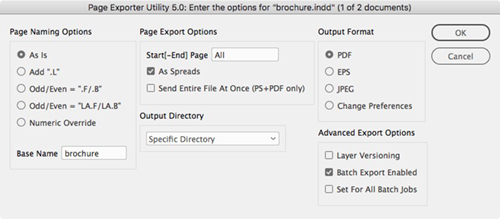
The Page Exporter Utility offers a number of options for exporting your files. For example, you can export each spread as an individual PDF file, specifying custom naming and so on:
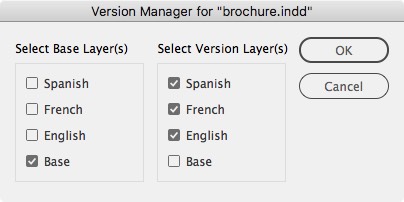
There is also a “versioning” option that lets you create a number of different PDFs from different layer combinations. For example, lets say you have one Base layer and three language layers. You would want three different PDF files: English+Base, French+Base, and so on.
PEU is clever, it’s super fast, and it has a darn good price (free). If you’re a scripter, you can customize the script (Scott has released it under the GNU General Public License) and it even comes with a user manual.
 |
Cooooool. I’m gonna be bold and try add a RTF exporter. And an export book option… which I don’t think I will be able to do, but gotta start somewhere :D
And hope I’m not being mean here. But when you select Change Preferences. And then press cancel, yes you get the previous screen again, but without the “change preferences” option.
Cool Script though. Thanks for sharing.
Thank you IndesignSecrets and Scott Zanelli for this new version. I?m one of thoses who cannot work without it.
Jean-Claude, can I ask what you use the script for? I’m just curious, since you said you can’t work without it … might spark some ideas with other ID users, including myself.
Hi Anne-Marie, our workflows works best with single page documents (PDF prefered, but also some time EPS). The script allow for one click export to single pdf page with naming option we can configure. And even if Indesign can export multiple page document as single EPS, their is no way to use defined custom file naming. Also, when we deal with multi-language Indesign document, the script versioning feature is a real blessing.
Until, all this is build in Indesign natively, Scott’s script is a gift from heaven!
Eugene,
The “Change Preferences” option isn’t shown twice in order to protect settings in the batch exporting mode. If the preferences weren’t hidden, then they could be changed when each document’s export options were set. This would effectively “break” things for the earlier set-ups. So, it isn’t a bug, but is intentionally set up that way.
Thanks for bringing it up though!
Thank you! It’s very useful!
Ah I see scott, I just noticed it and thought it perculiar. I wonder if there’s a way of graying that out or something. I certainly like your script. It’s very good.
consider you have an indesign file for imposing a large book with 20 gigabytes size of contents and 100 pages. you must export to pdf one by one manually or use this script. But I don’t why after exporting some pages indesin says IO error and I must use print to ps instead of export to pdf
Great script! Just saved me 1 hour of work. In our magazine we do “one article – one file”. After sending pdfs to the printer, we also need to make one pdf pr article to the website. This has been tiresome exportwork from ID.
With the batch feature in the script the whole thing was done automaticly in a few minutes!
Thanks a lot from Norway!
I love the version feature, it suits me fine, as I work on ads that have 3 different languages all the time, thanks alot and god bless u.
hope I can pay you back somehow!!!
Hi! its cool script! PEU4.1 not working on ma CS2 but PEU5 is ready to use! ;)
Eugene,
No way to “gray” it out and stay compatible with CS2. The batch options will also disappear after the first job’s info is entered.
Saeid,
Is it the same pages giving the I/O error or does the error occur at different times? Have you tried manually exporting the page that causes the I/O error using InDesign? This would help tell if it is the script causing the problem or InDesign.
I/O error is indesign fault not script fault. however thanks
This script just saved me a ton of work, thank you!
I am new to InDesign and need to install the Printer Spread plugin. Where do I place it?
I don’t know what the Printer Spread plug-in is. Do you mean this PEU script (mentioned above)? If so, you can find out more on how to install and run scripts here.
This utility has been around a while and is a must have. Scott should be commended for his fine work on this! Glad to see its CS3 ready!
This is a godsend for us. The countless times I have to sit and wait for Acrobat to export to single pages was an extra step that was eleminated thanks to this. Thank you very much Mr. Scott Zanelli
I remember that I used this script to export .ps-files. Propably with CS2. With the new version the .ps-option seems to be gone? I am a complete dummy in programming but a look into the javascript-code shows that the .ps-option seems to be integrated. The user interface of version 4 on https://www.lonelytreesw.com/ shows the Postscript-option. The screenshot above and the script on my mac do not.
You have to install a Print Preset that has its printer set to “PostScript File” before the PS option will appear in the script’s main dialog box. This is done because there is no way to rename a file sent to a laser printer, etc.
I know time put to create a script as long as this…THANK YOU!
is there any way to get the ouput directory to see a whole drive and to pick a folder on that drive. I would like to put each job in its own job folder with having to go to preferences and the to name the folder and then to have to delete the folder later.
thanks
In the change preferences section, change the starting directory to be the root of your drive. When exporting, make the Output directory “Specific Directory”.
This will then bring up the “Save As” style dialog to ask you where to put the exported pages. Since you set the starting directory to the root of the drive, a simple double click should get you into your needed job folder.
I’ve been working in InDesign for over a year now, but am new to forums, etc. Put together an 188 page real estate magazine, and have been exporting 188 individual PDFs one at a time. I just had to say thanks for taking the time to put together EXACTLY the information I needed to make a SLOW TIME CONSUMING process – fast and simple. And double thanks to the script’s author Scott.
This is an excellent addition to our workflow. But, when we export our varnish files, there is no page information line. It makes it difficult to “marry up” the Kodak page proofs with the varnish overlays as the varnish printer does not have its own tag line.
Any suggestions?
I would need more info to give a suggestion. Send me an email and we can try to figure this out:
szanelli11lonelytreesw2222com
(replace 11 with @ and 2222 with .)
You have no Idea how much time this saves us. Went from an all day process to 20min!!!
Thank you so much.
Scott, how hard would it be to convert his script for use in InCopy?
Can this script be customized to export a multi page InDesign document to single page InDesign documents?
Mike,
Doesn’t seem possible to do this:
1) Save As can’t be scripted to save individual pages.
2) The interchange export function also doesn’t accept page ranges
3) Doing it as a brute force method of deleting all other pages, doing a save as and reopening the orig to continue with the next page isn’t doable because linked text would reflow and not stay on the pages where it was supposed to.
As an FYI for anyone else, Kevin emailed me with his question about a month ago and I just noticed it was posted here also (yeah, I don’t check this forum as often as I probably should). The answer was “no”, but I may download a trial version of InCopy at some point to see how much it would take to convert it over.
I found that when extracting pages from within Acrobat 7, that the PDF/X-3 information was deleted. At least it didn’t acknowledge it when I ran a check it afterwards. PEU however, worked a treat, it allows you to pick your PDF job settings which is great. Only problem was that it kept opening each page in Acrobat as opposed to working in the background. But I’m not complaining, saved me a lot of time!
Damian,
In your InDesign PDF preset, make sure the ‘View PDF after Exporting’ option is unchecked. That will stop the pages from opening up.
This script is just what I’m looking for but I cannot get it to work! When I link Page Exporter Utility to Indesign and run from the debug menu, i get this message:
// Check if preferences file exists, if not save one
peuINFO[“prefsFile”] = File((Folder(app.activeScript)).parent + “/PageExporter5Prefs.txt”);
if(!peuINFO.prefsFile.exists)
Can you help me?
Paul,
Depending on if you aren’t using an account with admin privileges, you may be running into permission errors.
Try installing the script in one of the following folders/directories.
Mac OSX:
\Users\\Library\Preferences\Adobe InDesign\Version 5.0\Scripts\
PC, XP:
C:\Documents and Settings\\Application Data\Adobe\InDesign\Version 5.0\Scripts\Scripts Panel
PC, Vista:
C:\Users\\AppData\Roaming\Adobe\InDesign\Version 5.0\Scripts\Scripts Panel\
On the PC, these directories are usually hidden, so the easiest way to install the script (even on the Mac) is to launch InDesign CS3, open the scripts panel, right-click (PC and Mac) or control-click (Mac) on the ?User? folder in the script pallet and choose ?Reveal in Explorer? (PC) or ?Reveal in Finder? (Mac). Copy or move the script into the directory/folder that is opened.
You are a genius! Works perfectly now! What an amazing script, thank you.
great script!! inx export would be a fantastic upgrade
Fantastic!
I agree with Brian, inx export would be SUPER nice!
Absolutely love it. Thankyou x million. But I recently sent off a magazine to the printers and they wanted me to remove the 5mm at the bottom of the PDF which contains filename, date and time information. I make postscript files and then distill through Acrobat Distiller. Can I make the files without this 5mm info line at the bottom?????
Robbo,
I’d need some more info to help you with this. Please contact me at szanelli “at” lonelytreesw.com.
Does anyone know if there is script that export mulitple eps files from indesign with different file names? Not just the prefix and end file name.
Or is there a way to name pages (not master pages) in your layout????
Sheer genius!!! You just saved me hours and hours of work.
Thank you so much, I really appreciate this.
This has been a great addition to our workflow.
Will this version work with Indesign CS4?
Also works on CS4
I can’t seem to find a way to add bleed and crop marks as well? When I do the script it exports the files as the trim size only. Thanks.
Mike,
I don’t have time to test this right now, but try creating a new PDF preset and set the bleed settings there. Then when you use the utility, select the preset you just made.
Mike, Sorry I was vague before.
When defining the PDF preset (File>Adobe PDF Presets>Define…), go to the Marks and Bleeds tab, and check the boxes for Crop Marks, Use Document Bleed Settings, and Include Slug Area.
Then save the preset.
Now, when you run the utility, and it asks you to choose a PDF Export Preset, select the one you just made.
I just ran it on my CS4, and it created PDF’s that showed the bleed area as well as crop marks.
Hope that helps.
Where are you saving your pdf preset file? When I get the option to choose I only see my distiller settings I have set up.
I’m saving it in InDesign, under File>Adobe PDF Presets>Define…
https://img156.imageshack.us/img156/197/picture1pc7.png
No I mean when it ask where do you want to save the .prst file on your drive.
It’s never asked me where I wanted to save the file.
When I go to Define, it lists the pre-existing presets, and has buttons for creating a new preset, editing an existing one, deleting, loading or saving.
https://img443.imageshack.us/img443/3747/picture2oy3.png
I click New, and i get the dialogue window where I choose my settings, and then I click OK, and return to the list of presets, where I then click Done.
Are you clicking on Save As?
That was it, it doesn’t say save as, just save. Didn’t realize OK was enough for a new setting. Thanks for your help!
I found this script, well must be about a year ago now, nope just checked file dates, it was November 2007 (how time flies), It has been the most useful utility.
I export to pdf for printing, also to sales reps for proofing, I do this many many times each day and have found it easier to have two copies of the script running. One for output to the rip & one for output to sales reps for proofing, this saves changing the Output Directory all the time. That may sound minor but it does help a lot.
Hopefully one day they will upgrade us from CS to a newer version of Indesign and will be able to upgrade to your latest version. until then 4.1 is the best thing ever.
Thank you Scott for a great job.
Just one more thing if I may, It would be really good if the Done exporting as a single PDF file dialog would not show up after exporting every file. Is this possible
Is it possible using the script to place a three digit page number at the front of each single page pdf. ie 001_Book.pdf. I’m assuming it is possible but I can’t find the option. Wonderful script though
did you ever find out how to name the page number first?
This script seems to be precisely what I’m looking for, with one exeption.
I need a batch processing program that will look into say 2 folders deep into a given directory and open InDesign CS4 documents with a certain string in the file name. For example, “_book” or “ins” and export them as a PDF.
It looks as though this script will do most of that. Is the search by keyword element easy to implement?
Again, a hint (and script) from InDesignSecrets.com SAVES THE DAY. Unbelievable.
Little hint: It’d be nice if one could also turn on the Bleed for exporting. I know I can create a PDF setting which includes this but most of the times I just want PDF/X 1-a plus Bleed included.
This tool has made our prepress dept so much more efficient!
Can’t live without it!
We have to deal with all kinds of Doc,
Is there a page export utility for quark 7?
This script looks useful, but doesn’t do quite what I need. I would like to be able to export, not individual pages, but individual sections of a document. (I create multi-author books as single ID documents with a section for each chapter, and then send a PDF of each chapter to the relevant author for proofing.) Could the script be adapted to cater for this need?
Hi there, very good script, May i know how i can take off the date and file name on the final pdf files, thanks
I cannot see myself using this.
It’s not very reliable… (not professionally anyway!)
PDF and JPEG exports are ok, but EPS and PostScript are flawed with thin white keylines around text boxes (specially over a dark back ground).
Also both these formats crop pages very oddly!
Needs metric measurements (not Americana).
Briefly, when I sent these to people, their first question is:
“… those lines are awful, I don’t like them. – Can you delete them, why did you leave them there?” etc. etc.
Thanks so much to Scott for coding this!! I’ve been looking for a program like this for so many issues of our mags.. thanks!! now we wont have to export per single page at a time!! Fantastic work Scottie!
Great Script. I have one problem. My file has 50 layers. On the Version Manager screen where you select Base layer and Version layer the screen doesn’t scroll t allow me to see all the layers.
I need to know how to remove the file name and date etc. from the bottom of the final pdfs as well.
This could possibly save us hours of work!
On the second window “Postscript Options” under Override PS Page Size, type in your documents original page size. This cuuts off the extra .25″ the script adds to your page with the info on it. Presto – No more extra info line.
This page exporter script works well in CS4. Thank you. Saves hours of time.
Thank you so very much – this is exactly what I’ve been looking for!!! xoxox
Hi Scott,
We were using this utility in CS3 and it changed some of our images to LoRes if they were compressed. When exporting as one large PDF directly from CS3 they were fine. Are you aware of a bug causing this? It definitely does something to select images, which we had a sheet of pics of football players and several changed resolution. Please let me know if you are aware of this as I can document and send you if you like.
Thanks,
Greg
We’re using the script on hundreds of catalog pages with InDesign CS2. It causes InDesign to crash over and over, sometimes I can only get one page PDFed. InDesign crashes while the script is running, and I have to reopen it and try again. We thought this would be a great tool but it hasn’t worked well for us. Have you heard of anyone else having this problem? I looked at some of the comments but didn’t find anyone with a similar situation.
A great plugin, thanks. Unfortunately my version (5.0.1) still won’t export to pdf and include the page info tags. In fact, after exporting a document using PEU, the “page information” box in the PDF export settings is unchecked ( even though it had previously been checked).
thanks a lot it is very great script
Mai Ali,
Egypt
Hello, I was wounder a few things… one is there seems to be some error when trying to set a start page… On a 1-Sec2:88 page book I have tried repetedly to output with this.. it get to page Sec1:52 and then errors out.. now that I didn’t think has anything to do with this since a normal print or pdf exort does this.. but I can’t seem to set the start page.. I get an object error from L~1555
and I tried seting them every which way..
Sec:52-Sec2:88 (whihc is what I’d use for printing that section)
Sec:52[-Sec2:88]
55[-88]
but no luck..
So it should be noted that it’s
the option use “AS IS” with 55-88
No other combo worked…
Also I want to set the size of the jpg output… that seems to be a must…
Is this still being worked on? I’m a webDev myself and I could fix but I love to just DL and install and work..
Great script.. mostly works :D
Cheers
Jeremy
Great! Thanx!
Anyone know how to change the end naming option from “.P01” to something else more specific to what I need?
Thank you, great script otherwise!!
[…] About a year ago, we discussed several options for importing multi-page PDF files into InDesign. Then, last autumn, I created a free video tutorial for MOGO Media that shows how you can import or export multi-page PDF files. In that video, I showed Scott Zanelli’s free Page Exporter Utility script for exporting PDF files as individual pages. [In that movie, I said I didn't know where you could find the script. Fortunately, Scott updated the script and we've posted it here.] […]
I love this script, it’s just what I was looking for.
but I need to have the file name written in a slightly different manner
pageno_customkeycode.pdf
as in
001_HMAIS01.pdf
is that possible? I’ve tried editing the script but can’t figure it out on my own.
@John and Jason: I know that Chuck Weger at https://elara.com has done some good custom work with the PEU Script. I would encourage you to contact him there.
I was getting a script error when outputting spreads, although the spreads were actually getting output correctly.
I believe a loop was executing one too many times. After examining the code, I think I have found the problem.
On line 516 of the code, change the operator “<=" to just "<" (that's "less than or equal to", to "less than").
This is working for me, and if Scott is still lurking, maybe he could verify this.
Scott – thanks for a great time-saver!
Rick Plummer
OK. This is embarrassing. After using the script with several live jobs, I found that the previous “fix” was failing to export the last page, when exporting singles. Doh!
Reverse that last change, and try this…
On line 491, append the line with ” – 1″, so that it reads:
“numericallyLastPage = pgEnd -1;”
So far, this has been working fine on spreads AND singles.
My apologies to anyone affected by this.
Rick Plummer
The script does almost what I need. I have a 300 page indesign document and want to create one PDF file for every 3 consecutive pages. Can this be done with your script?. I ‘ve been looking into it but with no luck.
Thanks a lot
I thought this script was a godsent!
But alas… No matter how many different base settings I try, I can’t get good PostScript files outof it…
Whenever I try it by hand, select the layers I want to be combined and then print to postscript, it’s fine. When I let the script do it, I get a postscript, but after distilling it to PDF, I keep finding missing images…
Images that are missing from the same pages every single time!
VERY annoying, as I have NO idea what could be causing this!
A feature request would be: a scrollable Layer-selection window… I have documents with so many layers in it, that the window extends outside the boundaries of my screen and there’s no way to resize it…
Great script for our magazine production, really shaves valuable time off of our production. The only issue I’m having is dose anyone know how to tell this script to display warnings such as image or overwrite?
ell, found out that the trouble I had had nothing to do with this script, it was CS4 for windows that caused the problem… after upgrading to CS5, the problem was gone and this script worked like a charm…
Still would need the scrollbars in the versioning dialog screen… I have too many layers to fit on the screen and now I can’t use the script :(
Thankyou so much for this wonderfull script. It make me win tons of hours a day.
Thanks !!! Wonderful!!! It’s Graal !!!!
have seen this script around for a while and thought i’d never need it, but have just found a use for it and its shaving hours off of a task i need to do at the moment, so well done scott for a brilliant piece of scripting there!
Is Scott still listening in on this thread?
If you are, I have run into a problem with the script… When I run it on a two-page document, with one base layer and around 25 language-versions, it doesn’t work… It says it dos, but no files get saved…
What up?
@Willy: No, I don’t think Scott frequents here much. But what version of the script do you have? What version of ID are you using? Does it work on some docs but not others? Is the problem too many layers?
Hey Dave,
I tried it in ID CS4 and CS5. normally this works perfectly I use it all the time…
I have script v5.0
The document I wanted to use this time, was a two page excerpt of our catalog. The catalog itself, with just as many layers, works just fine. But not so the two page excerpt…
No idea why…
It starts, it does something, says “The selected pages are done bein exported”. But when I look in the designated folder where the extractions should be, nothing is there. No error messages… only when I try and make PDF directly, I get a javascript error nr. 9485 “Failed to export the PDF file” Line 540
currentINFO.theDoc.exportFile(ExportFormat.pdfType, (new File(outFile + “.pdf”)), false, currentINFO.pdfPRESET);
Any help, would be appreciated!
when using this plugin
we get to the screen when we have to select layers
the list is so long that we can not see the top and the bottom
of the list
is their a fix for this
Absolutely fantastic to export pages of a magazine! We have changed our system to Windows 7 (Vista before) and now my preferences (directory and PDF preset) are not saved… Any idea why???
[…] Das Tool bietet verschiedene Einstellungsmöglichkeiten zum Export aus InDesign. <br /> <br /> Mögliche Optionen sind:<br /> – automatische Benennungen<br /> – Auswahl der Seiten<br /> – Output Format (PDF, EPS, JPEG)<br /> – Wahl der Ebenen Kombination (auswahl von Basis-Ebenen und Versions-Ebenen)https://creativepro.com/page-exporter-utility-peu-5-script-updated-for-cs3.php […]
I need to output my pages by 93% can anybody help me? How can I resize my output pages when using the page exporter
I need PageExporterUtility5.0.1 to pull a name from a script labelled text box on the past board in indesign. The text in the scripted box wil be the .eps items name. Can anyone help? Over 300 eps’s to set up.
Perfeito , Muito Obrigado , me salvou demais esse script
Perfect, ThankU so much, way to good !
YESYESYES!!!!!
Thanks a lot. Also works fine with CS 5.5!!!! You made my day :-)
Best Regards from Turkey
hey man,
this is SOOO great! amazing!
thanks so much for the script!
worked well with cs6
have a great weekend!
nili
Thanks for this!
But only one problem..
I have a doc with 2 pages and 10 layers.
When I’m exporting to pdf, it comes in 1 single page instead of a pdf with page 1&2 for each layer..
Hi David,
I’m not sure if you still check this site. But I was hoping this utility could be used to convert a 3-page InDesign spread to 3 individual pages in a PDF? Or a six-page InDesign spread into six individual pages in a PDF.
I’ve downloaded the script but it doesn’t seem to do this. Could you confirm? Thanks a lot.
@MJ: I’m not sure what you mean… if the 6-page spread is actually 6 different pages in InDesign (all next to each other), then PEU should work for you. No?
Perhaps MJ doesn’t really have a “3-page spread” but one large page instead. In that case, PEU cannot help, as it doesn’t split a single page into separate ones.
Brilliant script! :)
May i wish an invert selection tool? (select / deselect all)
When you have 13 markets (1 layer per market, for example se, no, dk, fi, fr, uk, us, eu, etc), and just want to quickly re-export the fr-layer (not all the other layers) it would be neat with a select/deselect all option.
Besides of that its brilliant – and thanks!
Best regards,
Tobias
As this post is from 2007, have there been any new updates specifically anything DPS related?
Probs doesn’t need an update as such as it seems to work on CS6: @nili
August 17, 2012
It works for me in CC 2014 (Macintosh 10.0.0.70 Build).
It is “working” for me in CC 2015, however, it didn’t export all the pages in my document and not all the pages followed my section name. I thought maybe I needed to check “export as spreads,” but this gave me an error.
It also need PNG export. I could possibly modify the script to allow for PNG, but debugging is not my strength, especially when the bugs aren’t in something I’ve written, or is an incompatibility in an API that I’m not familiar with.
[…] Yet another javascript with a more sophisticated interface is Scott Zanelli’s Page Exporter Utility that had been discussed on this blog before. Read more about the script here. […]
I need to include bookmarks (of Indesign file).
Help me. Thank you.
(my ID Version-CS2.)
Is there a way for when it exports as pdf’s you can include the bleeds/slug and crops?
Thanks this would be so helpful!!!!
Just choose a different/custom-made “PDF Export Preset” in the second window.
Just worked perfectly for me using CS6 and Yosemite – brilliant – thanks very much David.
I’m using CC2014 on a Mac (Yosemite OS) and I can’t change the preferences file (none showing on my computer but indicated in the instruction PDF) so I can’t folio the pages P001, P024 or P120 automatically. I have to manually type it in after the PDF is saved onto my desktop. Any advice?
To access the preferences, click the ‘Change Preferences’ radio button on the far-right column under ‘Output Format’. This will launch the Change Preference dialogue box. Any changes made here will be apply to any future exports.
Is there a way to use this script but have it include bleeds?
You will have to select a PDF preset that includes bleeds. From the Menu bar, select File > Adobe PDF Presets > Define. Once this has been saved with your custom bleed specs, you can select it from the pull-down menu in the PEU’s PDF Options dialogue box.
Thank you so much for your quick response and fabulous script!!! This is such a time savor! Thank you thank you!!
I have video stuff embedded in ID CS6 – unfortunately it exports the pdf without video, because the export “interactive” isn’t available. Any idea?
steff: Yeah, this script wasn’t made for interactive PDFs.
Well I’m pleased to know that for print, this script is still working in CC 2015, just in case anyone was wondering about compatibility. I ran it on the old CS6 machine and it too seems to have no problems with the script. Thank you, you’ve just saved one of my clients a bucketload of time.
Thank you sooo much! You just saved me.
Will your page exporter work in Indesign CC?
If so how do you install.
Thanks
Deb
Is there anyway we can amend the script so that it saves a file as FILENAME_P01_LAYER instead of using periods? It current shows as FILENAME.P01.LAYER ?
Is there anyway we can amend the script so that it saves a file as FILENAME_P01_LAYER instead of using periods? It current shows as FILENAME.P01.LAYER ?
WOW ! I am doing tons of multi-language work where i have a base artwork layer and 15 up to 30 language layers containing text. This works like a charm exporting each language layer on top of the artwork layer in separate PDFs. Huge thanks!
Why don’t you just make a new page and copy the page to the new blank document? (or pages to their own new documents)
Then you can save/print the single page without having to download anything.
I’ve been using this script for awhile but when I went to Creative Cloud the script started adding a “.P” and I’m not sure why.
TTH_.P193
I want the name to be TTH_.193 (193 is the page number).
I can’t get the script to not add that annoying “.P” before my page number. Any suggestions?
I have a two-page document (front/back) that is versioned out on separate layers. Is there a way that I can save out the layers as separate 2 page PDFs? I keep having to open and combine each PDF and resave which is timely. Thanks!
My problem is that the file names that my client wants do not conform to a regular pattern. Instead they are supplied in database. Does anyone know of a way to pull file names from a data base when merging and then have those file names be the names of the individual page PDFs that are generated? In other words, I would merge the database and have a hidden field that would have the file name on each page of the InDesign doc. Then when the PDF is created, the file name each individual PDF page would be pulled from the hidden field on that page as the script made the individual page PDFs.
hi tony,
wondering if you figured out a workaround to your problem of getting the filename from database info?
Unfortunately I have not found a workaround (other than manually typing all these file names.) I’d have much love for anyone who could figure out how to write a script to do this.
hi tony,
i have found somewhat of a workaround. if you have the CC version of Acrobat this will work. send me your email address if you need screenshots to illustrate each step.
1) if you use style sheets you can go in and tag your style with a bookmark. lets say this is a product name on each page.
2) you then generate a TOC in inDesign with the bookmarked style. place the TOC on the pasteboard.
3) save your multipage inDesign file as a pdf and check include bookmarks.
4) open the PDF in Acrobat and you should see the page icons, the bookmark and the link icons to the left. you can click on the bookmark icon to view them, make sure they are correct.
5) click on the organize pages icon from the right. you will have to select your output options and set your target folder and check the box that says use bookmark names for filenames.
6) select all your pages and then say split multiple files, select the pdf that comes up and it will generate individual pages with your designated name.
now my server requires no spaces between words in the filename so i use a utility called better finder rename to delete the spaces and replace them with underscores. this eliminates typing or copying and pasting filenames!
my problem is i want acrobat to pick up 2 top level bookmarks and combine them in the filename. like a sku number and a product name.
Hi Michelle,
This is soooooo close! The problem I’m having is that the the “Use bookmark names for file names” is grayed out and I can’t select it. There are no spaces or strange characters in the bookmark/file names and they are not very long. Do you have any idea why it would be grayed out? Except for this glitch, this looks like a great solution! Thank you! Sending lots of love your way!
As for your problem, I’m guessing that you have already explored this but here’s what I would suggest. If you bring your database into Excel, there is a way to concatenate cells (you’ll need to look this up as I’ve forgotten exactly how it’s done). So if you took your SKUs and Products columns and combined (concatenate) them in to a new column (Call it SKUPs), you could create a SKUPs merge field on a hidden layer in InDesign which would have it’s unique paragraph style. Then do your process and that would name your file the way you want it.
this is what gave me my clue.
https://forums.adobe.com/thread/1357677
you have to make sure that you generate that automatic TOC from your styles and leave it on the pasteboard BEFORE you export your pdf and when you export that pdf make sure you save with bookmarks. its in the main dialog box down at the bottom under include.
you’ll know if you did it right because the bookmark icon will automatically show up at the left in acrobat.
hopefully this helps. if that’s not quite it still send me your email and i can attach a couple of screenshots. i had this problem too but i’d have to recreate the problem :)
and thank you for your reminder to use concatenate. i haven’t used that for awhile. i think i can also use GREP to do this, but i was hoping to do all of this using paragraph styles and a script where i tell inDesign to pick up SKU number and then product name and create a individual page pdf with this info.
all this is fine moving forward i can easily work this into my process, but my dilemma is trying to go backwards several years and deliver thousands of pdfs for previous projects and of course with no budget…
I was wondering if someone could help me with this. I love this script, especially for versioning, but I need an option for PNG file format. Is there someone who could help me out?
Is there any way to set this exporter to export to CMYK and not RGB? Thanks
Tom: Are you trying to export PDF or some other format?
Thanks to both you and Scott for sharing this! It will help me a LOT. :)
Is there a way for this script to stop on errors, such as overset text?
For everybody who looks information how to export without file name and date with time stamp in crop area – there is soution:
In script -> find (I have it on line 1321)
function usePgInfoTag(theUnits, docWidth){
var usePgInfo = true;
and overwrite “true” to false”
Try it. For me it works
Hi all, I’ve written an AppleScript that may rival the great PEU. It includes the following additional features:
• It exports files straight to the Indesign file folder or automatically to a sub folder of your choice
• Exports individual pages. Each page is specifically named from one of the following options:
– Indesign filename & suffix-of-your-choice & page no.
– CSV or text file (names separated by returns).
– The content of a character style from each page.
– The content of a paragraph style from each page.
• Option to combine JPEGs into a single PDF
• Export current document or all open documents in Indesign
It’s a free download with no registration so if you want to hear about updates, leave a comment or your name through the contact form.
https://www.drscripto.com/?p=873
Great!! Thank you very much for your script. It´s amazing.
Hi all!
This is a great script, we use it for all of our magazines. Has anyone edited the script to have it check the document links before exporting?
Our Document is basic.
Our goal is to automate the placement of both full page ads (completed PDFs) with (horizontally oriented) half page ads 2-up (also completed PDFs).
10.75 inches by 6.3125 inches.
Our pre-built Ads are either:
11 inches x 6.5625 (Full page ads, with bleeds), or
11 inches x 3.28125 (horizontal half-page ads, with bleeds).
Our goal is to automate the building of the entire 48-page booklet with our pre-built folder full of full and half page ads, referencing our .csv database.
I have not been able to figure how to accomplish this within Indesign (Data Merge, tables, Loic’s CSV-t-Tables Script, or his INLINE merge script.) Is there something which imports multiple page (pre-built) .PDF or .INDD files of various sizes into a final booklet?
Great script, but it it possible to export non-consistent pages, ie, not a page range, but a page here and there form the document?
Yep. Just use commas between pages, i.e., 3,7,8-10,21
ahhhhhh! I was using spaces between commas. thanks.
Used this today for first time (with CC 2015) and it worked great.
Thus proving there is still life left in old things!
Thanks Scott for the helpful script.
OOOooohhh WOW…Rock’n’Roll!!!
This was THE script me and my brother have been seeking for ages!!!
We both work together in a department for technical documentations, where we have the “nice task” of regularly updating dozens of heavy documents (300 pages), each in FIVE languages. Exporting to separate Print-/online PDFs is (or WAS) a painful task, waiting for one language to export, switch to the next “language-layer”, export, wait, switch, export, wait…
It drove you completely nuts!
But this script is pure magic and worked spot-on….in InDesign 2019!
THANK YOU, THANK YOU, THANK YOU!!!
Finally, the InDesign gods had mercy with us… the day is getting perfect!
Greetings from Switzerland
This script is super, duper, awesome. But is it I get an error when I checked the box As Spreads. My job option doesn’t have the option to export as Spread & I’m only selecting it from the script.
Error: 45 Error String: Object is invalid Engine: Main Line:565 Source CurrentINFO[“currentSpread”]
The PDF is still created
I have tested it and it works. Make a pdf preset and select spread and also select it on the script.
Glenn, I tried both ways.
Having the option as spreads on the script as well on the pdf preset. I get error number 45 but I still get a PDF as spreads
The spreads option is unchecked on the script but it is on the PDF preset. No error but it creates single PDFs
Hello,
Using 2021 version and i get an error:
Error number 9485
Failed to export the pdf file
engine:main
line 540
Anybody got an idea?
Thanks