


PDF Button Tips, Tricks and Problem Solving


As I said in my previous posting about creating buttons in InDesign CS4, buttons are now easier to create. But there are some critical features which aren’t obvious, especially when you’re new to creating buttons. In this posting, I’ll focus on creating buttons for interactive PDF files in CS4. And there will inevitably be problems along the way, so you need to know something about troubleshooting problems. This means learning a little about buttons in Acrobat. (By the way, most of these tips also apply to creating buttons in InDesign CS2 and CS3 as well.)
Tips and Tricks for Creating PDF Buttons
The following list isn’t exhaustive, but, no doubt, those reading it can suggest some other tips:
1. When possible, create buttons on master pages in a document. This will greatly reduce the number of buttons you need to create, and will ensure consistency.
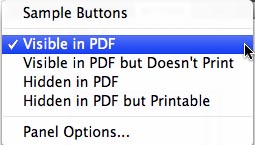
2. Buttons can have different attributes for visibility and printability. In the PDF language, buttons are considered a kind of field (think form fields). Fields can have four variations of visibility?Visible in the PDF, Visible in PDF but Doesn’t Print, Hidden in PDF, and Hidden in PDF but Printable. You can choose which of these attributes are applied to a button from the Button panel menu. Most buttons are Visible in the PDF but each of these options has their uses. (Example: If you want a picture to appear when you click a button, create two buttons. Place the picture in a Hidden button, and use the Show/Hide Button action in the Visible button to make the picture visible.)
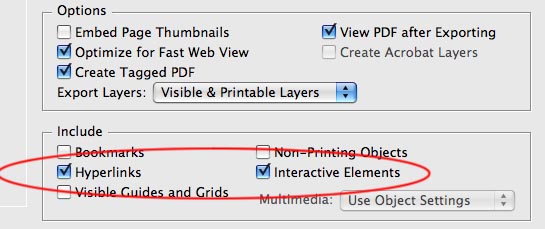
3. Buttons only “come alive” in an interactive PDF file if you turn on the right options when you export your PDF. (Forget trying to create a PDF using Distiller; that kills everything.) In the Export PDF dialog, be sure to check Interactive Elements (and also check Hyperlinks if you’re using those in your interactive PDF file).
4. If you’re using transparency in your document and it in anyway interacts with a button, you must save your file with Acrobat 5 compatibility or higher (no transparency flattening). Otherwise, you’ll get the message below, and you’ll lose your interactivity:

Creating a Go to Page Button in a PDF File
As I mentioned in the previous posting, there is a Go to Page action in the Button panel in InDesign CS4, but it’s only for creating buttons to be exported as a SWF file. So how do you create one in a PDF file? You need to create a text anchor, and use the Go to Anchor action. (As we’ll see, these have a different name?named destinations?in Acrobat.) Here’s how to do it:
1. Go to the destination page, and select text in a text frame. (You could make text Paper color to hide it if you don’t want it to be visible.)
2. Open the Hyperlinks panel (Window > Interactive > Hyperlinks). Choose New Hyperlink Destination from the panel menu. By default, it names the text anchor it creates using the text string you selected, although you could rename it.

3. Make a button, and make its action Go to Text Anchor. Select the text anchor you created.
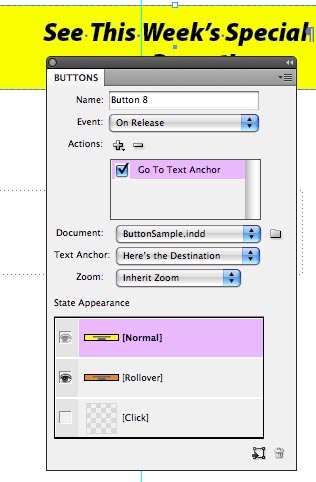
When an interactive PDF is created, that should create a named destination that the button will select, jumping to the appropriate page.
Button Troubleshooting in Acrobat
We’d expect that all the buttons we create in InDesign would create perfect buttons in Acrobat. Unfortunately, many things can go wrong. In fact, as I was preparing this posting, I ran into one myself. So I’ll use it as an example of how to troubleshoot buttons in Acrobat. When I created a text anchor as I described above and made a PDF, all my buttons worked correctly except that one. As of this writing, I’m not sure what happened (my colleague and friend Sandee Cohen wasn’t able to replicate the problem). I did the requisite troubleshooting (like restoring my InDesign preferences) but the problem persisted. The method worked correctly in InDesign CS3 so it could be a subtle InDesign CS4 bug.
I opened up Acrobat to see what was going wrong. Acrobat has had its own interface for creating and editing buttons for many versions. In many ways, it can create buttons which are more complex than those that can be created in InDesign so it’s worthwhile to learn how it works.
I worked in Acrobat 9 Pro which now has a special form editing mode, and I’ll give the steps I followed, but I’ll also describe how I could use Acrobat 8 Professional as well. I ended up editing the named destination (text anchor).
1. Choose Forms > Add or Edit Fields (In Acrobat 8 Pro, choose Forms > Edit Form in Acrobat.)
2. Find the button which is not working. You can use the Fields panel at the left to help identify it, if necessary. Double-click the button. (In Acrobat 8 Pro, the Forms toolbar opens. Click the Button tool, and double-click the problem button.)
3. The Button Properties dialog box opens. Click the Actions tab.

4. In the Actions section at the bottom, select Go to a page in this document. Click the Edit button.

Now you can see that the text anchor (now called a Named Destination) is embedded in the PDF file. Browse to reselect it again, and click OK.
5. Close the dialogs. Click Close Form Editing (Acrobat 9 Pro only).
After reselecting the destination, the button worked fine.
What if you needed to create a new destination in Acrobat? You’d use Acrobat’s Destinations panel. Here’s how:
1. Choose View > Navigation Panels > Destinations
2. Navigate to the page you’d like to make the destination.
3. Choose New Destination from the Action popup menu (gear icon).

A new destination is created. You’re given the opportunity to name it. It’s set to the page you’re currently viewing.
4. Edit your button to select the new destination you created.
Good luck on your button creation, and post your own tips for working with buttons in the comments.
 |
These are great tricks, Steve. Thank you for sharing them. Making buttons is not always as straightforward as one would hope.
Hey, thanks. Now I know how to fix the my document. I was pulling my hair out.
my problem is a little different ….. but close to what you are talking about….
when i export the Interactive PDF i see all the pages, but all i need to see is the one FRONT page with all the hyperlinks
i mad couple of PDFs and they worked fine but for some reason i cant do it now…. what im getting now is all the pages VISIBLE
Please Help
Vlad,
It’s a little unclear to me what you want to do. You have a multipage document with links on the first page to the other pages in the same document? But in the PDF you only want to see the first page? What is it that you want to happen when you click a link?…I’m not sure this is possible.
you guys are great, why nobody teach this things in the school, i learn more with you rather at school.
i appreciate your effort and thank you.
i am on bussiness because of you.
I’m using CS4 to create an interactive PDF brochure. I have my buttons set on the master page (and I’ve successfully done this before) but once the PDF is exported, the text on the buttons (ie: Home, etc…) won’t show up and the button is blank.
Do you know why this is? Is there anything I can do, or is this another CS4 bug?
Any help you could provide would help a lot.
Thank you!
Another question:
I’m linking a button to a file (a PDF form) but want the user to be able to go back to the interactive PDF. Is it possible to open this file in another window?
Kelli-
If I understand your question, I don’t think there’s a way to specify a target window for the link to open in (either in InDesign or Acrobat). It’s something I’ve wanted to do too. Would make a good feature request.
Thanks for all your tips. I’m really struggling with the “layering” of buttons and pop-ups. I have photos on a page that each require their own “More Info” button which when selected shows a “pop-up” screen. These screens are overlapping other photos and in some cases the “pop-up” screen falls BELOW the “More Info” button of another photo so is interfering with the “pop-up” screen.
I’ve tried putting the “More Info” buttons on a separate layer below the layer of Pop-ups, but this makes it worse. On my screen all of the “More Info” buttons are beneath all the pop-ups but that’s not what’s happening in Acrobat. Do you have any ideas on how to make this work properly?
Hi there….I had my e-mail wrong in the previous comment (about layering Pop-ups and More Info buttons). This comment has the correct e-mail address.
Judy: These kinds of complicated button situations are very hard to manage in InDesign… well, it’s more that they’re hard to manage in Acrobat — which has a very limited ability to deal with buttons. I would try very, very hard not to overlap buttons.
I want to show/hide a Table of Contents “button” with multiple buttons embedded in it to go to any page – like a dropdown menu. Only in PDF – using InDesign. Is this even possible yet?
First sliced bread, then anchor text. It’s a good life. Thanks. Saved hours with this one.
Hi Steve
funny enough I ran into the same problem as you on your ‘This week’s…” button.
Luckily it was quite obvious to spot for me, as 5 out of many buttons did not work; they all had either quotation marks or, like in your case, apostrophies in the text anchor.
Just leave these characters out of the selection and it will work.
I would like to add an action to one of the buttons i’ve created. Their are multiple choice solutions as we can see in the article, but i would like to create a button or an action that pressing on it you print the document or pop ups the printer options. I know it is possible because i’ve got a presentation in wich this button exists but i have it in PDF so i can’t see the source.
Thanks a lot!
inaki, you can see how it’s done in Acrobat Pro. Select the Arrow tool (from the Advanced Editing toolbar) and all buttons on the PDF page get an outline and handles. Double-click on the button with that Arrow tool, and the button’s Properties Inspector dialog box opens. Choose the Actions panel in the dialog box to see what the button does.
You can’t use InDesign to create the type of button action you describe. If you want a button in a PDF to do something from Reader’s or Acrobat’s menu (like File > Print), you need to set up that button in Acrobat, then for the Action, choose Execute a Menu Item, and finally choose the menu item you want the button click to do.
Thanks Anne Marie, it’s a little bit annoying that a wonderfull aplication like Indesign CS4 does not have this option.
Thanks anyway
I wanted to set up an action for “print” as well in indesign in my master pages.
Since it seems I have to resort to acrobat to do so, is there a way to apply the action to all pages (36 and counting) instead of copying and pasting link on every page? Everytime the client makes a change I have to do it all over again!!! Please help.
@elizabeth: You definitely want to read this post on the Replace Pages feature in Acrobat.
I am able to make buttons and embed a movie in PDF and it works fine in PDF after I export it but does not work after I email the PDF. Please advise. Indesign C2
Indesign CS2
I’m using CS5 to generate an interactive pdf, setting up text buttons to navigate to the network of text anchors I created, and have encountered the same problem. The buttons no longer advance to certain text anchors in the exported pdf and there appears to be no rhyme or reason as to why. Some work, some don’t. Some that used to work, stop working. Very frustrating.
WONDERFUL EXPLANATION AND HELPED ME LOADS. THANKS VERY MUCH
DAVID
Hey David,
I’ve made quite a large and detailed interactive PDF for a client that uses a combination of buttons and hyperlinks to go to pages and show/hide other buttons & content.
One problem I’m encountered and haven’t been able to solve (InDesign Secrets has been an invaluable resource) is that once a user navigates to a page, then clicks on a button in that page which shows/hides other buttons, the state of those buttons is then saved. So if a user then decides to leave the page to go to another and play around with that, when they arrive back to the original page, the buttons are in the state they were last left.
Is there a way to have all button states reset on page load to the original display settings like when the file/page is first opened, instead of the states being ‘memorised’?
I hope that makes sense,
Dan.
@Dan: Might be something that needs to be scripted. Lots of advanced Acrobat stuff requires a little script or two. Check out the good stuff at https://www.pdfscripting.com/Index.cfm
Thanks for the response David.
I’ll check it out.
Dan.
iam using CS5 creating an interactive pdf , after exporting the pdf and open it in acrobat its perfect , but the problem is when I open it from google chrome or IE the buttons is in a different color until I click it , I also found a new button frame outside the button object itself , how can i fit this frame to the button . for example ” I create a button that when the mouse roll over it shows a photo , the problem is the pointer tool activates as soon as it runs over the button’s frame (which cannot be seen in the PDF or indesign ). Is there a way to remove the button frame so that the pointer only activates when it touches the feature ?
Thanks a lot!
Thank so so so much!! You’ve saved my cv!!
Hi Guys,
I’m pretty much a newbie @ Indesign. I am trying to create an Interactive PDF training module that is accessed from Moodle (Open Sourced E-Learning platform). I want to create a button for the end page of each module that closes the PDF browser and returns to the Moodle browser.
Is there a command to do this? Or os it a matter of “please close Acrobat and continue the course in Mooldle”?.
Any tips would be grand
Thanks
@Leticia: I don’t think there is any way to do that from InDesign itself. Possibly with a javascript in Acrobat, but even then I doubt it.
Hey is is possble to use a button that will only print the current page and also only email one page from the whole PDF interactive file?
Let me know,thanks
@Mitzi: I don’t think so. You might be able to create a button with a custom javascript inside Acrobat, but certainly no way to do that from InDesign.
i’ve made an interactive pdf in indesign. there are show/hide buttons on a menu page that let you click the hidden button to visit a different page. Then I’ve created a home button to return back to the menu page. Is there a way to make the home page appear “reset” so that the hidden buttons are not already visible when returning to the home page?
there doesnt seem to be a way to have buttons show/hide objects on another page
please please!! any ideas?
This GTA 5 apk is impeccable with all popular Android Gadgets.
It’s bewildering and runs effortlessly on for the most part contraptions.
On the off chance that you can barely wait for PC release or you don’t have Xbox360
or PS3 or bleeding edge bolster you should unquestionably play this diversion on your Android device.
In the wake of downloading GTA 5 Android you’ll get APK records and SD Information archives.
Make a point to take after the included headings to have the
ability to play this astounding redirection. Play gta 5 android,
download gta 5 apk & sd information here https://gta5apk.com/
For one reason or another, I can’t see all of this article, stuff keeps hiding? Are you using XHTML?
I’ve truly always maintained that one of the true allure’s associatedd with open wrld games like this could
be the ability to be the bggest jackass and have no real repercussions, and the instructor from Gamme Z8ne gives you the best possibility
att doing that in GTA V. Not just do you obtain unlimited health and breath (you understand,
in case you’re active chasing that shark),
but also unlimijted vehicle health, just keep that in mind when usinbg
jet aeroplanes and tanks. You can also addd money therefore you can just unlpock a
ton oof content material like new weapons, cars and save housses since you see fit.
On top of that, the trainer gives you options like teleporting correct tto way points plus no fall damage, which
are sure to hellp with some of those tougher missions.
Remember that GameZ8ne is your home for GTA V trainers!
Ive created a organization layout scheme. You see the name of the person and pop’s up the person image that was hidden.
I was able to do it perfectly for one but im stuck in the second guy. I did everything like the first time and when i export as interactive pdf the second photo that should hide and appear when trigerring the name button does not act that way.The photo stays still in the pdf.
Any help here???
Hi,
I am looking for a way to make a button where the reader can end up NOT at the previous view but the previous page that was viewed. A bit like a “Back” button on a webpage. The problem I am experiencing is that as soon a reader zooms in to any part of my document the “previous view” is the zoomed in page and not the full page view. There seems to be a bit of a bug there.
Any ideas
Brad
The Broncos play at Mile High, which is 5,280 feet
above sea level and is often attributed to their property
good results. Help your Denver Broncos with a obtain from the Official Broncos Store nowadays!
HI
I’m having trouble with my buttons. Creating them is not a problem all I want to know is can you direct a button in a pdf created in indesign to open a linked pdf in another acrobat window. or alternatively have it so I can used the back page and forward page arrows in acrobat..
Hmm it appears like your website ate my first comment
(it was extremely long) so I guess I’ll just sum it
up what I submitted and say, I’m thoroughly enjoying
your blog. I as well am an aspiring blog blogger but I’m still new to the whole thing.
Do you have any helpful hints for newbie blog writers?
I’d genuinely appreciate it.
While step 1 may work with PDF’s, when it comes to Fixed Layout EPUBs I discovered when you build Buttons on the Master Page they appear but they do not work. I was creating a dropdown menu and a button with 2 object states to reveal sub button. It works fine on an actual page and functions correctly. However, if I put the button and the states on a master page it does not, no action. Sadly I was hoping it could be like using master pages in Dreamweaver to save some time. This might be a good topic for a blog if it has not already been written.
Hi,
I would like to put in the body of a paragraph a button. When pushed a large picture appears. Then to hide the picture again the same button is pushed. The name on the button would be “Show Picture” when the picture is hidden. When the picture is open the button name changes to say “Close Picture.” The picture would show just above the button and the location in the file remains so that the person viewing the picture can just hide it and continue reading about the picture. I put as many as 15 pictures in the body of a file. For this reason I must be able to install a different picture at each location in the file. This is word 2016. Also this file (Macro) must go with the file so that anyone that receives this file can open and close these pictures.How much to make this macro file? [email protected] (631) 484-8908 Call or email Thank you John