


Previewing InDesign Files – CS5 Redux


Most people would like to see a preview before opening an InDesign file to make sure they’re picking the right document. InDesign has had the ability to save previews with its files for several versions, but only of the first page of documents (or all pages of a template).
Wouldn’t it be great to preview some of the other pages in an InDesign file before you open it? You can now in InDesign CS5?if you have set your preferences to do so ahead of time. You can do this in InDesign’s File Handling preferences shown below.
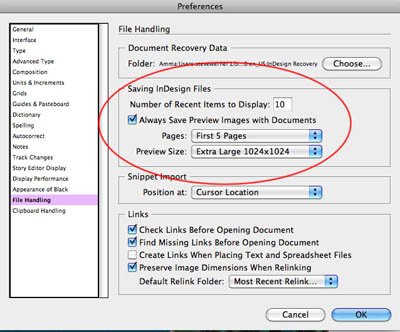
File Handling Preferences
Make sure you check Always Save Preview Images with Documents. Then choose how many page previews you want to save (First Page, First 2, 5 or 10 Pages or All Pages) and the size of the Preview (from the small to extra large). The default is the first 2 pages and 256×256 pixels.
Where can you see these previews? Adobe would like you to use Adobe Bridge, its file previewing and management application which comes with InDesign and the Creative Suite. So the page previews can be viewed in Bridge’s Preview panel. The quality and number of pages you can preview will depend on the settings you chose when you saved the file. Click the arrows below the preview or enter a page number to choose from multiple pages.
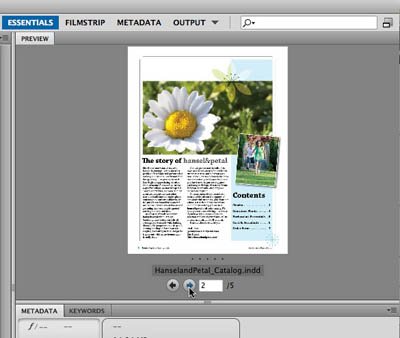
Bridge Preview Panel
So this should work in InDesign CS5’s spiffy new Mini Bridge panel, right? Sadly, no, you can’t preview more than the first page in the Mini Bridge panel. (If you’re not seeing a Preview Pod in Mini Bridge like you see below, select it from the Panel View menu at the top.) However, if you want to see more than the first page, you can right/Control-click the file in the Content panel of Mini Bridge and choose Reveal in Bridge. This will quickly switch to Bridge and open with that InDesign file currently previewed.

Mini Bridge Panel
What if you would like to preview your InDesign files outside of Bridge? I must confess that while I use Mini Bridge and Bridge sometimes, I also spend spend a good deal of my time working outside of Bridge. I’d like to see InDesign previews when I’m working at my Desktop, in the Open dialog, or perhaps even when in another application like Apple Mail, and selecting a file to attach to an email. But Adobe doesn’t provide this capability at all.
I work on a Mac, and my choice for doing this is by using an indispensible utility called SneakPeek Pro. I wrote about this a few years ago. Not only does it preview InDesign files, but also Illustrator, Adobe Swatch Exchange, EPS and Freehand files. Fortunately, in May Code Line Communications, the creators of SneakPeek Pro, released an update which supports InDesign CS5, and supports preview for multiple pages in InDesign CS5 and some Illustrator (PDF Compatible) documents. It makes use of the QuickLook technology built into Leopard and Snow Leopard versions of Mac OS X. It previews like the example below?in the Finder, dialog boxes and other applications.
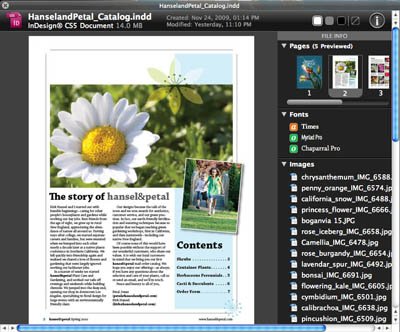
SneakPeek Pro
Notice the option to select a preview from multiple pages at the upper right. You can also view the automatically saved InDesign metadata for fonts, placed images, and swatch colors below that. And you have settings for controlling which metadata previews as well.
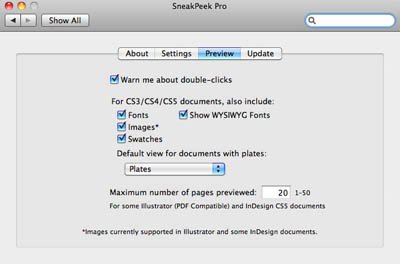
SneakPeek Pro Preview Options
For me, this is one of the few indispensable utilities I always have installed. The utility installs as a Preference Pane, and costs $19.95 with a free 15-day demo. I have no idea whether such a utility exists for Windows, but I’m sure that my readers will quickly let us know if it does!
ADDENDUM
Since F vd Geest added a couple comments about the quality of type in a saved InDesign preview, I thought this was the best way to show you my results. Below are screen captures of one of the pages I illustrated above, enlarged as large as I could make it to show the font quality. The size of the type (using the Magnifier in Bridge to see it larger) is 14 point.

Type Quality Shown in Bridge

Type Quality Shown in Sneak Peek Pro
I set the resolution of saved previews to 1024 x 1024. I’m viewing this on a MacBook Pro with Mac OS X 10.6.4. Perhaps others can relate their experiences with the quality of InDesign Previews to clear up this mystery.
 |
Either Bridge or Sneak Peak: I only see greeked text…?
This preference also results in more pages of a PDF being made visible – but it acts very strangely.
F vd Geest,
Can you be more specific about what you’re seeing. What size type on the page? What resolution did you set in File Preferences? When I choose the highest resolution (1024 x 1024) 14 point type showing on the cover in the example above illustrating the Mini Bridge panel is definitely not greeked. It is bitmapped, but at a resolution higher than the image in the background. The type is definite NOT greeked. It looks the same for me in SneakPeek Pro.
I don’t think I can embed an screen capture of what I’m seeing in these comments to show you (nor do I easily have a way of linking it from a website). But it’s looking good to me.
Eugene,
As long as Bridge has been around (since InDesign CS), it has been able to preview multiple page PDF files. It should have nothing to do with InDesign’s File Handling preference. Or am I misunderstanding your short and cryptic comment? Can you elaborate, please?
I’ll have to wait til Monday to expand on it – there is a weird thing that happens. I’ll have to examine it again to give a good written account.
Hi Steve,
I’ve tried several settings, 512 and 1024. Set to save 10 pages. If I use the Mac preview with the Spacebar, Sneak Peak (latest version) kicks in. It shows me the document with greeked text (bars instead of characters). It does so with ALL fonts and font sizes. The same is true for Bridge. So it must be the saved preview itself that causes this. I tried resaving, changing the preferences (size, number of pages) with no result – it stays greeked… Mac OS X 10.6.4
I figured out how to show you the quality I’m getting: I updated the article itself (since there I can insert images). I’ve added an addendum at the end to show screen captures from Bridge CS5 and Sneak Peek Pro. Perhaps others can share their experiences of the quality of the previews but they look good to me!
I tried a test doc with just a block of Basic Paragraph fill text. When I saved a version w/the default 256 preview size, I got the greeking in Bridge’s Preview panel. When I changed Prefs to 1028 Extra Large size and then saved another version, I was able to see the characters in the same Bridge panel — no Greeking.
btw, changing the Greek Text size in prefs made no diff.
I didn’t test Sneak Peak, though. Just Bridge.
Great tip! This will really come in help when searching for the correct Indesign file on a huge server with years worth of files and various designers.
Is there a similar program to Quickview for Windows that will work with eps files? As a designer, I often ask my clients for corporate logos and I almost always get jpgs. When I email back and ask for an eps file, I get the repsonse, “Oh, I can open that to see what it looks likes so I didn’t send it.” or “I couldn’t open that file so I thought I was corrupt.” A free solution would be best since many of my client are middle management and fearful of both asking for money for software and anything involving IT. :)
Thanks!
Another area to be concerned with is file size. I just tested a 12 page document.
Preview set to 2 pages – medium preview size: 8mb
Preview set to 2 pages – extra large preview: 8.5mb
Preview set to all pages – medium: 10.2mb
Preview set to all pages – extra large: 11.8mb
You can see that changing the preview from 2 pages to all and making it extra large added almost 50% to the file size. Over the course of a year, I cringe to think how much extra space your documents will take up. Then again hard drive space is cheap and it is useful feature.
It seems language related. The English version shows me text – the Dutch version (same settings in preferences) does not…
Oops, no: it does so for NEW documents. Older documents saved with the 1024 setting do not.. UNTILL I save them under Save as…!
So that’s a great discovery. For archival files, if you want to view them with a higher res preview, you must choose File > Save As to force InDesign to write the new preview into the file.
@James Fritz: It’s hardly surprising that adding these preview images increases the size of the document. And if you’re working with a lot of files like this, it would be prudent to NOT save all pages for preview.
The good thing is that the File Handling preferences dialog gives you the options to control how good a preview you need, and how many pages of preview to save with the file. Each person can decide on the tradeoff of quality vs. file size, based on their own needs.
Warning?
Switching on previews will also increase the size of PDF files exported from ID CS5.
e.g. an 80 page PDF (‘smallest file size’ preset) increased from 1.1MB to 12.3MB when extra-large previews was set for all pages in the InDesign preferences.
@steve: To elaborate on what Eugene is seeing, every PDF exported from CS5 has exactly two pages of preview in Bridge on my Win7 systems, even if it’s a one-page PDF. (!)
I reported this as a bug a while back. Changing the prefs for ID previews doesn’t affect the bogus two page PDF thing.
It’s definitely an ID bug, because PDFs from CS4 and earlier still show all pages in the Bridge preview.
Speaking of PDFs, I discovered that PS CS5 will quietly and invisibly import BOTH pages of a 2-page PDF exported from ID CS5 and will output a “two page” jpeg! Two-page jpegs shouldn’t even exist, far less a two-page background layer in Photoshop, but by golly you can preview the two pages in Bridge, and the file is huge (and unusable, of course). I’ll have to report that one, too. It’s bizarre. Before you ask, yes, there was a specific reason I was making the jpeg from the PDF and not straight out of ID.
Could it be a forthcoming Photoshop will allow multi-page images? (The other option is some programmer at Adobe was fast asleep…)
Before you ask, yes, there was a specific reason I was making the jpeg from the PDF and not straight out of ID.
Nah. The quality of InDesign’s “native” jpegs is laughable, and it’s generally advised to take your route to produce anything better than an extremely rough preview.
@Jongware: You should never laugh at jpegs. They all belong to the same union. Being picketed by a bunch of militant images and pelted with compression artifacts can be a nightmare, especially on a Mac.
In fact, though, since CS4 I’ve quite often used ID-generated jpegs with no problems when I’d a need for speed. Very handy for sending a quick comp to a client’s iThing, clean as a whistle when brought into Photoshop for web conversion. I find myself doing more and more web layup in InDesign, because it’s so much faster and easier than in Photoshop, and it’s natural to spit out a native jpeg rather than a jpeg-in-a-pdf.
I got an email from Adobe last night asking for a copy of the PDF in question, which I sent them. Just for grins, I tried the same workflow with a different 2-sided handout INDD, with the same result. The PSD and the jpeg are both “2-page” files. So I sent them the PDFs, the PSD for one of them, and the “jpegs” to play with. It’ll be interesting to see what comes of that.
Breaking news: The QE engineer, after some back and forth in which we nailed down some fine details, has now been able to reproduce both the 2-pages-only PDF preview issue and the weird “2-page PSD/jpeg” problem, which would seem to be related.
Gotta love bug hunts. They satisfy my inner geek.
Everyone’s gone to sleep on this. Oh, well.
@eugene: Further news is that the InDesign-created PDF previews issue IS being worked on by the ID engineering team. The workaround, meanwhile, is to turn on “All Pages” in the ID prefs for page previews of INDDs. That corrects the PDF problem, while increasing the file size of the INDD, of course.
During testing here, I’ve created a “24-page jpeg” and a “24-page PSD,” according to Bridge, which is quite happy to show me all these “pages.” My upcoming movie, Frankenfile, will premiere on HBO soon.
We are working with CS5 Bridge, but InDesign CS3 until upgrades are made available to all (which is soon). We noticed that Bridge CS5 will not show a spread preview entirely. You now have to scroll through to the second page. We need to see complete spread for our catalog (FootSmart) in order to properly view our layouts. It seems that we no longer have this ability in Bridge CS5. Is there any way to have an option included with Bridge CS5 preferences? It seems to me that options are always available from Adobe upgrades without going through third party utilities or extensions. The Adobe team are extremely conscious of what their customers need, but sometimes upgrades eliminate favorites or critical preferences the customer may have been used to or need in their everyday workflow. I think that this should be looked into by the Adobe team, being aware that spread views are not just frivolous whims but a productive aids for viewing preview.
We recently upgraded to CS5.5 and noticed InDesign thumbmails no longer will save to be viewed as spreads in the content viewer of Bridge. We work on many catalogs and brochures and need to see the entire 2 page spread in the thumbmails in Bridge to efficiently work on our projects. These projects are over 500 pages in length so using the preview window and clicking through pages for each file is NOT working for us.
Tell me how to make the InDesign spreads show up in the thumbnails in the “content” pane of Bridge…. Help please!
Hi Michelle,
Our company produces many catalogs, too, and we are just running into this issue as we update our systems.
I cannot believe it has not been addressed. Have you found a solution or tried Sneak Peek?
I noticed this forum is dated August 11th, 2011. Has anyone been able to come up with an answer or solution to getting Bridge to show a complete InDesign spread?
This is a must have feature but, apparently, no one at Adobe thought so. Sadly, no viable answers or options are available, yet.
I second that, Bob! This is a huge issue now for our company as we are now upgrading to CS6! I cannot believe it has not been addressed. Unbelievable!
Have you found a solution or tried Sneak Peek?
I addressed this issue several times, but not a single reation from Adobe. In the user forums the mods don’t get why this feature is so important to us. SneekPeak (now ArtView) is not really a good solution, as it it ugly and buggy. If you wish to support me with this please feel free to join the discussion in the Adobe community forums here:
https://forums.adobe.com/message/7228205
It is actually a nice and useful piece of information. I’m satisfied
that you simply shared this useful info with us. Please keep us informed like this.
Thanks for sharing.
I was looking for this. Found this little app in the appstore for about $3 and does about the same. Only preview of indesign and only the image. It uses quick look. So in icon view you also see the preview