


Rein in Rogue Leading


Do the last lines of some of your paragraphs sometimes refuse to follow orders, deciding for themselves that they need more leading (linespacing), seemingly at whim?

You’ve got yourself a case of Rogue Leading, sister. Time to show that line who’s boss.
Tracking Down the Cause
How did it go rogue? There’s no mystery here, it’s because of you! Sorry, but I must be blunt.
Here’s what you did:
- You selected all the text in the paragraph.
- You reduced the selection’s type size or leading.
Now, how could those two innocent, well-meaning steps be wrong?
You neglected to include the end-of-paragraph symbol (the pilcrow!) in step number one, when you made the selection. That special symbol at the end of every paragraph carries text formatting information just like the regular characters do.
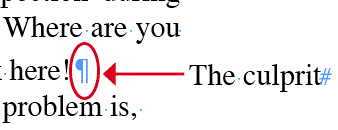
Thus, your formatting (step number two) wasn’t applied to the symbol. And that symbol is causing the entire last line to have a higher leading measure, since in InDesign, a line containing characters with mixed leading amounts forces the entire line to assume the leading of its largest character (or character with the largest leading measure).
It’s obvious why reducing the leading of all the characters except for the symbol made the last line have a larger leading amount.
But why would reducing the point size cause a problem? Because InDesign’s default is to use autoleading, which means as a text selection’s point size is changed, so is its leading. All text in an InDesign document starts out at 12 pt. with autoleading, which at that size is calculated to 14.4 pts.
Reducing the size of the rest of the characters automatically reduces their leading (e.g., reducing it to 10 pts gives them 12 pt autoleading). So you end up with a last line which has some characters with 12 pt. leading, and one character — the end of paragraph symbol — with 14.4 pts. leading. The big boy wins.
The Preference that Only Partially Works
The siren call of that InDesign checkbox, Apply Leading to Entire Paragraphs (Preferences > Type) has led many a Quark convert to a watery whirlpool of frustration.
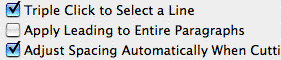
No, turning it on does not mean “Set all my paragraphs to use a single leading amount.” Nor does it mean, “Make leading a paragraph attribute like in QuarkXPress instead of a character attribute as it is in InDesign.”
Turning it on just gives you a convenient shortcut. When it’s enabled, you don’t have to do Step 1 from above – selecting all the characters in a paragraph – to change the paragraph’s leading, you can just click inside the text. Make the leading change and it gets applied to the entire paragraph, including the end-of-paragraph symbol.
Careful reading of the above reveals that the preference has no effect when you change the type size of autoleaded text. You could still end up with a rogue line if you reduce the size of all the characters except for the end-of-paragraph symbol. You didn’t touch the leading field, so the preference doesn’t kick in.
Good Habits Prevent Rogue Results
You will need to change your text formatting habits to avoid tell-tale rogue leading (“I was laid out in InDesign by an old Quark user!”) in your publications. I’m in that camp, and here are the habits that have held me in good stead:
- Turn on Type > Show Hidden Characters when you’re formatting text. It’s easier to remember to include those pesky paragraph symbols in your selections when they’re visible.
- Use Paragraph Styles to change the type size or leading of entire paragraphs instead of manually selecting the text. When applied, they always include the end-of-paragraph symbols, regardless of what’s selected. (Note that Character Styles do not! You shouldn’t be using Character Styles to change everything in a paragraph, anyway, that’s not what they’re for.)
- If for some reason you must (or prefer) to manually format an entire paragraph, don’t drag over the text to select it; quad-click (click four times rapidly) instead. That always selects the entire paragraph, including the end-of-paragraph symbol, even if it’s hidden.
- Go ahead and turn on the Apply Leading to Entire Paragraphs preference if you can’t think of the last time you needed to change the leading of just some of the text in a paragraph. It’s a convenient shortcut you might as well use.
- Avoid autoleading! If you see parentheses around your leading measure in the Control palette’s leading field, autoleading is on. Change it to an absolute number so that type size changes won’t have any unwanted, inadvertent effect on leading.
 |
wow! thanks a lot! That happened a few times with me, and I had NO IDEA why.
Thank you for the great info
One more thing:
The Apply Leading to Entire Paragraphs command does not help if you copy/paste text from one paragraph to another.
The situation is so confusing for ex-Quarkers that I tell my students not to turn on the preference. (Your five points are terrific advice, too.)
That way they don’t lull themselves into the false idea that their paragraphs must contain the same leading throughout.
It also means they are more likely to quad-click to check to make sure a paragraph has no errant leading.
I’ve seen this happen many times but didn’t know there were so many ways to keep away from it. Thanks A-M
Nice write up. To fix a messed up doc, here’s a simple script which should do the trick. (Unless the second to last character is causing trouble too.)
if (app.documents.length
Woops.
The script didn’t paste. (html must have messed it up!)
Here’s a link:
http://www.printisrael.com/indesign/scripts/freeware/FixParaLeading.zip
Harbs
Thanks for the great tip, Anne-Marie, from an ex-Quark user!
thanks a lot! that was illuminating. please keep on studing and helping us to use this good piece of knowledge
Slightly different subject, but I am trying to use Find/Change to locate all ® symbols and apply superscript styling. I can’t find a place to set it in character styles.
Any ideas?
Bill, the setting for Superscript is hiding in the Style Options > Basic Character Formats > Position: dropdown menu.
Hello there from a first time query poster.
My leading in CS2 has just gone haywire and everything I have tried doesn’t change it. I am writing in a table cell and the leading only increases or decreases when it crosses 12pt. When a pt below 12 is clicked on in leading – nothing happens and I am left with a gappy mess of a cell. The leading still works as normal outside of the table. Any ideas?
I have just patched over that problem by copying the text out of the table, adjusting the leading, and then pasting it back in. BUT – the table still seems strange as other cells now do not align centre (vertically) – they are all over the shop. Is the best plan to ditch all of my InDesign defaults? (not keen!)
When I generate the index, the leading between SOME of the lines, is wrong. Since all I did was to mark the index entries, and InDesign generated the text and applied the stylesheets, how is it my fault?
There is no vertical justification, no space between paragraphs, I’ve made the leading auto, or gave it a value. But when an index entry runs into a second line, the leading between it and the next line is reduced.
Please help
@anna: It’s possible that the index entries have character styles applied to them that have different leading. Remember that the largest leading value on the line “wins.” Try placing the text cursor in the line and moving one character at a time with the arrow key until you see if one or more characters has a different size or leading applied to it. Don’t use auto!
An easy way to clean up rogue leading is using a GREP query. Just leave the Find what: and Change to: fields empty, and in both the Find Format: en Change Format: fields choose the Paragraph style that you want to clean up. Then click Change all.
This way, if you have a paragraph mark at the end of a paragraph, that doesn’t match the paragraph style of that paragraph, that paragraph mark will get the correct paragraph style.
I don’t know why it only works by clicking Change all. A individual Find and Change doesn’t work.
I had a similar problem but with an index that stubbornly insisted on applying an Endnote Reference (superscript) style to all the text in index entries. I could override that with a Normal (as opposed to superscript) character style, but that had to be reapplied each time I recreated the index. Nothing worked, not even importing index paragraph styles from a document that did not have the problem.
It was frustrating in that I could see the problem, cursoring through index entries showed the Endnote Reference style every place it was not overrode.
The fix was radical but worked. I deleted that pesky Endnote Reference style entirely from character styles, replacing it with none and taking care to specify that its formatting was not to be preserved.
If you have a similar problem with a rogue character style being applied and refusing to go away, you might try deleting it. And if some text needs that style, create a similar style and apply it to that text. In this case, that Endnote Reference style was not being used. I suspect it was yet another pesky import from Word causing troubles.
I’ve only recently noticed that with “Apply Leading to Entire Paragraphs” turned on, changing the leading in one paragraph affects the leading of the next paragraph. The two paragraphs now have the same leading..
If I turn off “Apply Leading to Entire Paragraph,” things go back to normal, that is, I can change the leading of just the one paragraph I’ve selected.
Even stranger, it only happens if I’ve selected the pilcrow. If I just have the cursor somewhere in the paragraph, or if the entire paragraph is selected without the pilcrow, then the paragraphs are independent. It seems that the problem is the pilcrow! The leading of the pilcrow somehow is linked to the next paragraph.
Am I going crazy? Did I change some preference somewhere? I’m working in CS6 on a Mac running Lion, by the way. Thanks for any help with this.
thank you X a million! your article has ended my many years of frustration with this issue. : )
Thank you for this solution. After trying several others this one did it perfectly!
Thanks again for sharing <3
Thank you! That’ll teach me to work without Hidden Characters visible…