


Search for Foreign Language Characters in Text


Franck wrote us, asking if there was any good way to find just the Japanese characters in an InDesign story. How can you find just those characters? Or just Russian (Cyrillic), or just ornaments, or — for that matter — search for only latin characters? The answer, of course, is the GREP tab of the Find/Change dialog box (CS3 and later).
Finding only Latin Characters
To find just the latin characters, ignoring any special characters, punctuation, numbers, and so on, you could type
[a-z|A-Z]+
into the Find What field of the GREP tab of the Find/Change dialog box. Both the vertical pipe character and the square brackets act as “or” commands, so this means “any character between a and z or between A and Z” (then the plus symbol means a string of one or more of them).
It will not find accented characters because those characters don’t strictly fall between a and z in the unicode lists. It’s all based on unicode numbers, as we’ll see later on.
If you want to find longer strings, including spaces, most punctuation, numbers, and so on, you might use this long list, which offers even more characters inside the “or” square brackets:
[.,;:?!\d a-z|A-Z]+
You can also turn this code around and say “any character that is not in this list” by adding a ^ (caret) symbol at the beginning:
[^.,;:?!\d a-z|A-Z]+
which would find all the non-English characters, such as accents, ornaments, cyrillic, and so on.
Searching for Unicode Ranges
As I mentioned earlier, find/change is all based on unicode values. For example, capital A is 0041, capital Z is 005A, and so on. (Unicode values are based on four hexadecimal numbers, which is a fancy way of saying that each number can be 0-9 or A-F.) So if you know the range of the unicode values, you can really dial the GREP in to exactly what you’re looking for.
For example, here’s some GREP to find all Japanese characters:
([\x{4E00}-\x{9FBF}]|[\x{3040}-\x{309F}]|[\x{30A0}-\x{30FF}])+
It seems complex at first, but after a moment you’ll notice that this is simply a list of three ranges, separated by vertical pipes. Technically, it means, all the characters that fall into the kanji section of Unicode (4E00 to 9FBF) or all the hiragana (3040 to 309F) or all the katakana. (I found those on the Japanese writing system page at wikipedia.)
You could use a similar method to find characters in Bengali (0980-09FF) or just math operators (2200-22FF) or whatever you’d like. I found these and many other unicode ranges at unicode.com/charts.
Applying a Different Font to These Characters
Of course, once you have found the characters, you probably want to do something with them — such as change their font or apply a character style. You can also do that in the Find/Change dialog box:
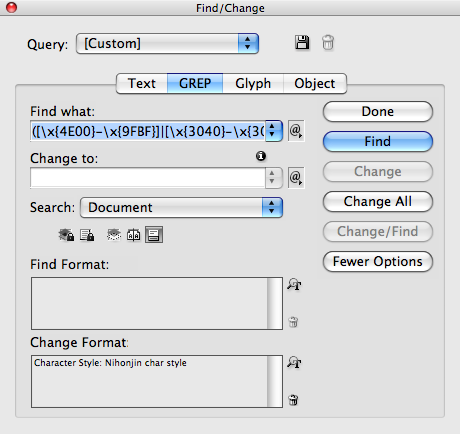
Note that the Change To field is empty. This indicates that you want to leave the text alone — whatever InDesign finds — and only apply the formatting to it.
 |
The nice thing (in CS4) is that you can use these Unicode ranges also in GREP styles, for instance when your default font doesn’t have the characters. Define a character style for the other font and make a GREP style. No need for local formatting then.
i saw this one coming :) thanx david !
Hello David,
No need to separate ranges in character classes with pipes: you can just use one range after the other. And the parentheses create (in this case) just an unnecessary reference. This works fine:
[\x{4E00}-\x{9FBF}\x{3040}-\x{309F}\x{30A0}-\x{30FF}]+
Finally, the last two ranges follow each other with no intervening character (9F + 1 = A0) so that they can be combined:
[\x{4E00}-\x{9FBF}\x{3040}-\x{30FF}]+
Regards,
Peter
Great points and good analysis, Peter. Thank you. I often don’t take the time to finesse the grep codes, once I find something that works.
BTW, I should point out that it was Peter K’s GREP ebook (listed here) in which I first learned the trick to speccing unicode characters.
Hello,
About [a-zA-Z], it is right with both OS and InDesign CS4. But, it isn’t with Mac OS X and InDesign CS3.
As I recently wrote on my blog, [a-z] matches accented characters in Latin-1, Latin-A, Latin-B or Latin add.
Best
I encountered a problem recently in CS4, wherein on typing ‘(apostrophe) or “, accented O – e.g O with a tilde used to be inserted in text.
Is this a problem of text variables or inadvertently i have activated some secret keyboard short-cut for foreign (accented) characters
@Mayoor: I’m not sure what the problem was that you are describing. InDesign should handle those characters just fine. Of course, there are some characters that do not exist inside fonts.
@Mayoor:
“inadvertently i have activated some secret keyboard short-cut for foreign (accented) characters..”
Yes — the one on your system, not a hidden feature of InDesign :-)
If you are using Windows, you might have pressed and released Ctrl+Left Alt (from memory) — it toggles the international keyboard def. Go to your Control Panel, Regional & Language settings, tab Languages, button “Details”, tab Settings, and finally button Key Settings.
Oh, and then hit the button “Change Key Sequence”. Disable both options, if you aren’t using them consciously.
And that was not typed off the top of my head. I s’pose the equivalent on OS X would be a bit easier.
Dear Friends,
I have some transliterated Arabic words like (al-kīrraiba). I would like to find all the non-English words in my text, they are many. The previous formulas did not work for me.
My word is 2013, set to British English.
Thank you for your help
Baker: GREP can only find text with a specific pattern. So, for example, you could find words that begin “al-” but you have to think like a robot: how would a robot know the difference between “shukran” and “sugar”? There’s no way to teach a robot that, because there’s no obvious pattern in the text.
Great post David!
I just wanted to point out that Multilingual Tools as well as World Tools have what I call “Language Styles” which can apply styles based on writing scripts. Besides working in CS2, the extra trick that Language Styles does is that it applies the character styles to punctuation between that language as well (using a trick that I learned from Peter Kahrel quite some time ago).
It currently has Hebrew and Latin (Roman) styles. I expected to add many more (Arabic, Cryllic, Indic, CJK, etc), but I have yet to receive any requests to do so!
Does anyone here have any experience importing text files that have been tagged using Scribe? All my quote marks are coming in as “ (that’s ampersand number sign 8220).
I’m just wondering if it’s a problem with the coding of the file, or if it’s an InDesign setting, or what.
@Lemonshrew: Are these files exported from Scribe as rtf or something? Perhaps it’s an encoding problem. (I have no experience with that. This might be a good thing to ask in the forums. Click Forums in the nav bar above.)
I have tried it but it still complicated for me though…
Any other way?
Thanks for talking about that, I feel strongly about it and love learning more on this topic. If possible, as you gain expertise, would you mind updating your blog with more information? It is extremely helpful for me.
Boy, was this helpful.
Building on Peter’s suggestion, I tried expanding the range to include punctuation characters as the Japanese period, comma, ellipsis, and brackets.
[\x{4E00}-\x{9FBF}\x{3000}-\x{30FF}]+
Hi,
I encountered the problem of Unwanted text break while writing in Nepali font in Indesign cs5, If anyone solve this problem, please help.
Hi,
Does the script format every single character?
Is there a possibility to format words instead of characters?
Thanx,
Chris
Christoph, that’s not how character styles work. Even if you format ‘every single character’, InDesign will ‘see’ it internally as one unbroken list of formatted characters.
You can only “format words” this way if you make sure that the GREP finds entire words only. One way to do this is by adding the code
\bboth before and after the entire GREP sequence, which will act as a ‘word break’.However, if you do so, it will no longer find text strings that do not consist entirely of the characters you search for — for instance, a word in Cyrillic that contains a digit.
Can the script format by page (Story) and not just the entire document?
I used the “any character not in this list” script and didn’t see the option to apply it to Story, just Document. Thanks,
I’ve been trying to figure out how to GREP for characters in the Unicode Private Use Area for the past couple of days now… I’m SO glad I finally found this post!
Thank you!!
Hi, very helpful GREP, but i would ONLY like to select a unicode range when it is an entire paragraph (so i can change paragraph style) and not when it is just a foreign word in a mostly english paragraph.
What can i add to the string to select only full paragraphs?
I tried “$” and “\Z” but my document is set in a table with each paragraph in its own cell, so there are no end breaks after each paragraph.
Any suggestions?
Hi.
I have text like below image.
https://www.dropbox.com/s/bi74it0q836pygx/Untitled.png?dl=0
i use this gerp [a-z|A-Z]+, but numbers or another signs (, . : () [] {} ; and etc) not use of latin fonts, so my texts are disrupted.
I use “Composite Font”, But the problem is still there.
Do you have idea?
thanks.
After installing the chinese Version of ID i found the GREP expression “~K”
when i combine it like this (~K|\p{P*}) it finds all chinese signs and punctuation. No I#m wondering if there is a extra class only for CJK punctuation.
Any suggestions?
Thank you David for directing me to this post via email.
I was able to use a similar GREP search after looking at GREP search above [a-z|A-Z]+
Mine is meant to look for Arabic characters and diacritics within a latin text such as English script. This is what I wrote in the GREP “Find What” filed… [اأؤئ-يٌ|ُ|ً|َ|ٍ|ِ|ْ|ّ]
Any user may add further characters or glyphs if it doesn’t fall within above mentioned search criteria.
Windows users, don’t forget the “Character map”, that tiny little program that show all characters and glyphs in it. It also displays the Unicode value and user also could separate the categories of font by latin, numbers, arabic, japanese and list goes on!
run by just type “Character map” in start\run .
Great thread!
David, I bought Peter Kahrel’s book and it’s wonderful. I do have an issue though, and I don’t see it addressed in the book or here. I’ve assigned a grep style to all hebrew characters by unicode range, but the spaces and punctuation don’t come along. Since Hebrew is right to left direction, that poses a problem. Is there a way to include a space that is surrounded by the unicode range to be included?
Less important would be a single or double quote marks connected to the unicode range, as the punctuation in the Hebrew font looks different.
Wait – I just realized that the spaces are not an issue. The file I was working on was set to left to right direction instead of default.
But I’m still left with the question of punctuation. Is there a way to add to the grep command, any single or double quotes connected to the unicode range?
Hello, I have a text in spanish, how can I find all the words in english and put all of them in italic with grep indesing? Thank you in advance.