


Turn Any Object Into a Transparency Mask


A mask covers your face so you can’t see it, right? And masking tape covers something so that when you paint over it, the thing under the tape (usually a wall or a window) doesn’t get painted. Digital masking tape is the same: It covers or masks something so you don’t see it.
Last year I pointed out Pariah Burke’s trick for masking things with text. But I had completely forgotten about it until this morning when I needed something like it… but in this case, masking with a non-text object. So, just in case you didn’t see his post, or, like me, you didn’t put it in your brain in the “this works with anything, not just text” category:
You can make any object or text or path into a transparency mask in InDesign. For example, here are two pictures, along with some text and a starburst polygon:

The trick to making the text and starburst into masks is first to set their opacity to zero percent in the Effects panel (Transparency palette in CS2) so that they disappear:
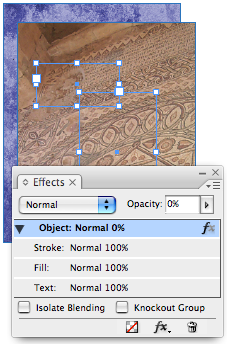
Then group those objects with what you want to apply the mask to (in this case the brown mosaic photo), and turn on the Knockout Group checkbox in the Effects panel.

That’s it! Knockout Group means “make the objects in the group opaque to each other,” but it also appears to mean “apply transparency effects to the group as a whole” so InDesign applies the zero percent opacity to the mask objects and the objects they’re grouped with.
Okay, I sound like I think this is logical and proper, but the truth is, I’m quite astonished this works at all.
 |
Wow, that’s inspirational, I could never reason why I would use the Knockout Group though, I didn’t ever need a use for it. My first thought on this would be to make a compound path.
I would do this by Selecting the Shape and then Selecting the Background (the mosaic in Davids Example) and then using the Pathfinder to Substract (or Paths>Create Compound Path).
You can always release the compound path if you don’t want the knock out any more. Although, you do have to make the text outlines, otherwise you get a blank shape of your text box.
*awaiting onslaught for using this technique*
Many thanks for posting the idea and technique, I’d never have dreamed of doing it like that. It’s great.
Hi Dave
Maybe I’m missing something but what is the difference with the trick I have explained here on InDesign Secrets Podcast #21 https://creativepro.com/indesignsecrets-podcast-021.php ?
“A transparent Object with an opaque shadow” ?
-> https://www.milic.com/indesign/formations/didacticiels-pdf/idtt/milic-id-transparencycooleffects.pdf
“Okay, I sound like I think this is logical and proper”
Don’t worry, you don’t ;) I don’t have a clue why this works as it does, but it’s good to know! Now this is an “obscure feature of the wee-ee-ee-k, isn’t it?
Wow Branislav, that PDF is great.
David, thanks — kinda weird, maybe, but it’s Real Knowledge still. And it helps me to better understand the Knockout Group option, which, together with Isolate Blending, still isn’t crystal clear to me. How about expounding lucidly on these matters in a podcast? (OK, maybe you already did so, in #8 or #13, but hey, I can’t be expected to carry a mental inventory of your entire oevre in my poor head!)
I could always earlier have found ways to make “holes” in a graphic, with masks or Pathfinder operations. But what is so great about this approach is that all text in the group which is used to cookie-cut the graphic still remains normally editable and movable! Such flexibility is a great gift to all us deadline-ruled creatures.
David’s Illogical Mask Trick can also work some soft, alpha-channel wonders if you use, for instance, a Directional Feather or Gradient Feather on your InDesign mask object. To create such soft-edge cooking-cutting, I would previously have made an alpha mask in Photoshop on a bitmap image — but that turns out to be quite unnecessary now! Furthermore, David’s Illogical Mask Trick also works fine on all kinds of text and vector graphics, so we’re not limited to pixel graphics. And we retain infinite editing flexibility.
Eugene, compound objects sort of work, but they’re a major hassle. More importantly, however, you can’t make a soft-alpha-edge mask with a compound object, as I showed above.
Branislav, I knew you had done those cool transparency effects, but I couldn’t find the link to the PDF! Thanks for reminding me where that is on our own site. Yes, Branislav’s PDF is a “must read” for ID users.
Hi David, I was actually just explaining how I used to do it (up until today), the soft edges is a sweet touch and certainly a nice concept.
Every time you guys make a new post I learn something new.
Great and such a simple technique. Only yesterday I had used the pathfinder to create a similar effect. This is much better. Thank you David.
Does anyone know if you can create 3D effects in InDesign? I know about the drop shadow feature but was looking for something similar to the 3D effects you can do with shapes in Powerpoint. Thanks
Is there any way to exclude the text frame from the mask? Even with the stroke set to “None” it still is knocking out?
Tiffany, sorry, I don’t know of anything like that other than my favorite InDesign vector plug-in: Illustrator! It works great, and you can copy and paste vectors back and forth.
John, the text frame is knocking out? Are you sure it’s really knocking out in the final PDF or print? Not just on screen? I see the frame knock out, too, until I go into Preview mode (press W) or print or export. Just a screen artifact, I think.
Thanks David! That’s all it was. Man! What a cool trick!
Thanks David and Branislav! fun tricks :)
thanks David! very nice technics
John Stanfield said:
February 4th, 2008 at 7:20 pm
Is there any way to exclude the text frame from the mask? Even with the stroke set to ?None? it still is knocking out?
Hi John: Try Command Ctrl H to Show/Hide Frame Edges
How can I create a mask in illustrator, bring the mask into indesign and place in image it
Stacey, a mask in Illustrator is also just a path, which you can copy and paste into InDesign.
Thanks for the tip, EXACTLY what I was looking for, works great!
Thank you so much! This tip was just what I needed. It works great!!
This is a tip top tip! Worked a treat. However I’m either insane, or this effect doesn’t export to PDF properly..? When I use any of the export presets (including High Quality Print or Press Quality) the knockout is simply ignored. However exporting to JPEG is fine. W-E-I-R-D.
I’m wondering if this is related to other problems I’ve been having exporting transparencies (see a forum post I left yesterday: https://creativepro.com/forum/general-indesign-topics/transparency-in-gradient-feather-doesnt-export-to-pdf)
Anyone else have this problem?
Yours frustratedly,
Matt
@matti55: I answered your question there, on the forums.
Link?
The result I want is an oval photo, but cannot figure out how to sandwich the photo, rectangle, and elipse to make it happen.
This tutorial is great! However, I am experiencing problems exporting the effect described on this page into a PDF… Can someone give me a direct link to a page with a solution? Thank you!
@Fabricepmw: Is the question answered on that forum post linked in the comments above yours?
@Michael: I’m not sure what you’re trying to do. If you just want to have a photo in an oval, then select the image’s frame with the Selection tool and choose Object > Convert Shape > Ellipse.
Say David, that forum link now, unfortunately, direct to a 404 page not found error.
I too was unable to export this to PDF … I barely caught the error in time for turn-in on a school project, and had to go back in to outline my text and use the pathfinder tool as a workaround.
Would you be able to to add the PDF fix to the tutorial? Because without it, this effect seems to be largely counterproductive.
That is really frustrating… our forums are broken (we’re trying to get them fixed). And that was so long ago that I don’t remember what I said on that forum thread!
The quick version is that this absolutely does work. Are you looking at the exported PDF in Acrobat? It wouldn’t surprise me if the PDF doesn’t look right in some other non-Adobe PDF readers (such as Mac OS X Preview). In fact, I just tried it and it does not look right in Preview… unless you export as a flattened PDF (such as PDF/x-1a).
But if you open it in Acrobat, it looks fine however you do it. (Preview messes up all kinds of PDFs, not just these.)
Only the outline of the polygon goes transparent when I apply this technique. Any settings I may not have correct?