


Using GREP Styles to Format HTML Code in InDesign


[This is an article written by Claudio Marconato from Italy and reprinted with his permission. We’ve made only minor edits. Claudio presented this at the Ignite InDesign event at the Print and ePublshing Conference in Seattle a couple of weeks ago. We were impressed, so he graciously wrote it up and sent it to us.]
GREP Styles is one of the most powerful features added in InDesign CS4. Using GREP Styles, you can set a GREP expression to apply a character style to a range of characters in a very smart and dynamic way.
Recently I’ve discovered the possibility of using multiple GREP expressions to select the a range of characters and apply a sort of ‘cascading character styles’. You can’t apply multiple styles to the same range of characters using the standard character styles panel, but with GREP style you can, so you can use character styles in a way that is very similar to the HTML and CSS way.
With this technique you can set one character style that contains only the definition of the text color (e.g. red) and another one that contains only the definition of the text weight (e.g. bold). After that you can apply those styles combining the definitions.
Let me show you an example.
Here is a very simple piece of HTML code:
<p>This is a paragraph of plain text</p>
<p>In this paragraph there’s <strong>some bold text with some <em>italic text</em> inside</strong></p>
<p>Using GREP styles you can apply multiple styles at the same characters, for example you can apply a <font color=?red?>red color and also <strong>bold text</strong> using two separate styles with only one attribute each</font> as you can do with HTML and CSS</p>
<p>Enjoy</p>
If you save this text in a text file and save it with an .html extension, you can open it in Safari or Firefox and look how those web browsers render the HTML code, it’s something like this screenshot:
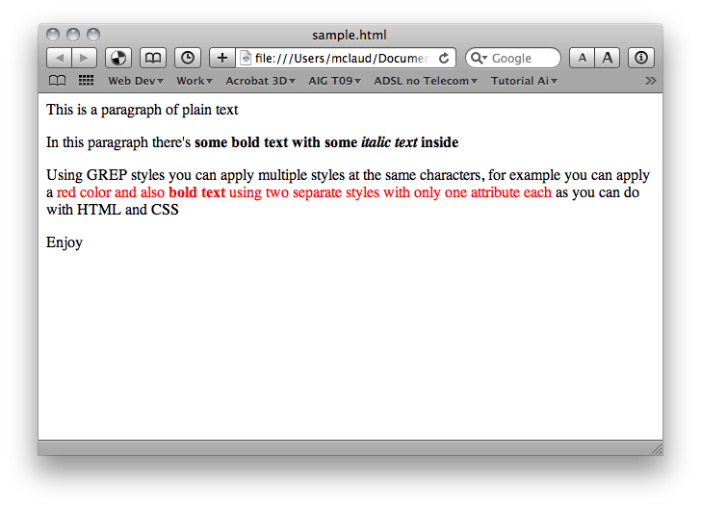
Of course, InDesign does not read HTML. But you can simulate this same rendering with InDesign by applying some character styles with GREP, leaving the original text untouched.
Step 1: copy and paste from a text editor to InDesign with all the HTML code. Here I have made a paragraph style called ‘plain text’ to simulate a text editor:
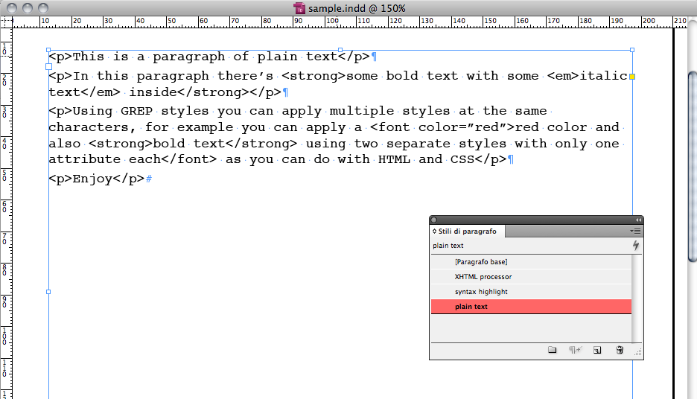
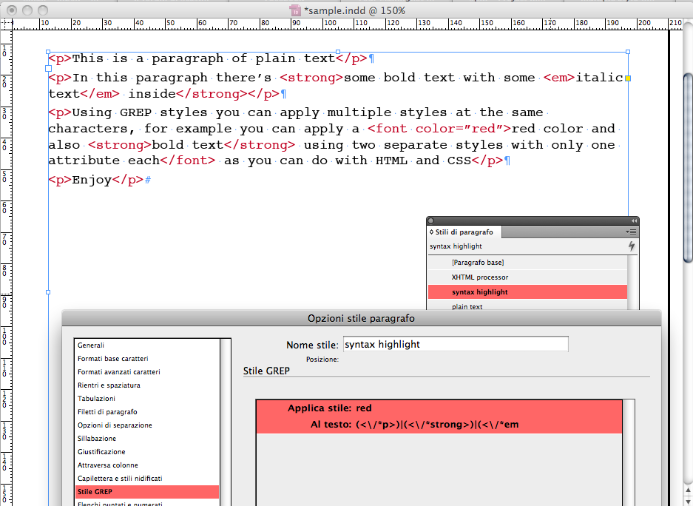
Step 2: I’ve created a paragraph style called ‘syntax highlight’ to simulate an HTML editor like Dreamweaver that highlights the HTML tags, you can do this with a single GREP expression that select all the tags, and you can add as many tags as you need:
(<\/*p>)|(<\/*strong>)|(<\/*em>)|(<\/*font( color="red")*>)
This is the result:
Step 3: Now you need to hide the tags and apply some styles to simulate a web browser. I have used the same GREP expression as before to apply a character style with a size of 0.1 pt (the minimum I can set with InDesign), a horizontal and vertical scale of 1%, and a color of ‘none’. With these settings the text of the tags become invisible!
Step 4: Finally, I can add some other GREP expression for formatting the text:
(<strong>).+(</strong>) for bold (that is, I apply a bold character style to that code in grep styles)
(<em>).+(</em>) for italic
(<font color=”red”>).+(</font>) for red color
(<em>).+(</em>)(?=.+</strong>) for bold italic
After creating each of these grep styles inside my paragraph styles, here is the result:

As you can see, I’ve defined one style for red text and one style for bold text. Then I applied red and bold separately, and as a result I’ve obtained a text that is red and also bold, two properties of the text that are defined in two different styles.
There are many instances in InDesign where you want to apply multiple characters styles to the same text. I hope you find this technique useful!
 |
This looks really good, but all I can think of is You Can’t Parse HTML With Regular Expressions :)
That is funny.
Yes, it is true that this grep styles regex “parser” is very simple and of course won’t work for many html pages. But the basic idea is interesting and can be reworked for specific purposes.
Verrry gooood !
Good example again…
But your last screen capture is not what peoples will get when they apply the grep in a styles because it will not remove the various , in the text file. To remove them they will need be run (and modified) as a series of Grep Queries.
One small issue with the regular expressions though.
Imagine in “this is some text” everything have a character style applied.. “.+” can be a bit greedy.
“.*?” will work better because “.*?” is not greedy.
Also the parentheses are not needed :)
Anyways, I love how it is possible to add multiple character styles to text using grep styles! Just have to take note in what order styles are added to the text depending on the order the GREP styles are arranged.
Ok, now I feel stupid to have jump to the end of the article and not having seen your “trick” to hide the coding in steps 3.
Thank you David for the opportunity, and thank to all of you for your comments!
Hello,
Just for the fun, have a look on indigrep.com to have an example of “Grep Styles and HTML dynamic”
https://bit.ly/9sMi9z
Best
@Tournier: That is great! Thanks for the link and making a movie of the result.
@Tournier: very cool
@Thomas Silkjær: thank you for digging on GREP syntax
@Skilldrick: sorry, probably I had to write “XHTML”
This is great for applying character styles with GREP. My immediate need though would be to apply Paragraph styles with GREP. Is there a way to do so?
@Evan: You can open the find/change dialog box, switch to the GREP tab, type the grep code in Find What, then leave Change to blank. Then use the Change to Formatting field (in the More Options section) to apply a paragraph style. That will find the grep and then apply the style.
@Thomas — thanks for the non-greedy *? tweak…
Wow. thanks for this tutorial, this really rocks! We have DB output with formating in HTML and formating based on this HTML was done in 3 minutes. Thanks!
This tutorial is great, but how do I create a grep style to make the tag work?
This tutorial is great, but how do i get the paragraph tag to work?
Simon, this is not meant to do a full conversion from HTML to InDesign. GREP styles, as described in the article, can assign character styles only.
If you want to assign paragraph styles to paragraph (“block”) elements, you need to use the regular GREP search-and-replace.
You only have to assign the proper paragraph styles, and then you can hide the tag markers as described.
It is great~
Thank you very much for this info.
It seems to me that something like ().+() will not work if you use that style more then once in the same paragraph.
So example text
Italic textsomething not italic some more italic text
If you try and use to the grep search ().+() will selects everything from the first tag to the last so “something not italic” is also going to be italic. Anyway around this ?
It seems to me that something like (<i>).+(</i>) will not work if you use that style more then once in the same paragraph.
So example text
<i>Italic text</i>something not italic <i>some more italic text</i>
If you try and use to the grep search (<i>).+(</i>) will selects everything from the first tag to the last so “something not italic” is also going to be italic. Anyway around this ?
Sorry I messed up with the tags.
OK both of these will do the tricks suggested on the indesign forum
(<i>).+?(</i>)
or
(<i>)[^</>]+(</i>)
Comes from here
https://forums.adobe.com/thread/2411546